Administration
In the Settings section, you can update your profile details (admin or member name), add team members, and configure both AI and WhatsApp. This is where you personalize your customer experience and tailor Ringo to your business needs.
Last updated 9 months ago
Team Access
Ringo lets you assign team roles within your workspace so you can manage access and responsibilities easily.
Admin – Can manage all workspace settings and invite new members.
Member – Can use all workspace features but cannot manage workspace-level settings or remove members.
For instructions on adding team members, see our guide here.
Admin vs Member Access:
How to change a member’s role:
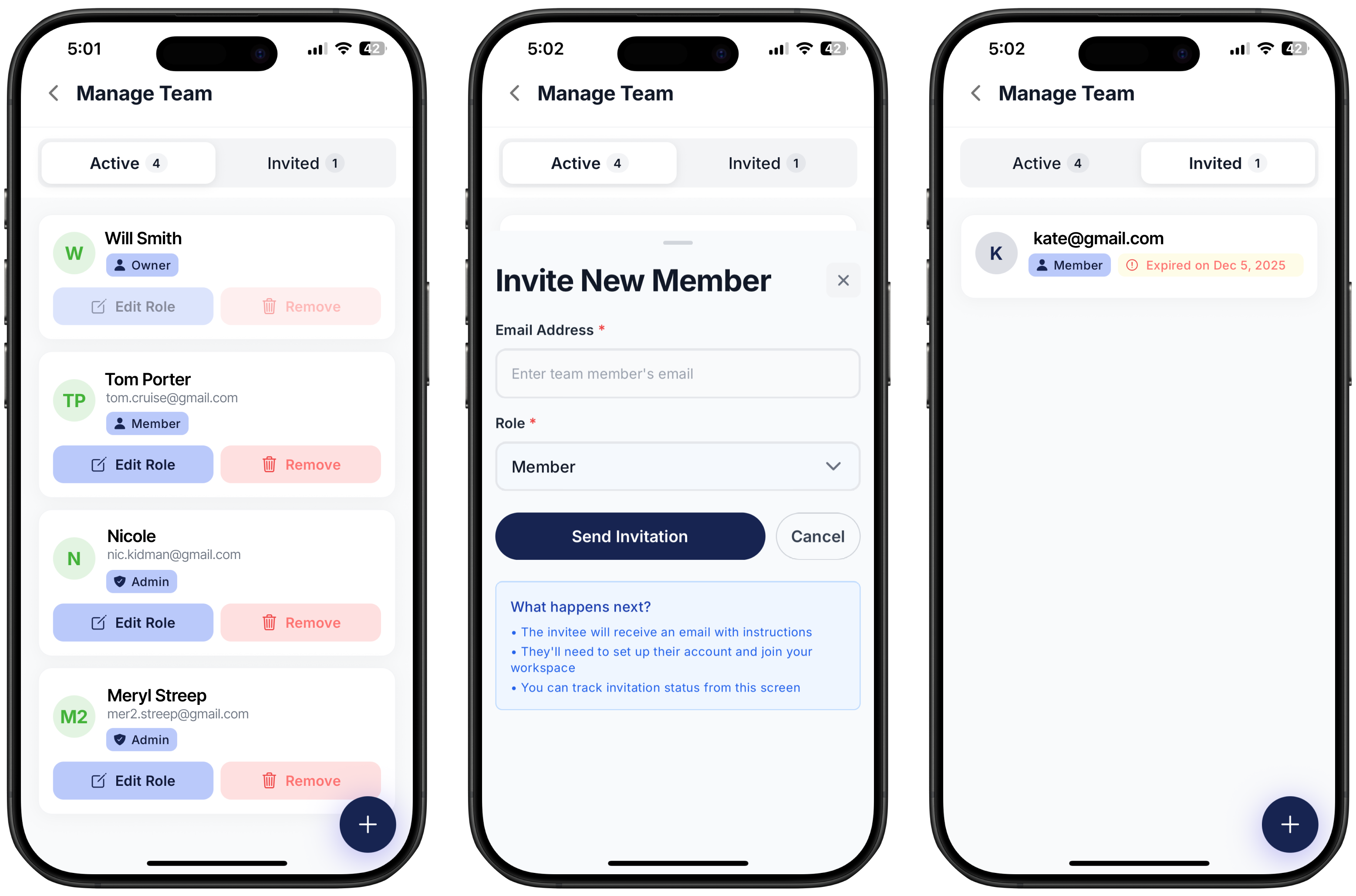
Go to Settings
Click on “Manage Team”
Select team member
Click on “Edit Role” to change their access rights
You can also check who was invited on the “Invited tabs”
Each invite sent lasts 7 days, after that a new invite needs to be sent
AI Assistant Tools
Ringo includes several AI-powered assistants to help automate your business:
AI Call Assistant – Learn more here
AI Message Assistant – Learn more here
First Responder – Learn more here
Messaging Channels
Manage your communication channels from this section:
US Carrier Registration & Management – Details here
WhatsApp Setup – Details here
WhatsApp Templates – Details here
App Status
Under Settings → Support, you’ll find App Status, which provides diagnostic information you can share with our team if you run into any issues.
How to Delete Your Account
To delete your account:
Go to Settings
Scroll down to Support
Tap “Delete Account”