Create & Send WhatsApp Templates
In this guide, we’ll walk you through how to create WhatsApp templates and get them approved directly from the Ringo app. You’ll also learn how to send, manage, and track WhatsApp messages,all in one place.
Last updated 9 months ago
Where to find WhatsApp in Ringo
WhatsApp is accessible directly inside any conversation with a customer.
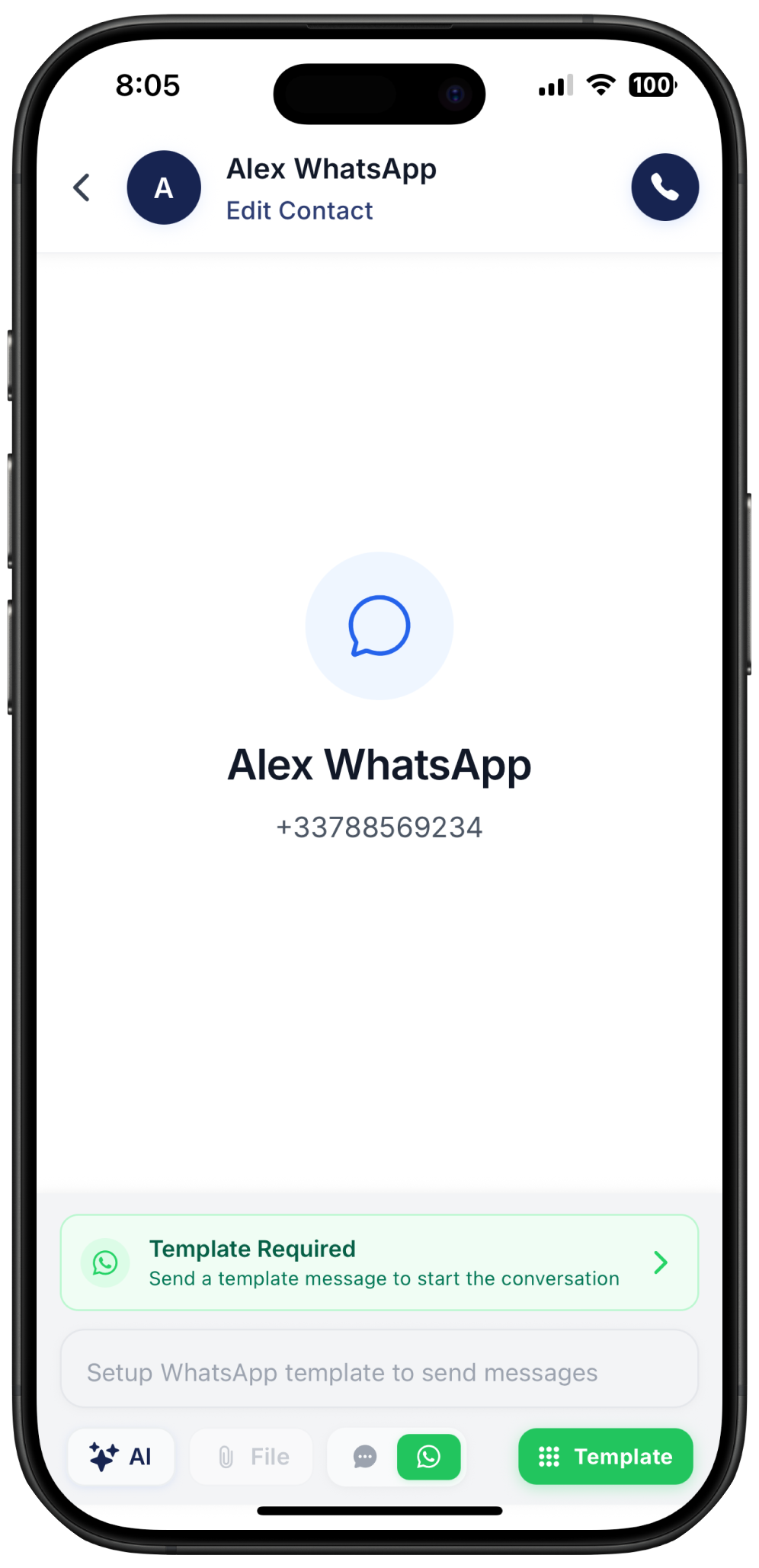
Go to Inbox
Open any chat
Look for the WhatsApp toggle at the bottom center of the screen
Switch it on to send your message via WhatsApp
Every message will appear with a WhatsApp logo next to it.
How to send a WhatsApp template?
Once in the chat, make sure you are on the WhatsApp space as explained above.
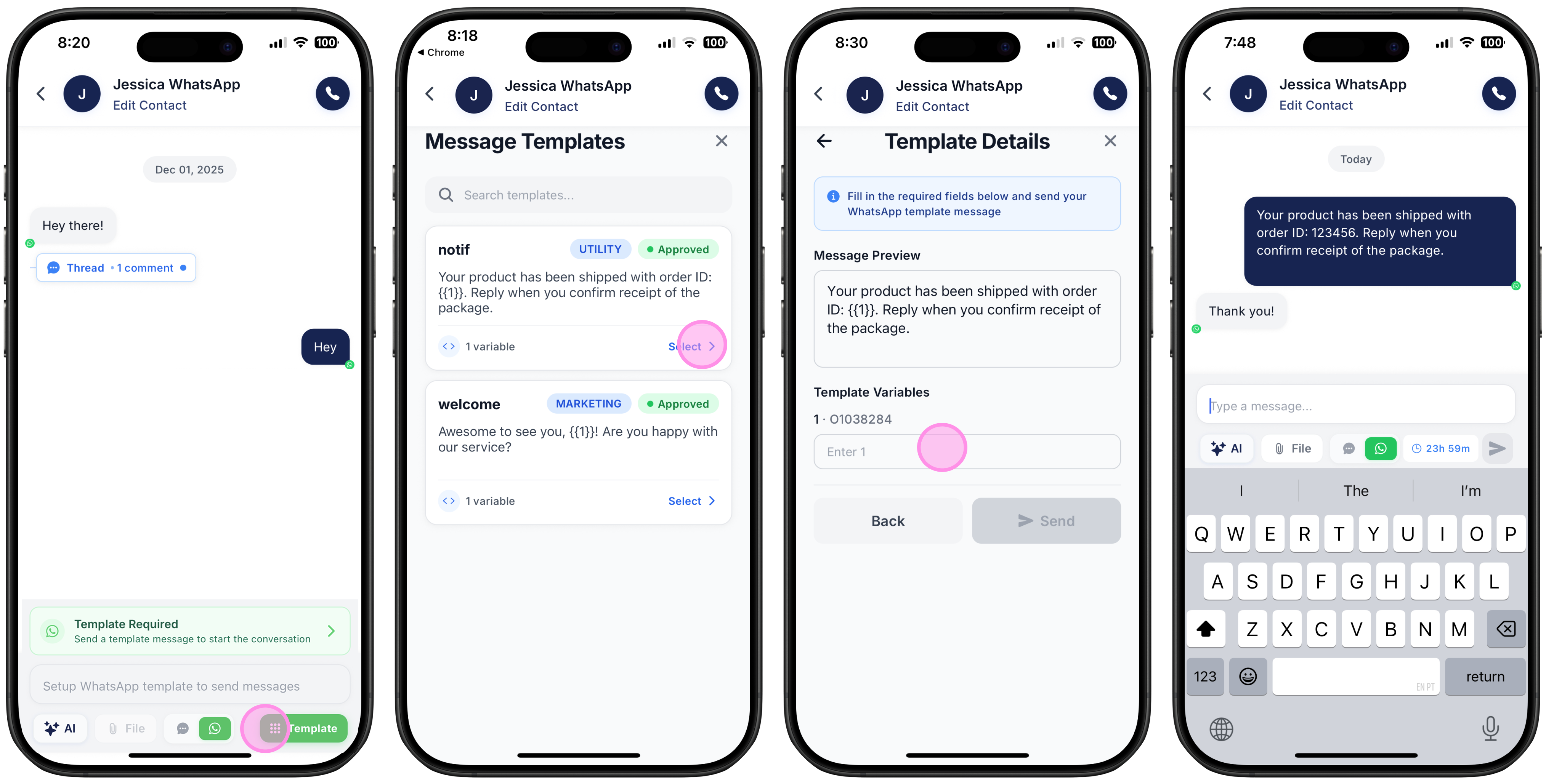
Click on “template”
Select one of your approved templates
If there are any variables make sure to fill it with the respective needed information
And click“send” - once sent a 24 hours window of communication opens, you can check the timer on the bottom right corner of your screen.
If your 24 hour window of communication has been closed after an exchange, then you won’t be able to send any WhatsApp messages without picking and sending a template first.
Where can I create a WhatsApp template?
Creating a WhatsApp template from Ringo is very easy and you do not need to go to Meta to do it.
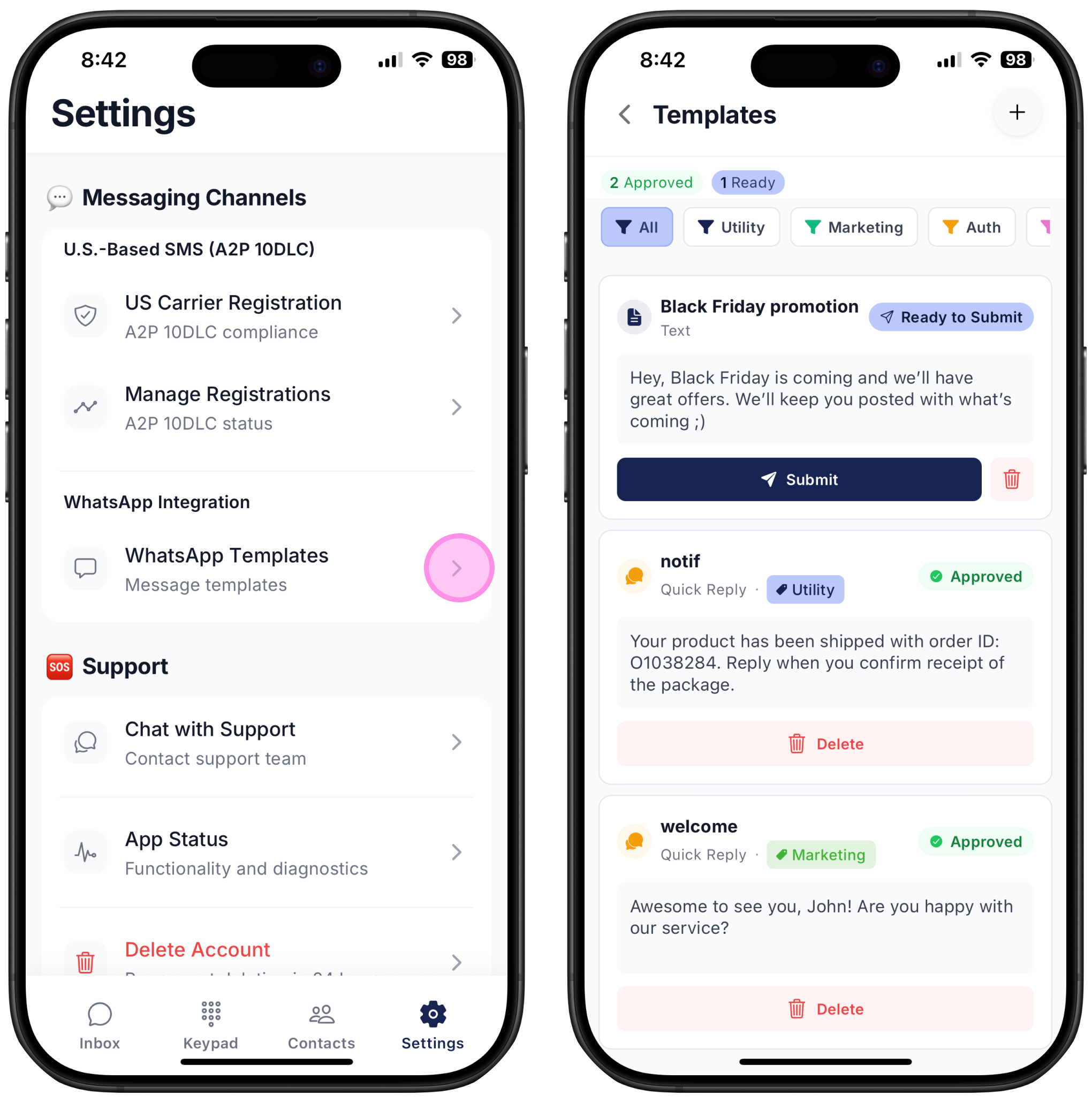
Go to Ringo’s Settings
Scroll down to WhatsApp Integration
Click on “WhatsApp Templates” to check which templates have been created, or if you want to create new ones
You can only create a template if you have registered with Meta first, if you haven’t please check here for more information.
You can only create a template if you are an Admin or an Owner, if you are only a Team member then it’s not possible. However, you can still send WhatsApp templates that have been created by other team members.
On Ringo’s WhatsApp Templates page, you can view all the templates that have been created in your workspace, see which ones are approved, and filter them by template type.
Approved – Meta has reviewed and approved these templates, so you can use them directly in customer chats.
Ready to submit – You’ve started creating these templates, but they haven’t been fully completed or submitted to Meta for approval yet.
Starting a new template
Click on the + button on the templates page to get started.
Create a template name which will serve internally for tracking purposes
Choose a language
Choose a Content Type - Text, Media, List Picker, Call to Action or Quick Reply
After choosing the content type you need to pick a Message Category - Utility, Marketing, Authentication or Transactional. Fore more information on this check here.
Text Template
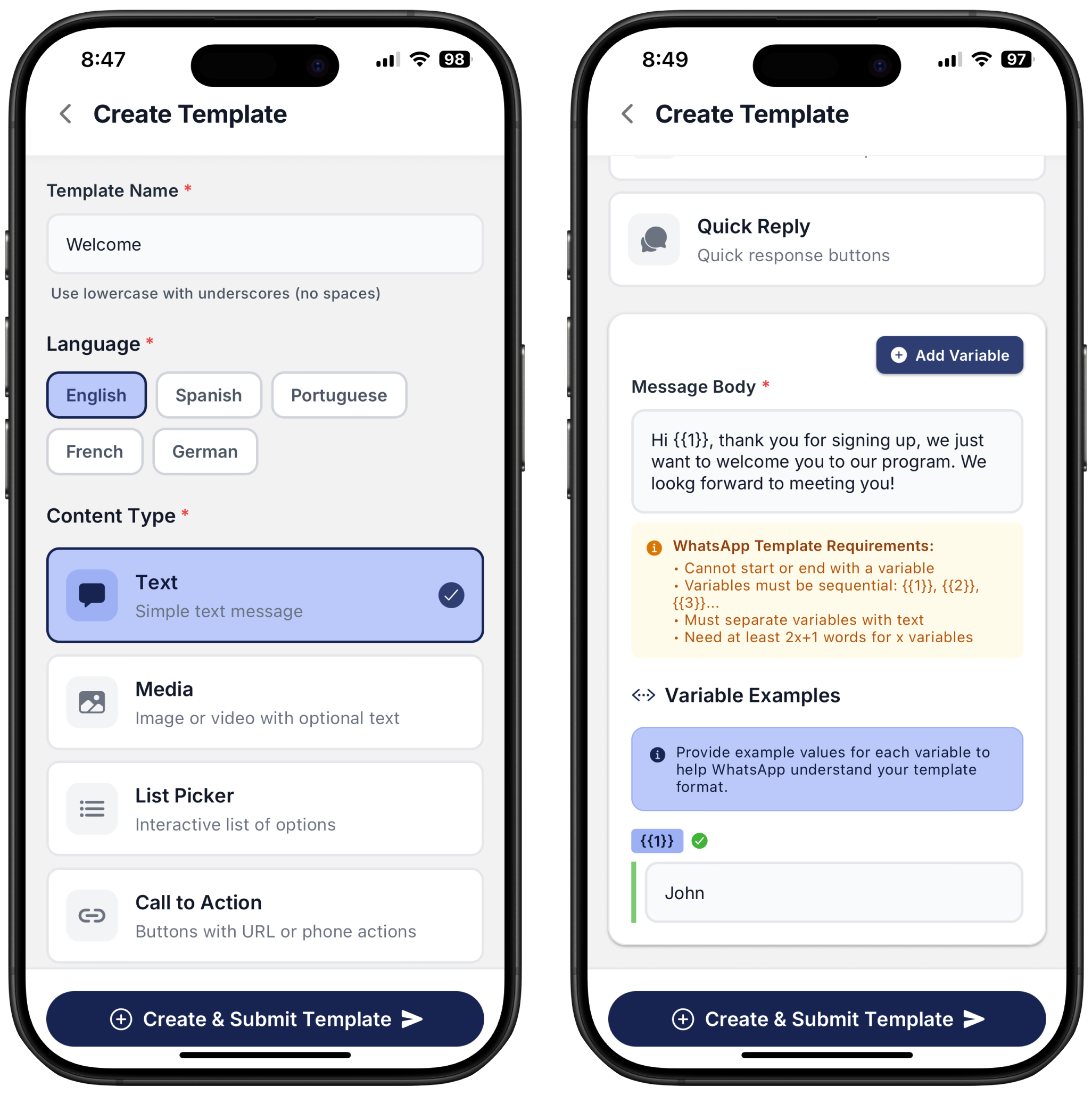
It is a plain text message, it can be an order update, a reminder, a promotion, an alert, or any type of structured message your business needs.
When writing your message, you can include variables so your templates can dynamically insert customer-specific information such as names, dates, order numbers, etc.
Make sure to pick your template type before submitting.
Media Template
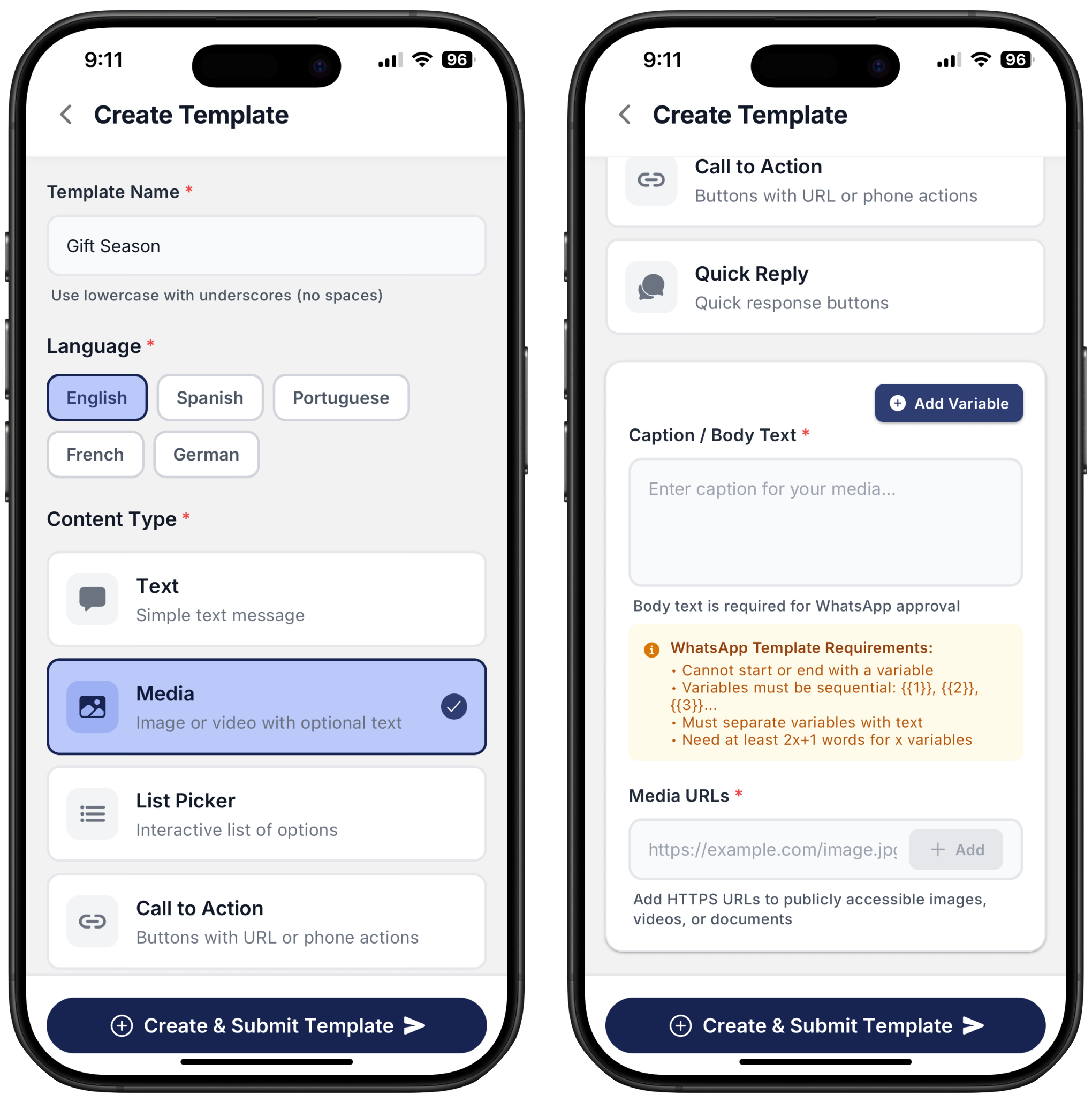
A media template works just like a text template, but with the added ability to include media elements, such as images, videos, documents, or PDFs. You can still use variables in the body text, and you can also insert media through a URL.
Media templates are often used for product catalogs, order confirmations with attachments, tickets, invoices, brochures, etc.
How Media Works in a Template
In a media template, you can include:
Image
Video
Document (PDF, invoice, ticket, etc.)
When submitting the template, you must provide a publicly accessible media URL so Meta can validate the file.
How to Insert Your Media URL
Choose the media type (image, video, or document).
Paste your publicly accessible media URL into the corresponding field.
Make sure the URL is stable and does not expire quickly, Meta may re-check it during approvals.
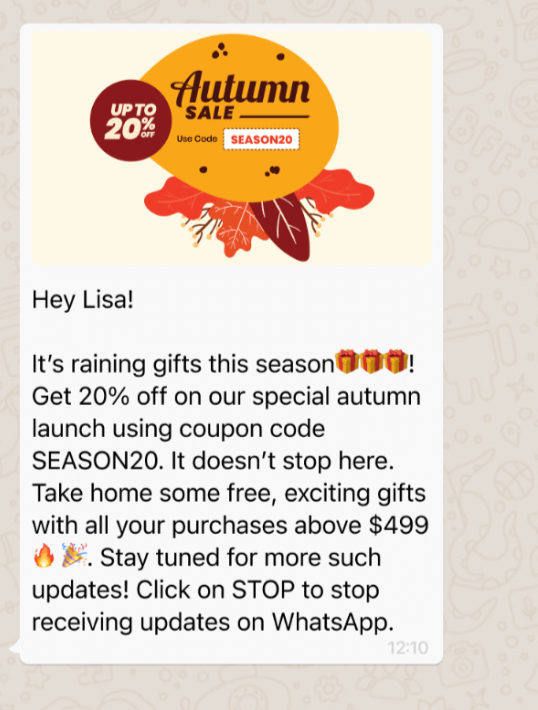
How it shows for the customer once he receives a Media Type message:
List Picker Template
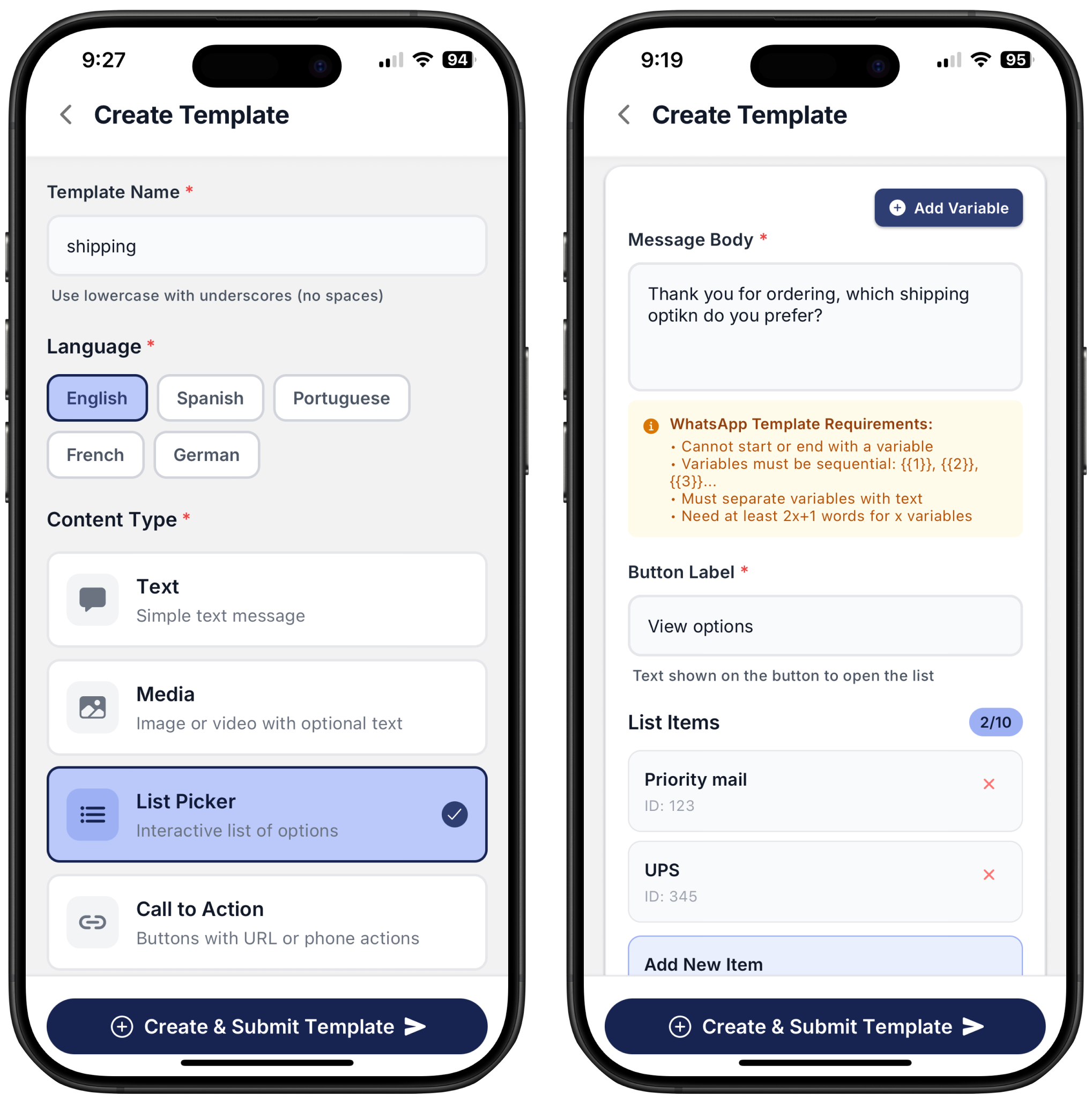
A List Picker template lets you send an interactive message where users choose from a predefined list, ideal for options like product categories, appointment times, support topics, or delivery locations.
Template Structure
Message Body
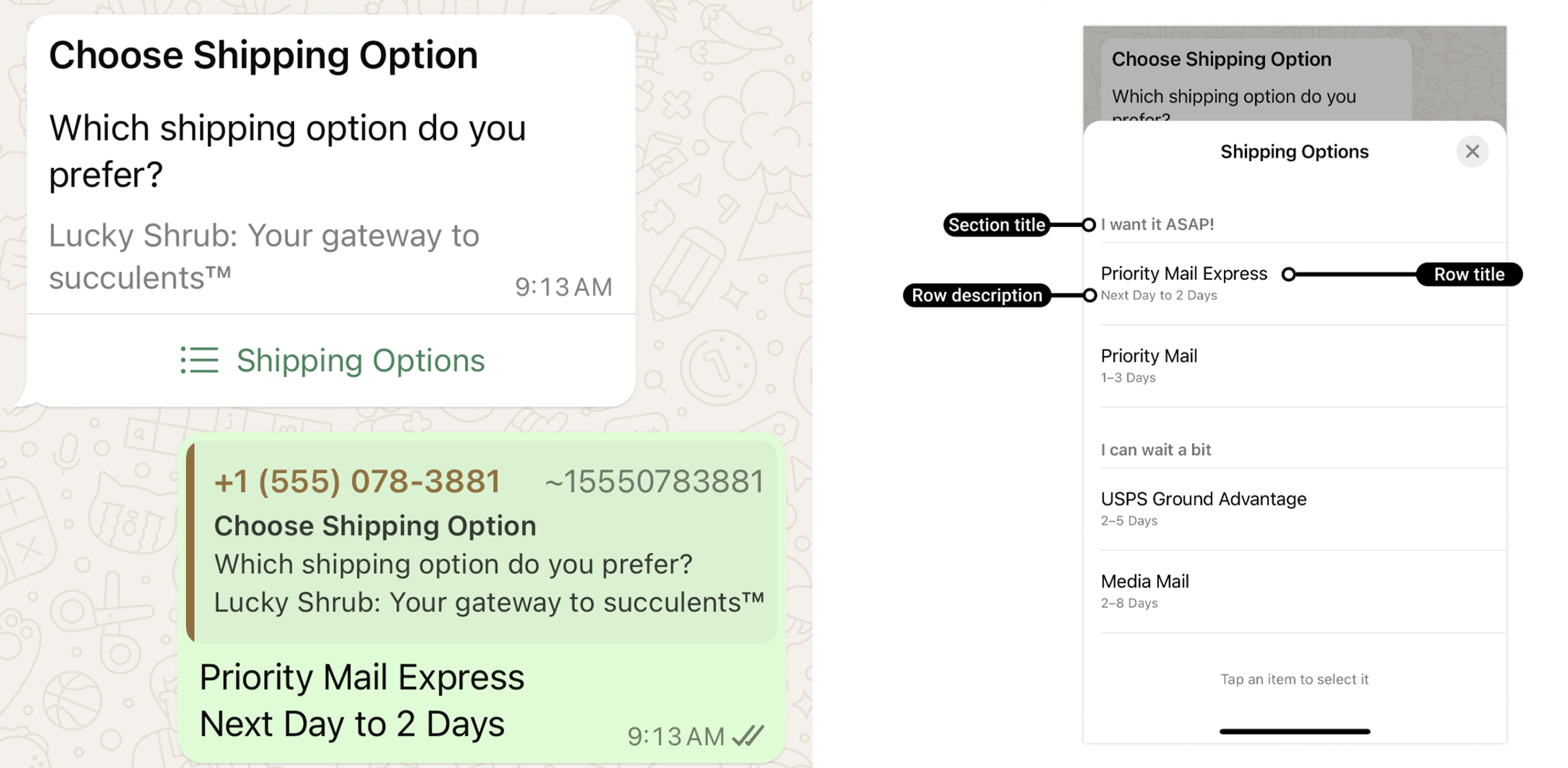
The text shown above the list.
You can use variables here (following standard WhatsApp rules).
Example:
Hi {{1}}, please choose an option below.Button label - test shown on the button to open the list
List Items
Each item includes:
A title (required)
ID (required) - Every List Picker item must have an ID. WhatsApp requires it because the ID is the unique identifier that gets sent back to your system when the customer selects that item.
A description (optional)
Up to 10 items are allowed.
Examples:
Track Order
Billing Support
Book Appointment
📌 Rules & Requirements
Variables only allowed in the body (not in list item titles).
Variables cannot start/end the message, must be sequential, and cannot be placed back-to-back.
Must follow the 2X + 1 word rule (minimum word count when variables are used).
List titles must be clear and non-promotional.
How it shows for the customer once he receives a List Picker Type message:
Call-To-Action (CTA) Template
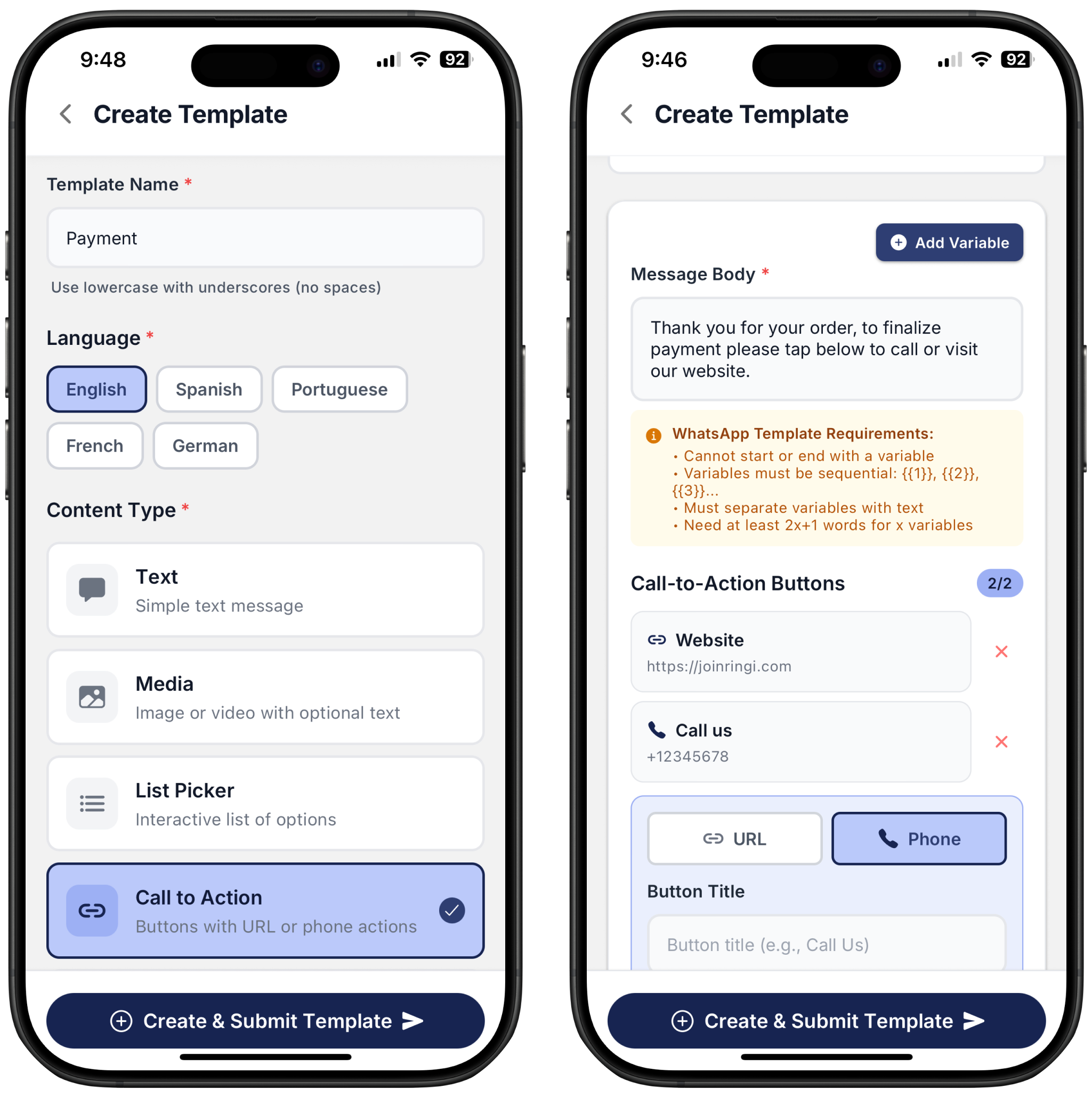
A Call-To-Action template lets you add interactive buttons to your message so users can take immediate action with one tap. CTAs are ideal for driving traffic, confirming actions, or enabling quick contact.
What You Can Include
CTA templates can contain:
Message Body
You can add variables just like in text templates.
Example:
Hi {{1}}, your order is ready. Tap below for details.Interactive CTA Buttons
You can include up to 2 buttons, choosing from:
Visit Website (opens a URL)
Call Phone Number (starts a call)
Examples:
"Track Order" → URL
"Call Support" → Phone number
📌 Rules & Requirements
Variables follow standard WhatsApp rules (no starting/ending with a variable, sequential, etc.).
URLs must be valid and match the format chosen in the button settings.
Phone numbers must be complete, including country code.
Buttons must be action-oriented (e.g., “View Details,” “Call Support”).
No promotional claims inside the button text.
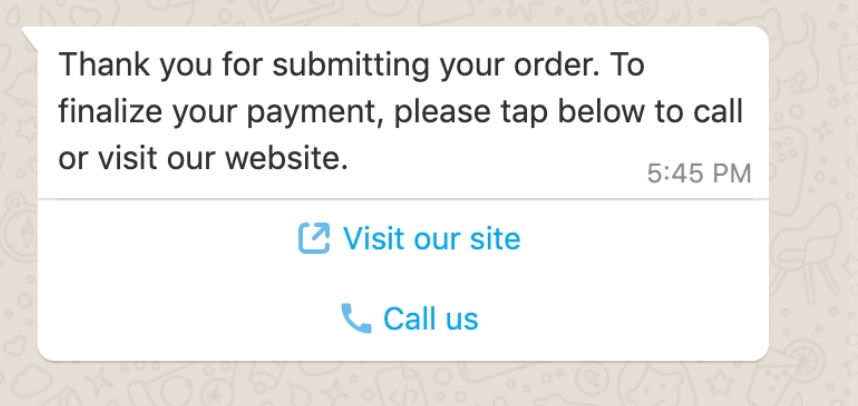
How it shows for the customer once he receives a CTA Type message:
Quick Reply Template
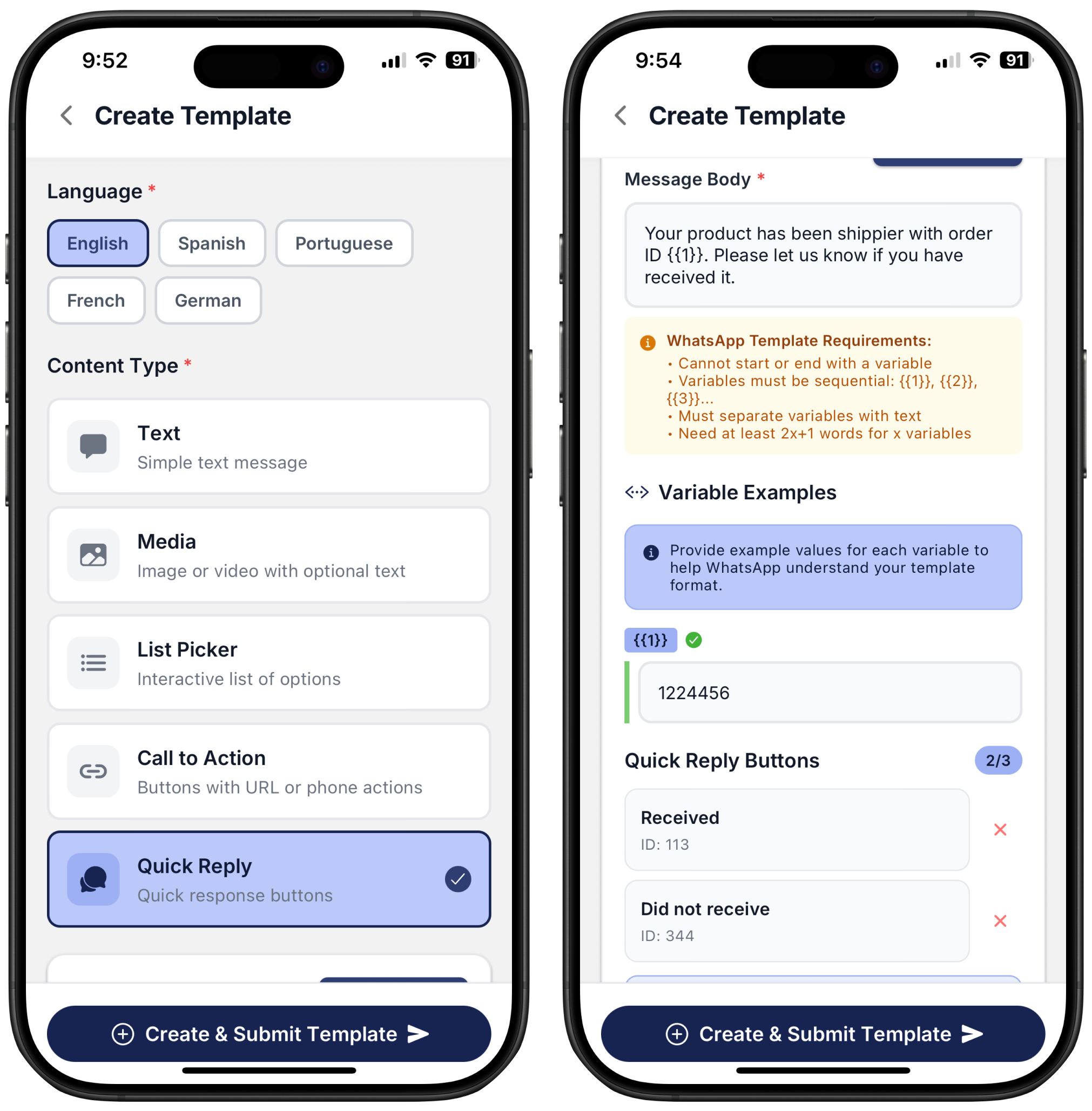
A Quick Reply template lets you add interactive buttons that send predefined responses when tapped. These are useful for confirmations, customer choices, or guiding users through steps quickly.
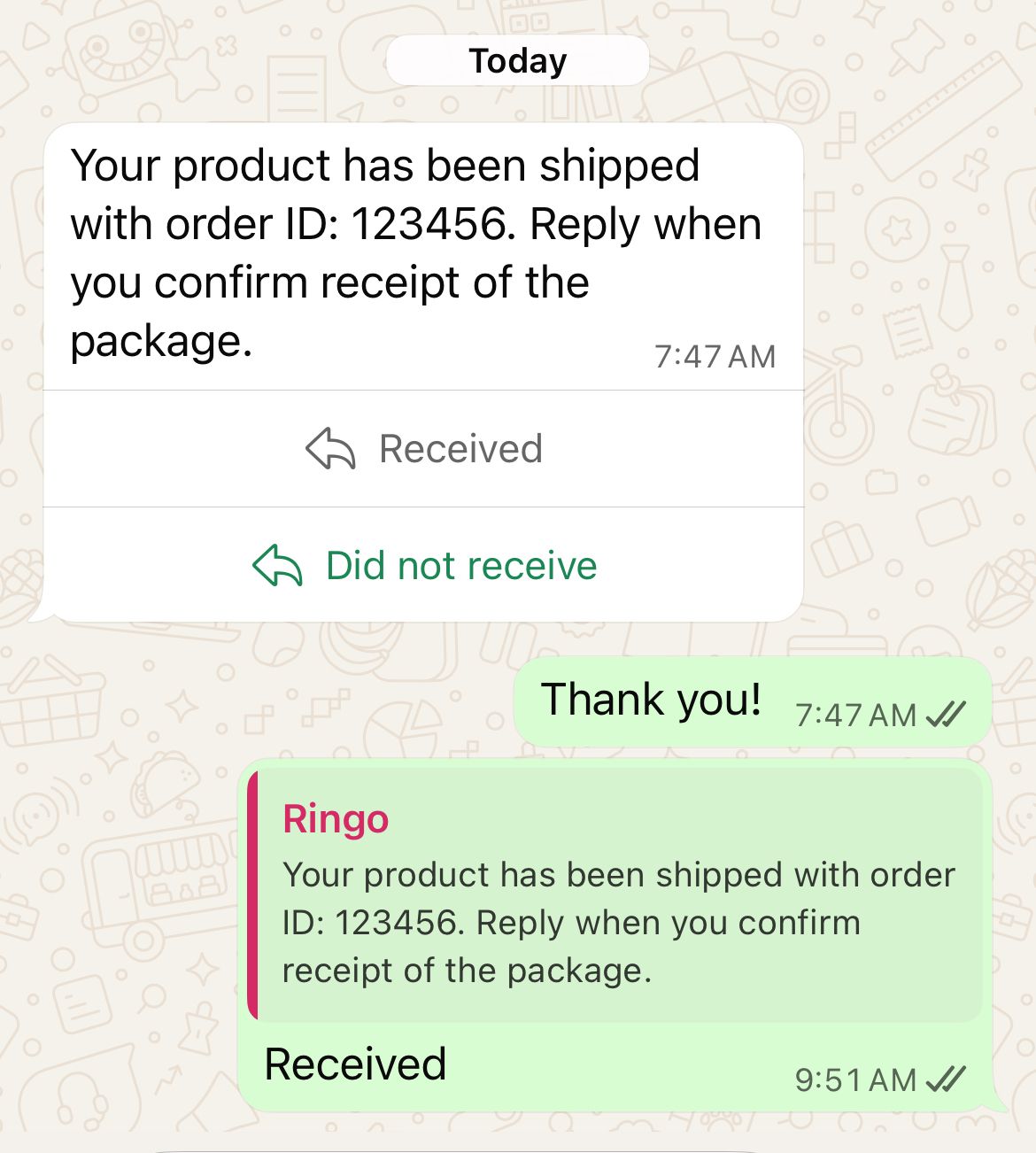
Unlike CTA or List Picker template options, Quick Replies send the button text back to you instantly as the customer’s message, making it the only option that behaves like a normal reply in the chat.
What You Can Include
Message Body
Just like text templates, you can add variables in the body.
Example:
Hi {{1}}, how can we help you today?Quick Reply Buttons
You can add up to 3 quick replies.
Each button sends back a simple text response when clicked.
Great for routing conversations or collecting quick answers.
Examples:
“Yes”
“No”
“Track Order”
“Speak to Agent”
Button IDs
Quick Reply buttons also have a hidden button ID that your system receives when a user taps the button. This ID helps you route or automate the correct flow behind the scenes. The customer’s reply will always be the button text, but the ID ensures your backend knows exactly which button they clicked, even if the text changes later.
📌 Rules & Requirements
Variables follow standard WhatsApp rules (cannot start/end the message, must be sequential, etc.).
Quick reply text must be short, clear, and non-promotional.
All button labels must be unique.
Buttons cannot include URLs or phone numbers (those belong to CTA templates).
How it shows for the customer once he receives a Quick Reply Type message:
How to add variables
Variables are placeholders that will be replaced with real customer data when the message is sent.
To add a variable:
Click “Add variable”.
The first variable will appear as
{{1}}, the second as{{2}}, and so on.Meta requires you to include an example value for every variable.
If the variable represents a name, the example might be “John Smith”.
If the variable represents an order number, the example might be “#A12345”.
You can add multiple variables as needed.
Example:
Hi {{1}}, your order {{2}} has been shipped. Example values:
{{1}}: John Smith{{2}}: #A12345
WhatsApp Template Requirements
1. The template cannot start or end with a variable.
✔ Allowed: Hi {{1}}, your order is ready.
❌ Not allowed: {{1}} your order is ready.
2. Variables must be sequential.
✔ Allowed: {{1}}, {{2}}, {{3}}
❌ Not allowed: {{1}}, {{3}} (missing {{2}})
3. Variables cannot be placed back-to-back.
✔ Allowed: Hi {{1}} {{2}}, your appointment is confirmed.
❌ Not allowed: Hi {{1}}{{2}}, your appointment is confirmed.
4. The template must contain at least 2X + 1 words (X = number of variables).
Ensures the message has enough real text.
If you use 2 variables → need 5 words minimum.
If you use 3 variables → need 7 words minimum.