Register WhatsApp
Before you can send templates or receive WhatsApp messages, you first need to register your business with Meta’s WhatsApp platform. This enables WhatsApp messaging inside Ringo. This guide will walk you through the registration process step by step.
Last updated 9 months ago
Step 1 - Start
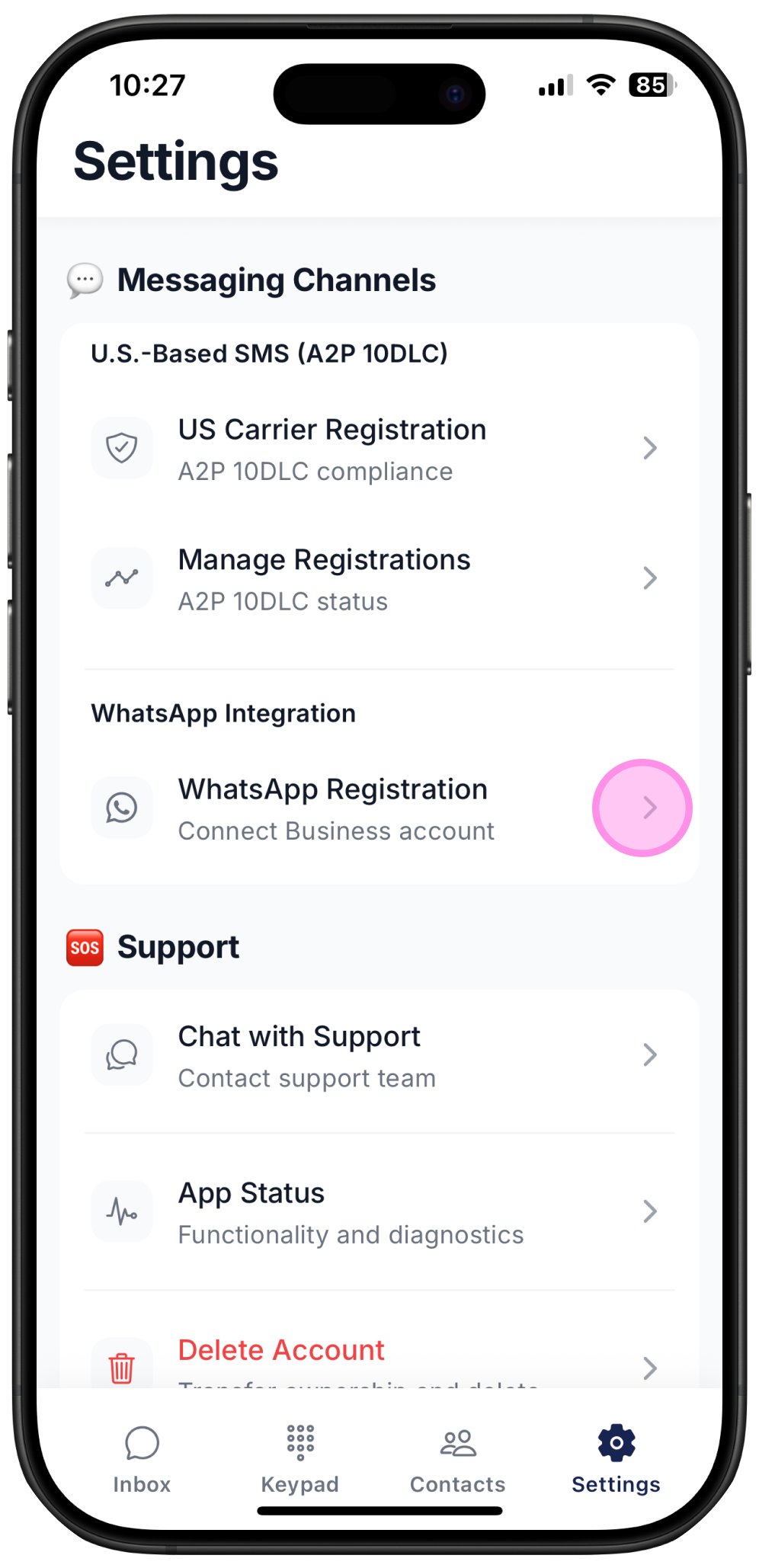
Open Ringo, go to the Settings tab, and select WhatsApp Setup.
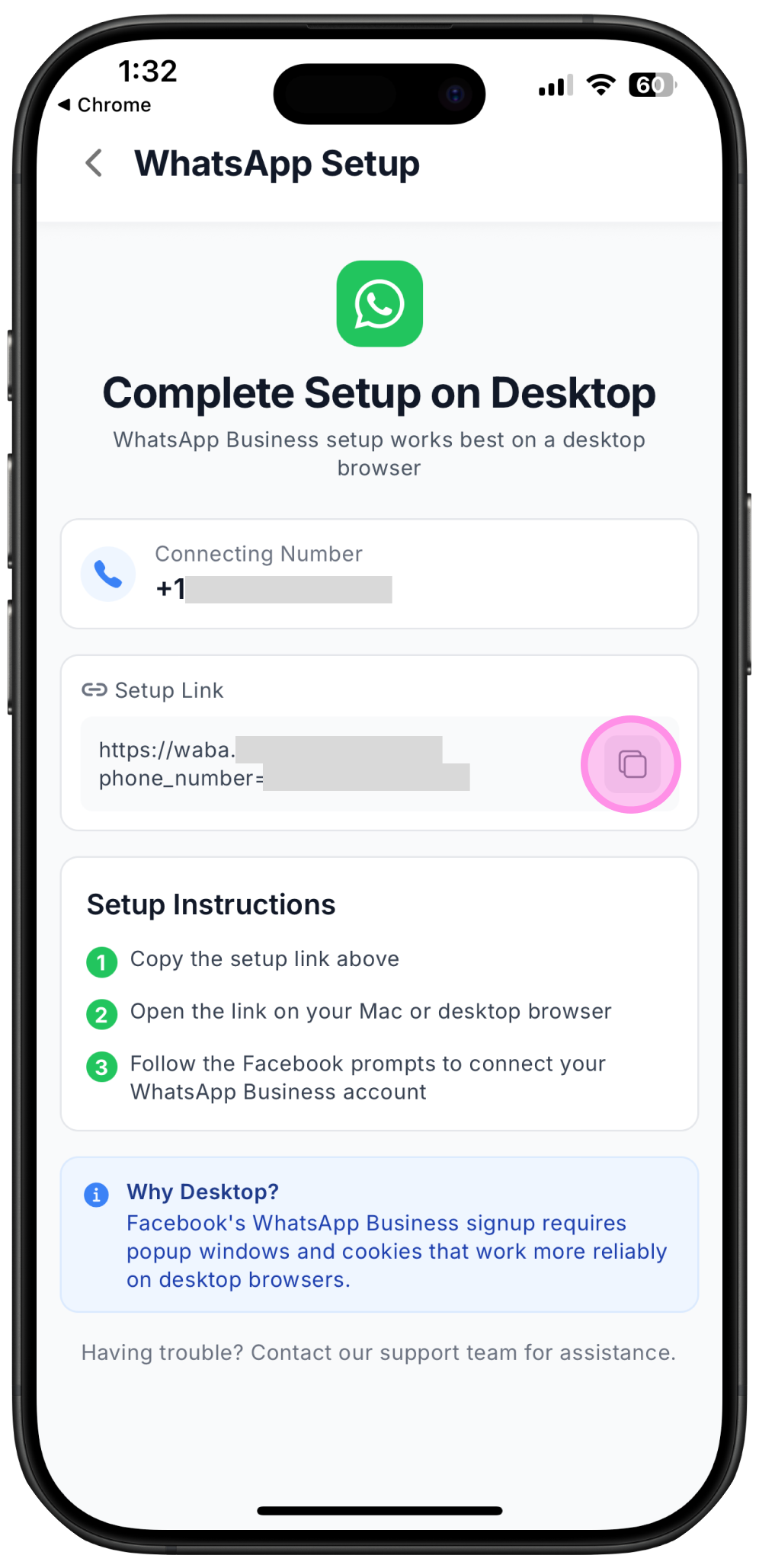
Step 2 - Copy Link
Copy the setup link provided, open your browser, and paste the link as a new search on your browser (Chrome, Safari, etc).
Step 3 - Start setup on browser
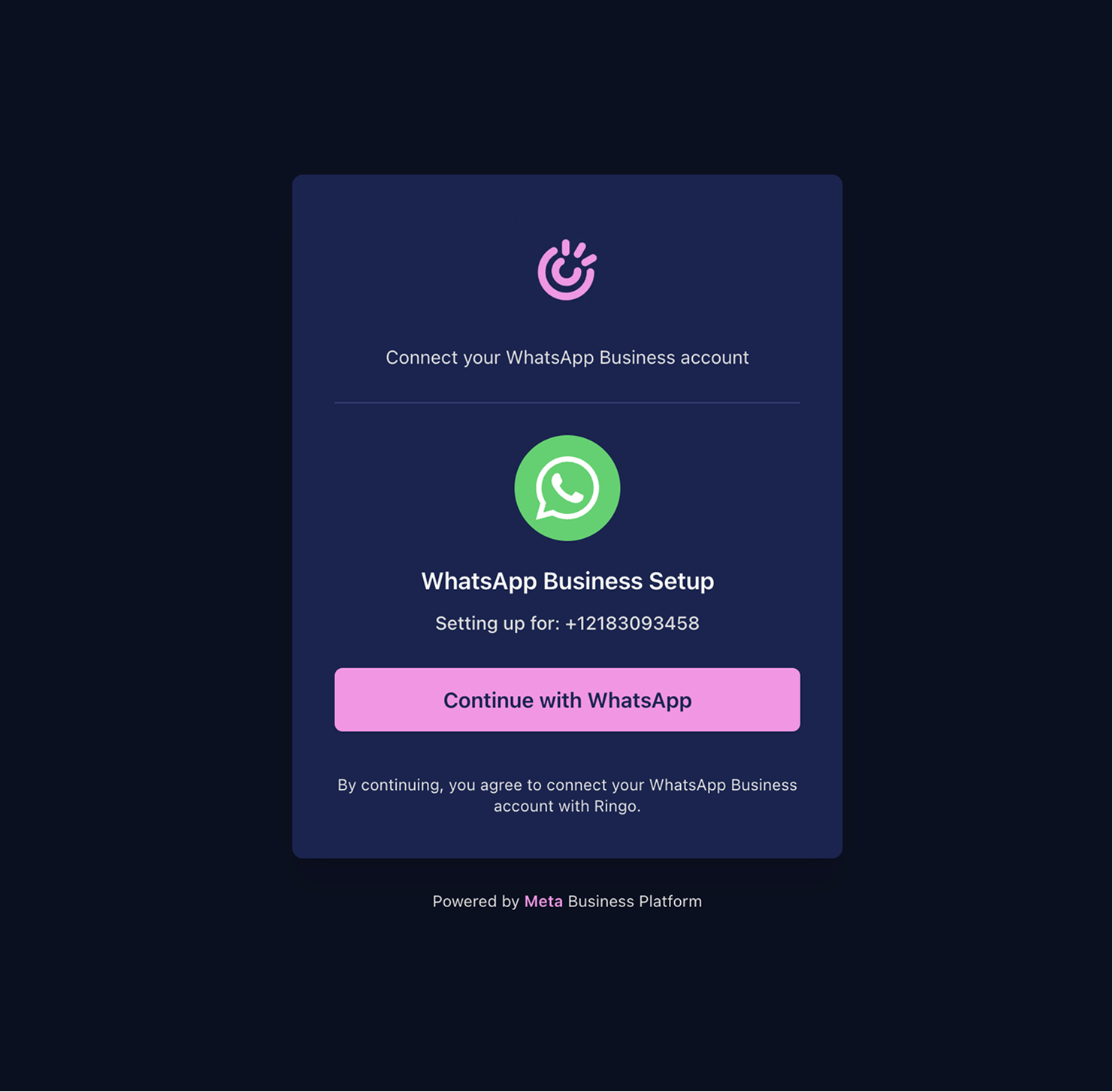
Ringo will take you to the WhatsApp registration process, click “Continue with WhatsApp” to get started
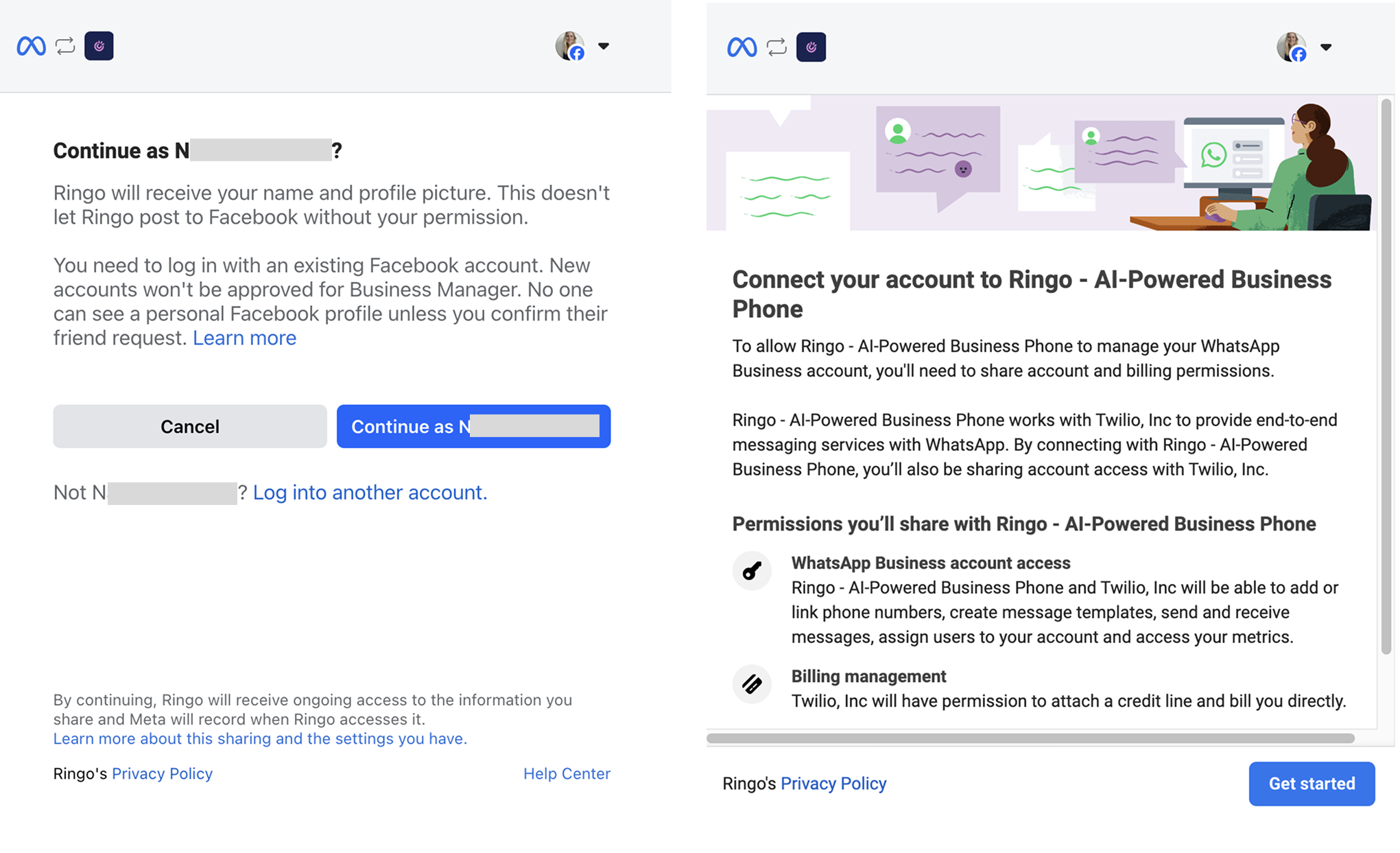
Step 4 - Connect to Meta
Ringo will take you to the WhatsApp registration process, click “Continue with WhatsApp” to get started
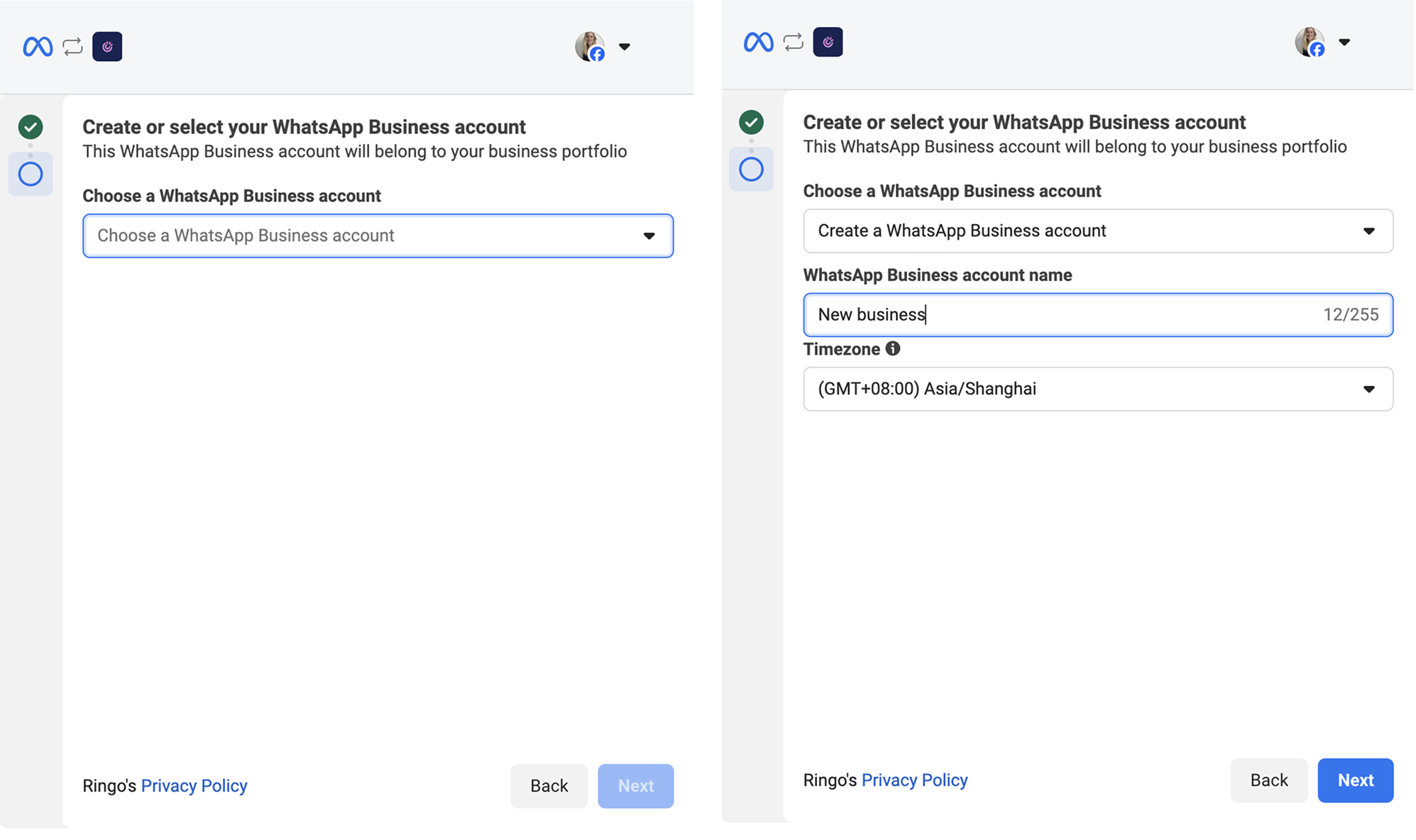
Step 5 - Connect Meta Business Account
If you already have a business set up on Meta, you can select it directly. Otherwise, you’ll need to create a new Meta business to enable WhatsApp account creation in Ringo.
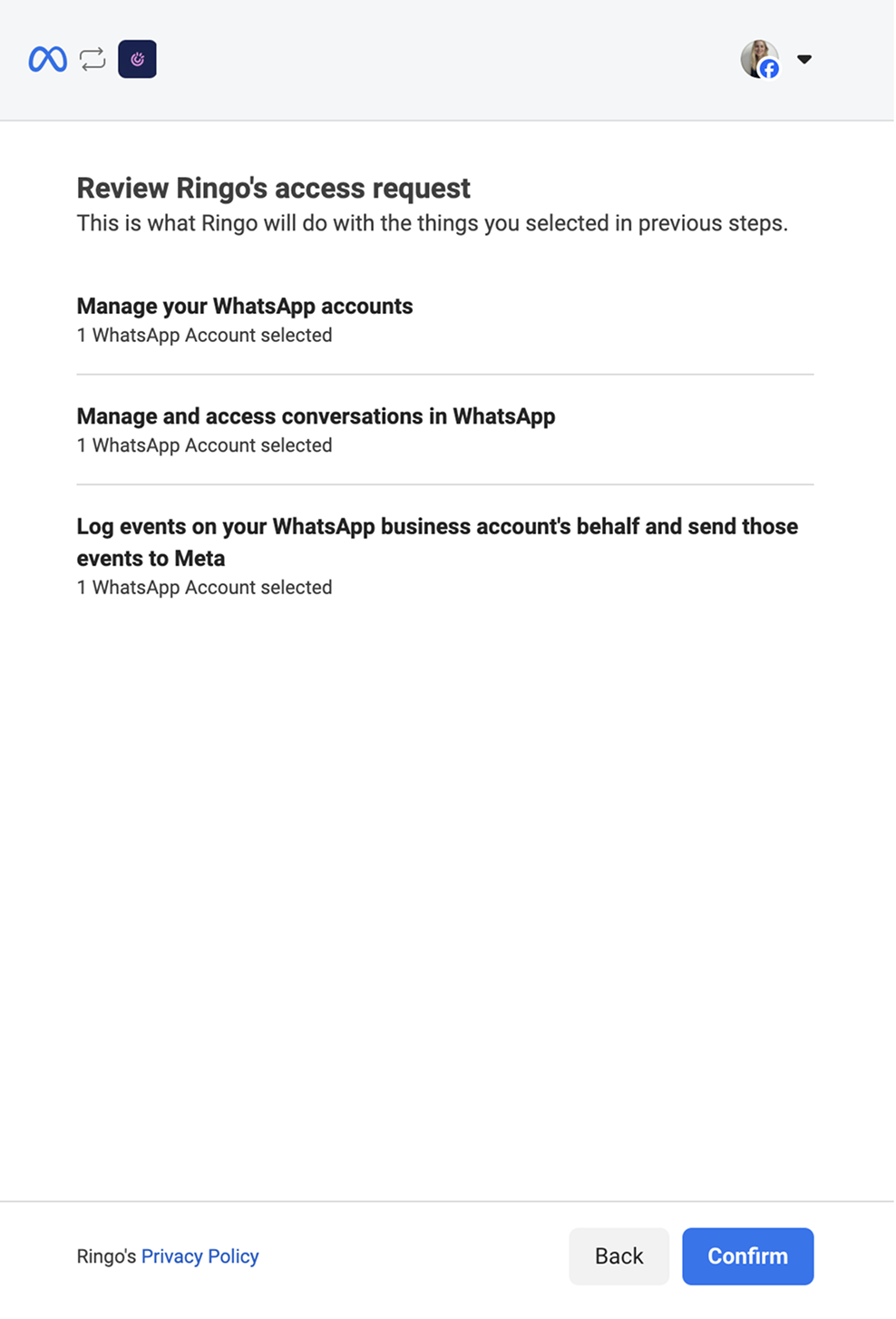
Step 6 - Allow access to Ringo
Allow Ringo access to WhatsApp, no worries we can’t access or post anything on your Meta account.
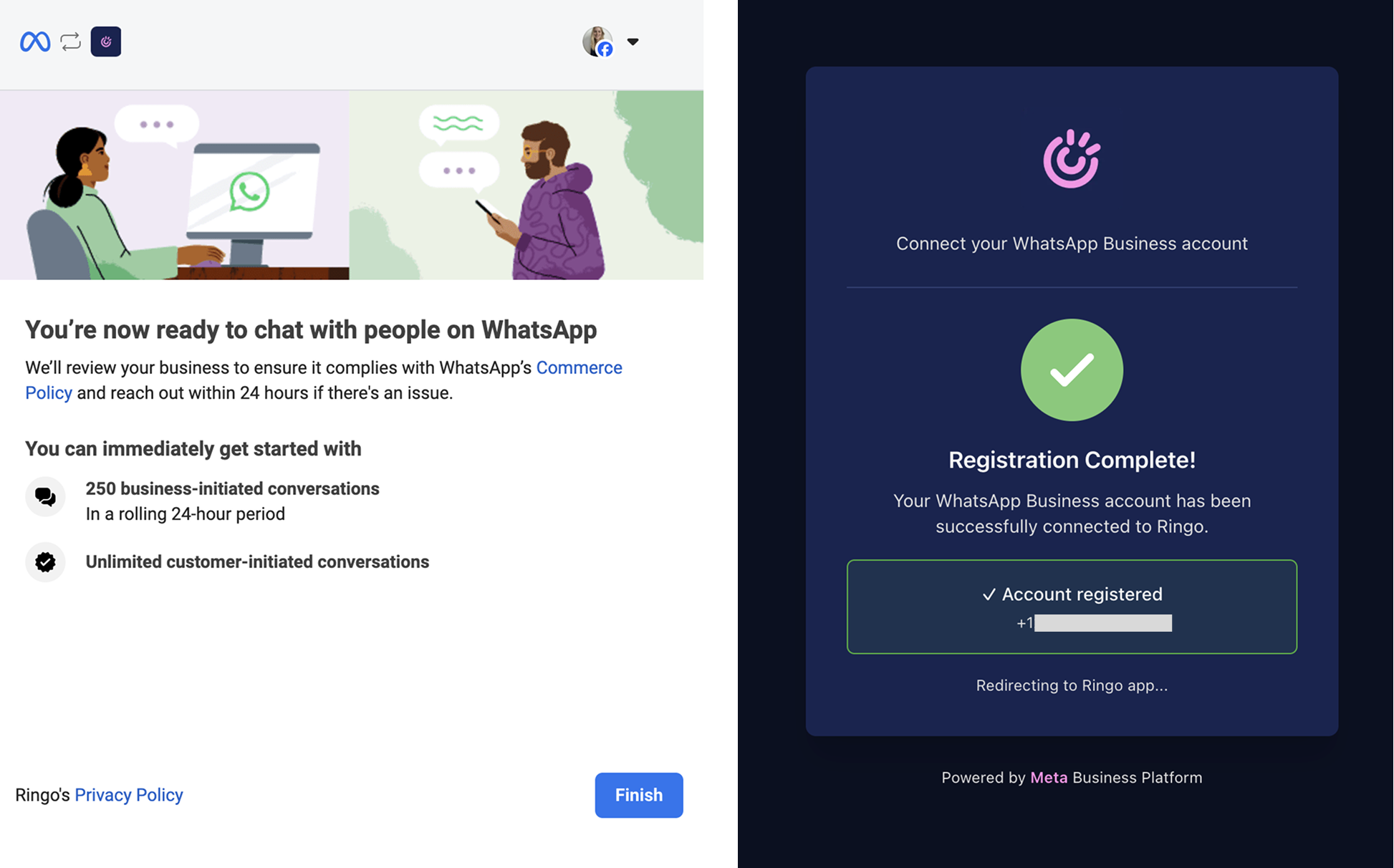
Step 7 - Complete registration
Complete your registration and you’ll be redirected back to the Ringo app. Once your WhatsApp account is registered, you’ll automatically be able to create new message templates in Ringo.