Team Collaboration
As part of the smartphone experience, Ringo enables you and your team to collaborate easily on customer requests, making your service smoother and more efficient. In this guide, we’ll walk you through how to invite your team to your workspace, how to chat in internal threads, and how to configure your workspace in the best way for you and your team.
Last updated 7 months ago
How it works
Before adding any team members you have to ad their seats to your subscription plan, for more information check here.
Each team member has the Ringo app installed on their mobile and you work together on the same workspace.
The workspace has a shared team inbox where all customer texts and calls go.
Team members can reply and answer to calls and messages as per their availability
Team members can tag each other internally on customer messages to better solve inquiries
Adding Team Members to Workspace
As a business owner you will set up your Ringo account, once that is done it’s time to add your team members so you can collaborate on the same workspace.
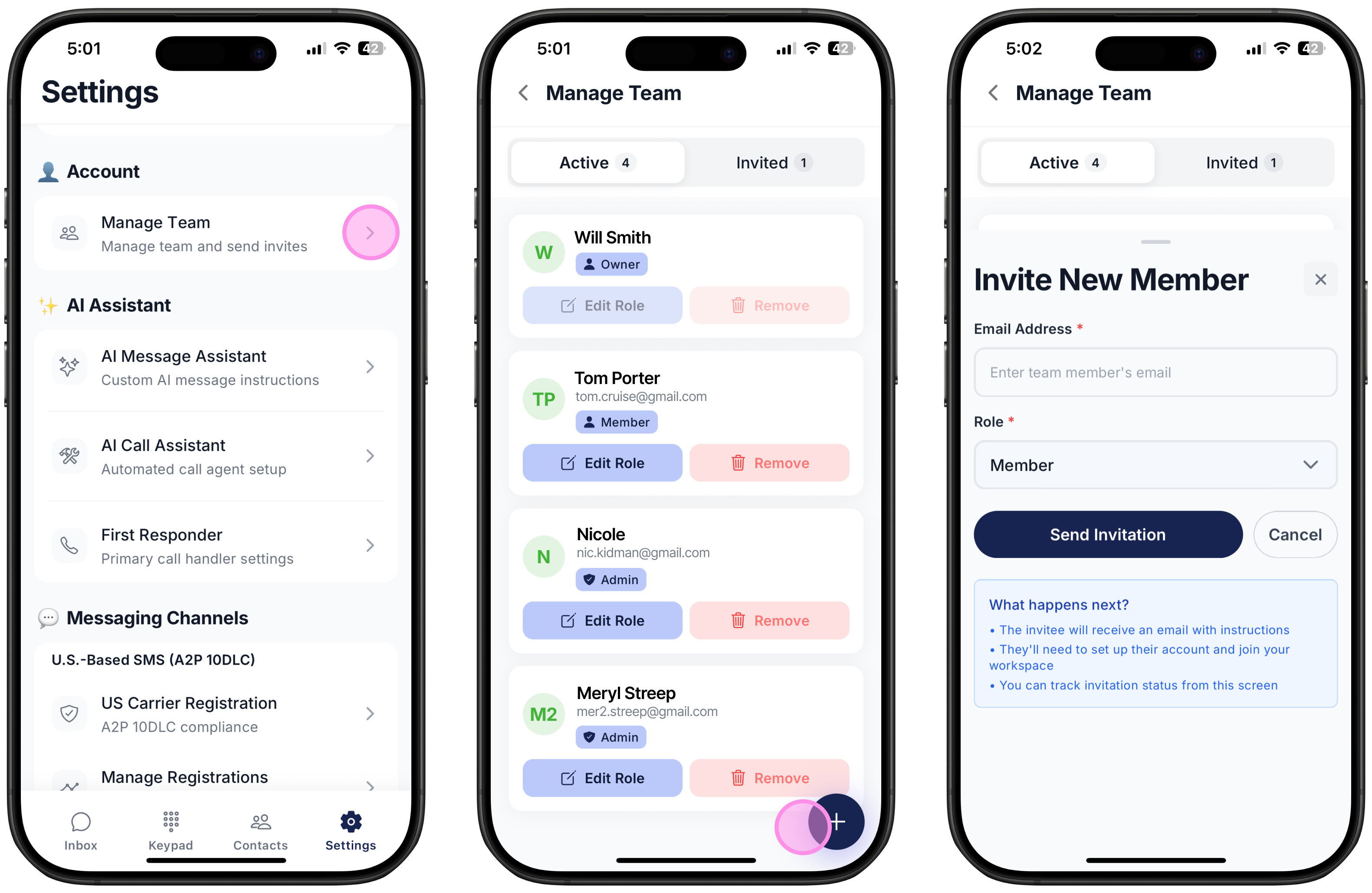
Go to Settings
Click on “Manage Team & Invitations”
Click on “+”
Enter the person’s email address
Choose Role:
Admins have full access, including user management and workspace settings.
Members can access inboxes, contacts, and chats, but have limited administrative privileges. Check here for more information on member workspace access.
Joining a workspace - Team members need to download the Ringo app, accept the invite via email and join the workspace to start collaboration. For more information about how a team member can join a workspace check here.
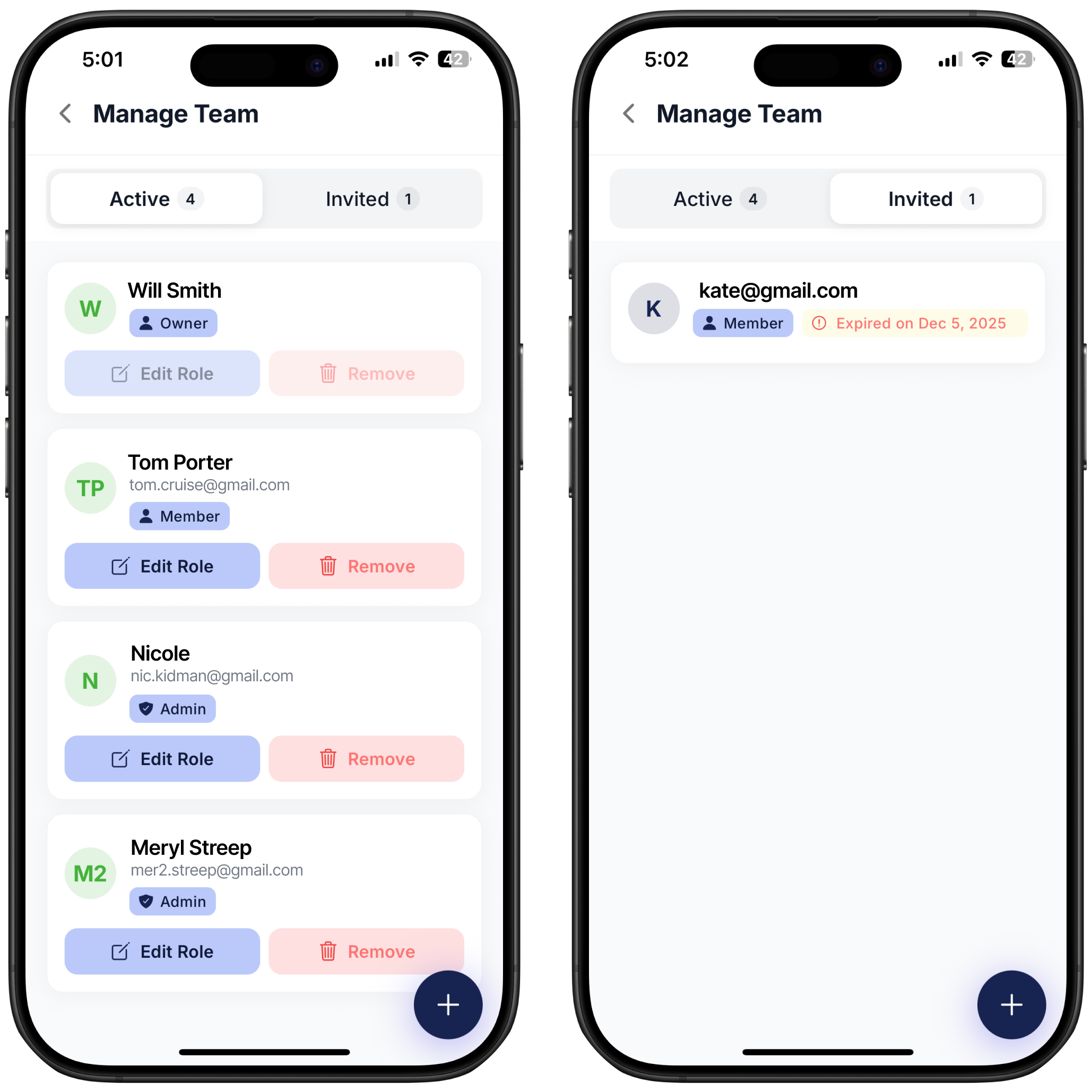
Check which team members are active - Invited members will appear on the “Invited” tab, and once they have received your invite via email and accepted it they will show as “Active”.
Collaborate on Chats
How collaboration works on Ringo’s inbox:
Your whole team stays in sync with shared messages (call summary, transcript and record as well)
Instantly know who wrote each message
Everyone has access to the same shared business contacts
Once your team is connected within the same workspace, you can start collaborating directly inside customer chats.
Internal Threads
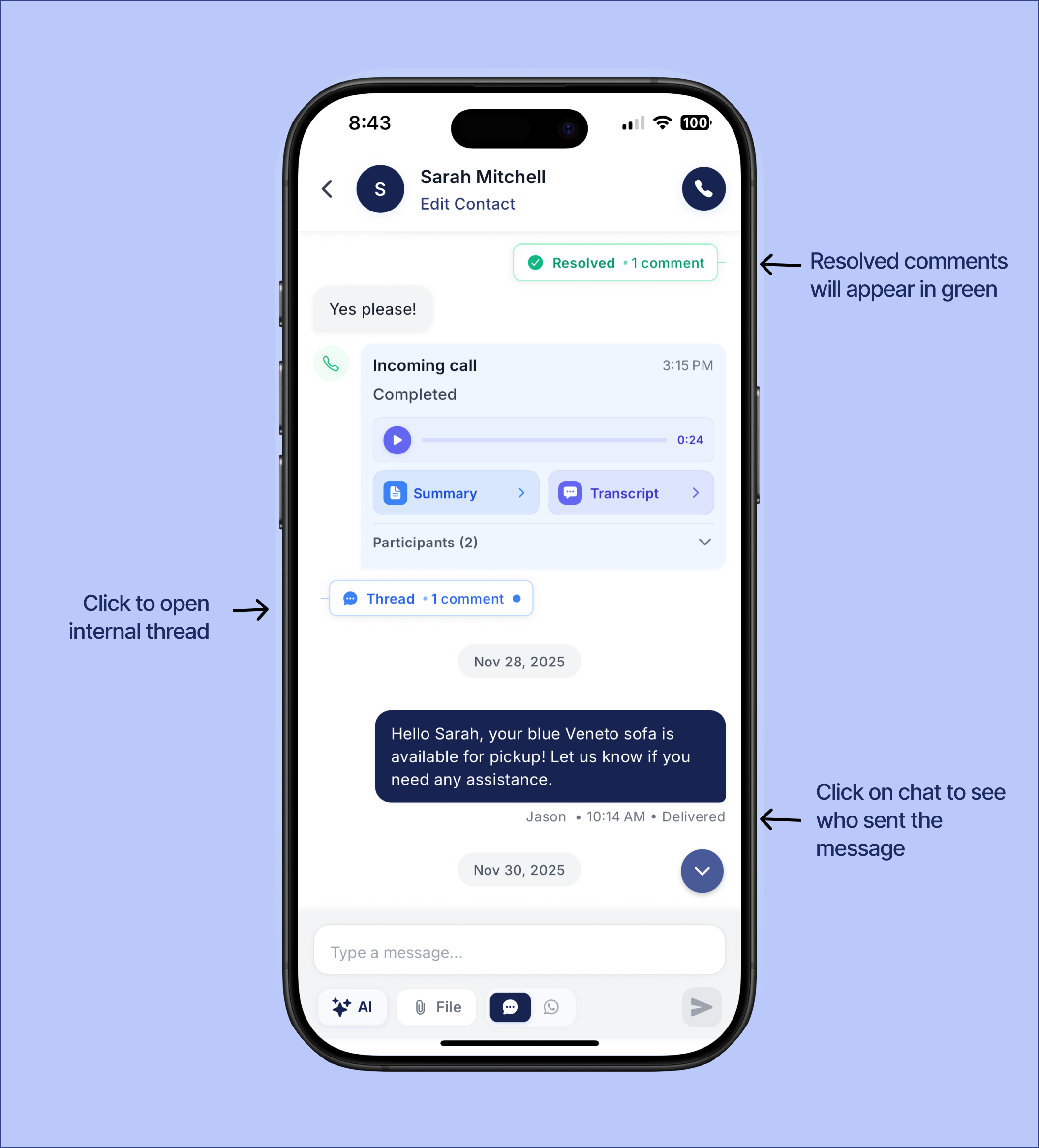
To participate in an internal thread follow these steps:
Open the customer chat
Tap a specific message to see which team member sent it
Long-press the message you want to comment on
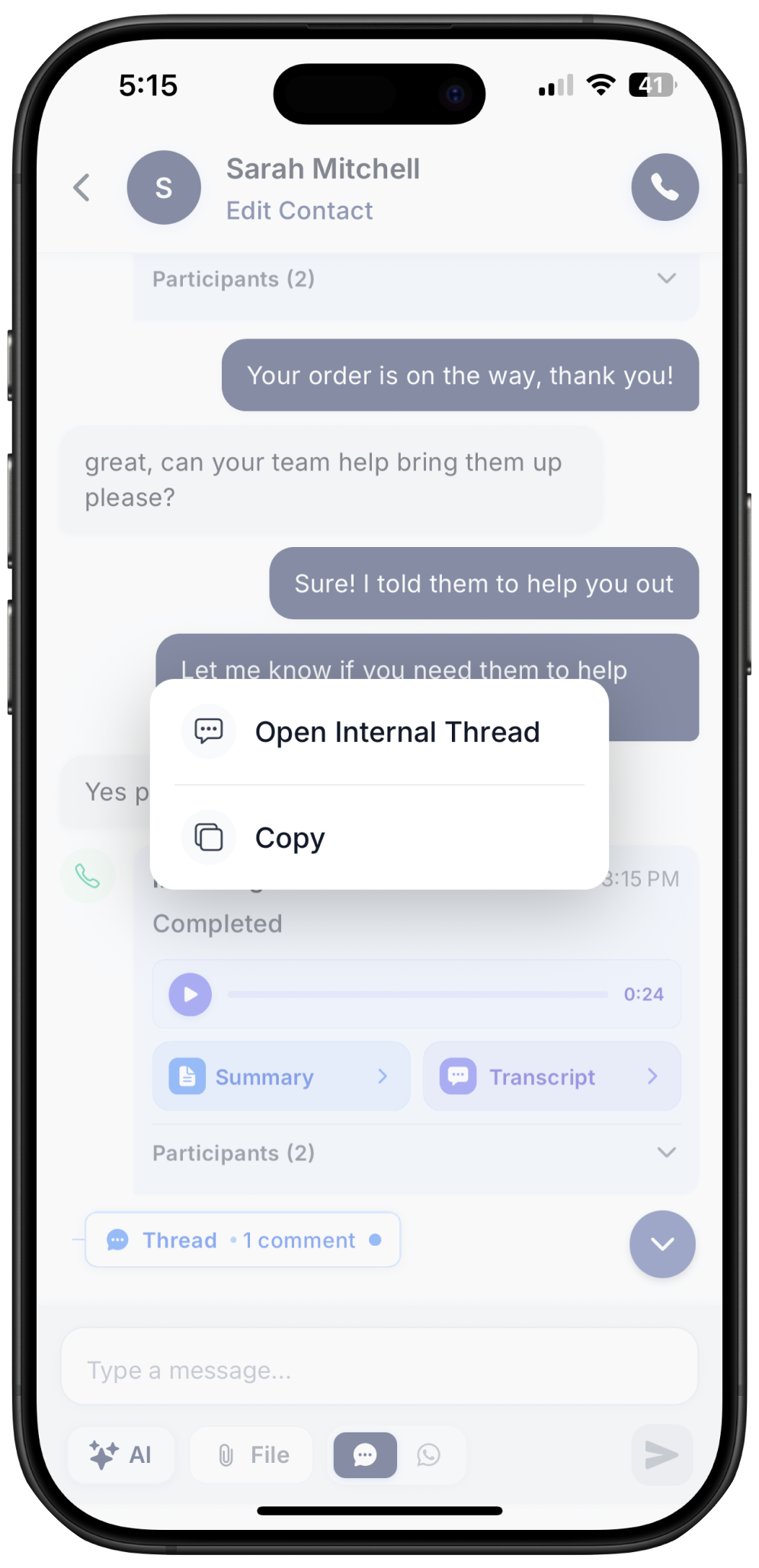
Select “Open Internal Thread”
Leave a comment and/or tag a teammate by typing @ followed by their name
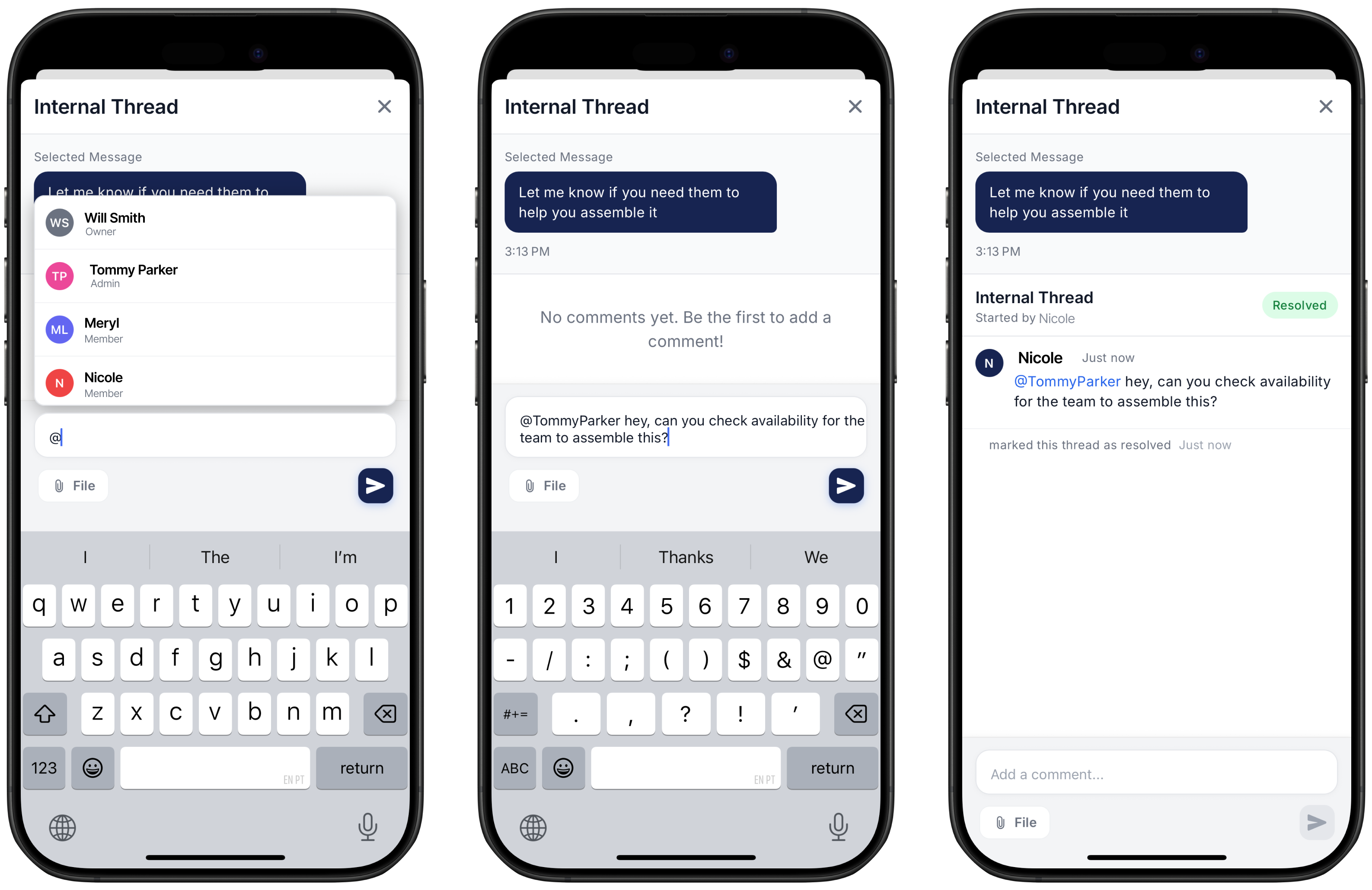
Attach videos, photos, or documents as needed
Collaborate on Calls
How collaborative calls work with Ringo:
Incoming calls ring for everyone with access
First person to answer stops ringing for others
Multiple concurrent calls supported, number never shows as busy
When making or receiving calls, you can easily invite other team members to join the conversation with your customers.
Add a Member to a Call
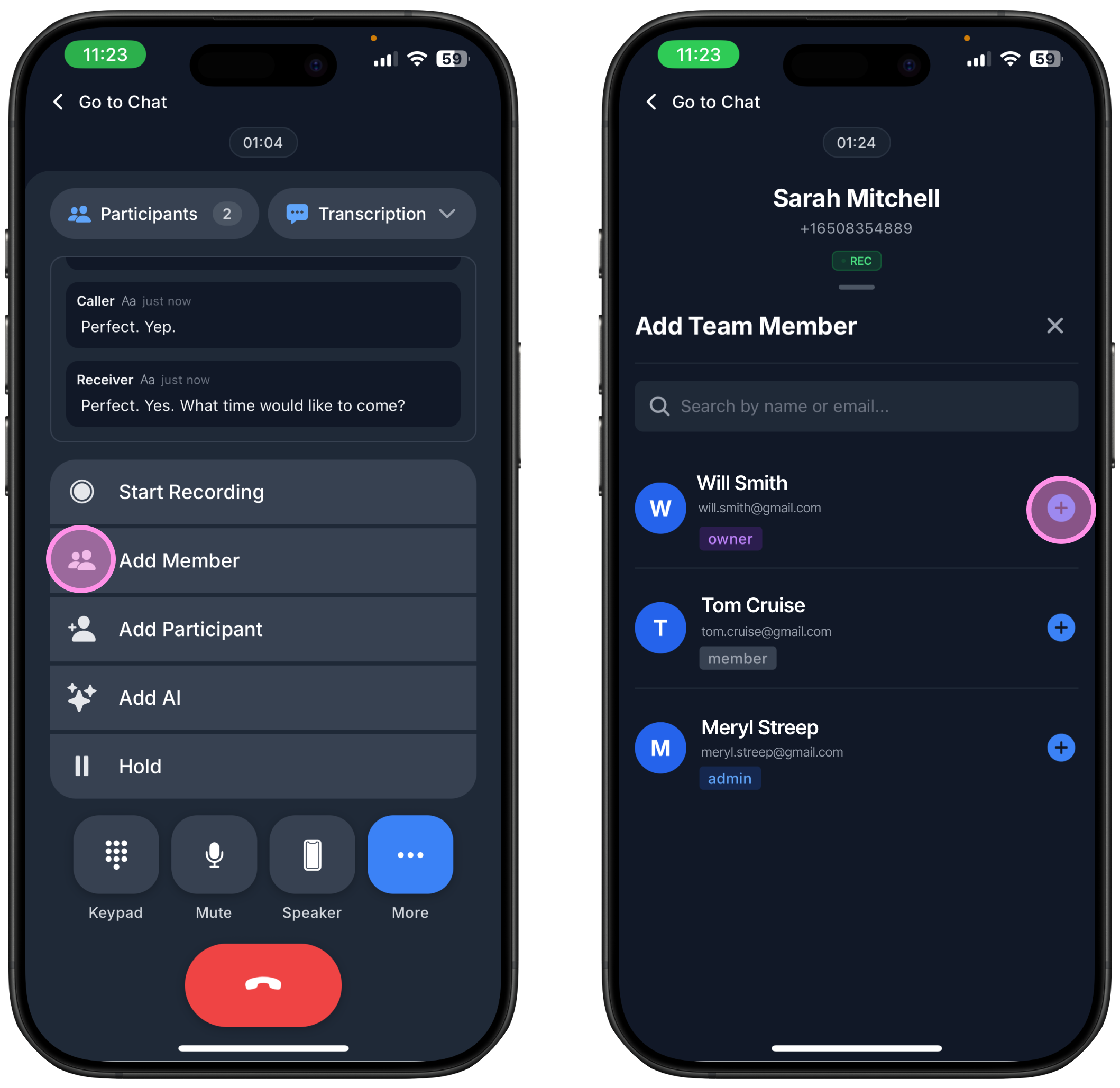
While on a call (incoming or outgoing)
Tap “More”
Select “Add Member”
Choose which team member you want to add
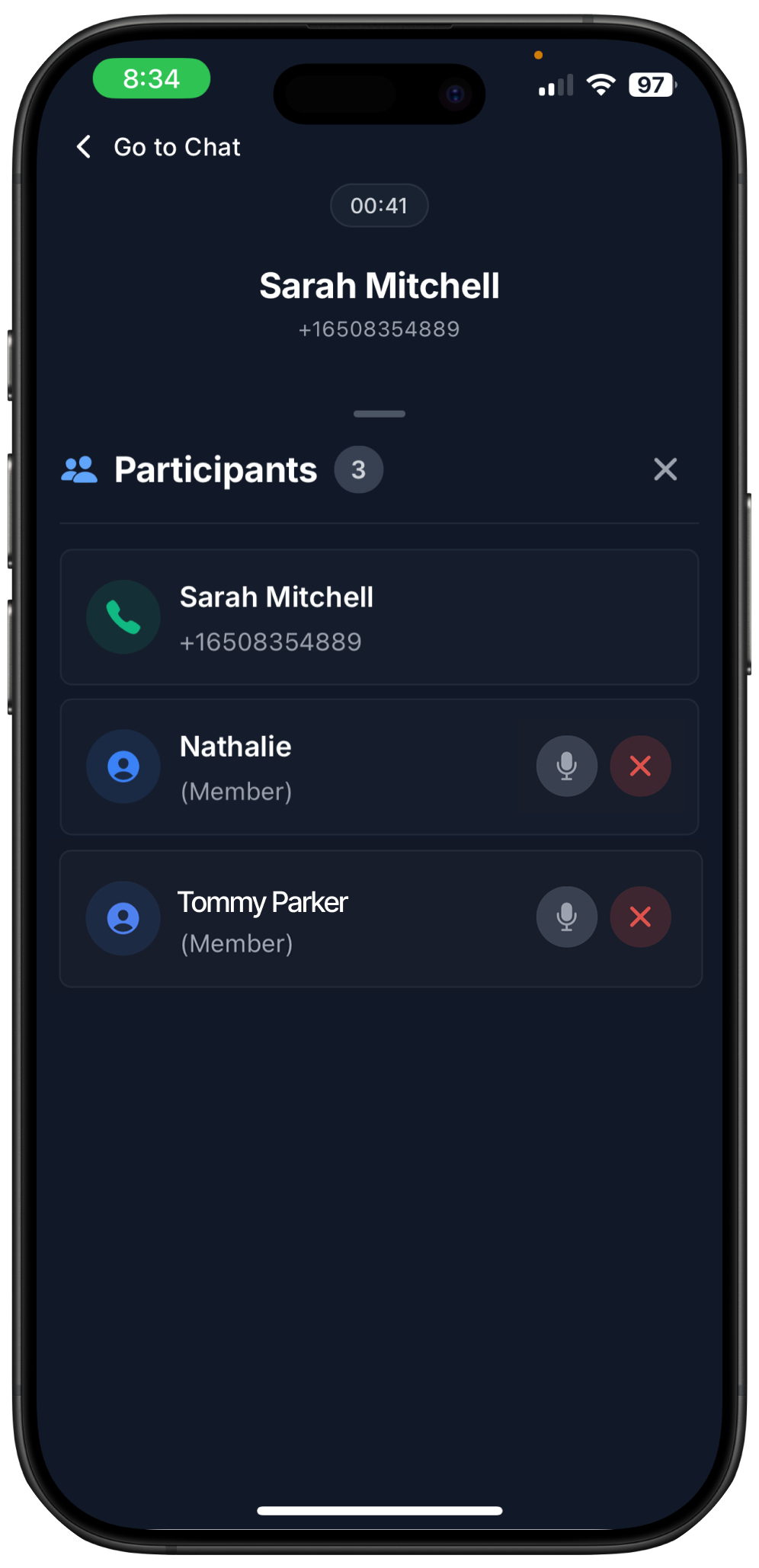
You can also remove or mute participants directly from the call screen by tapping their name.
Team Activities
Keep track of internal comments and activities from your team on Team Activity. For more information check here.