Join Workspace
As a team member, getting started with Ringo is quick and easy. This guide walks you through each step a team member needs to go through to join an already existing workspace in Ringo.
Last updated 9 months ago
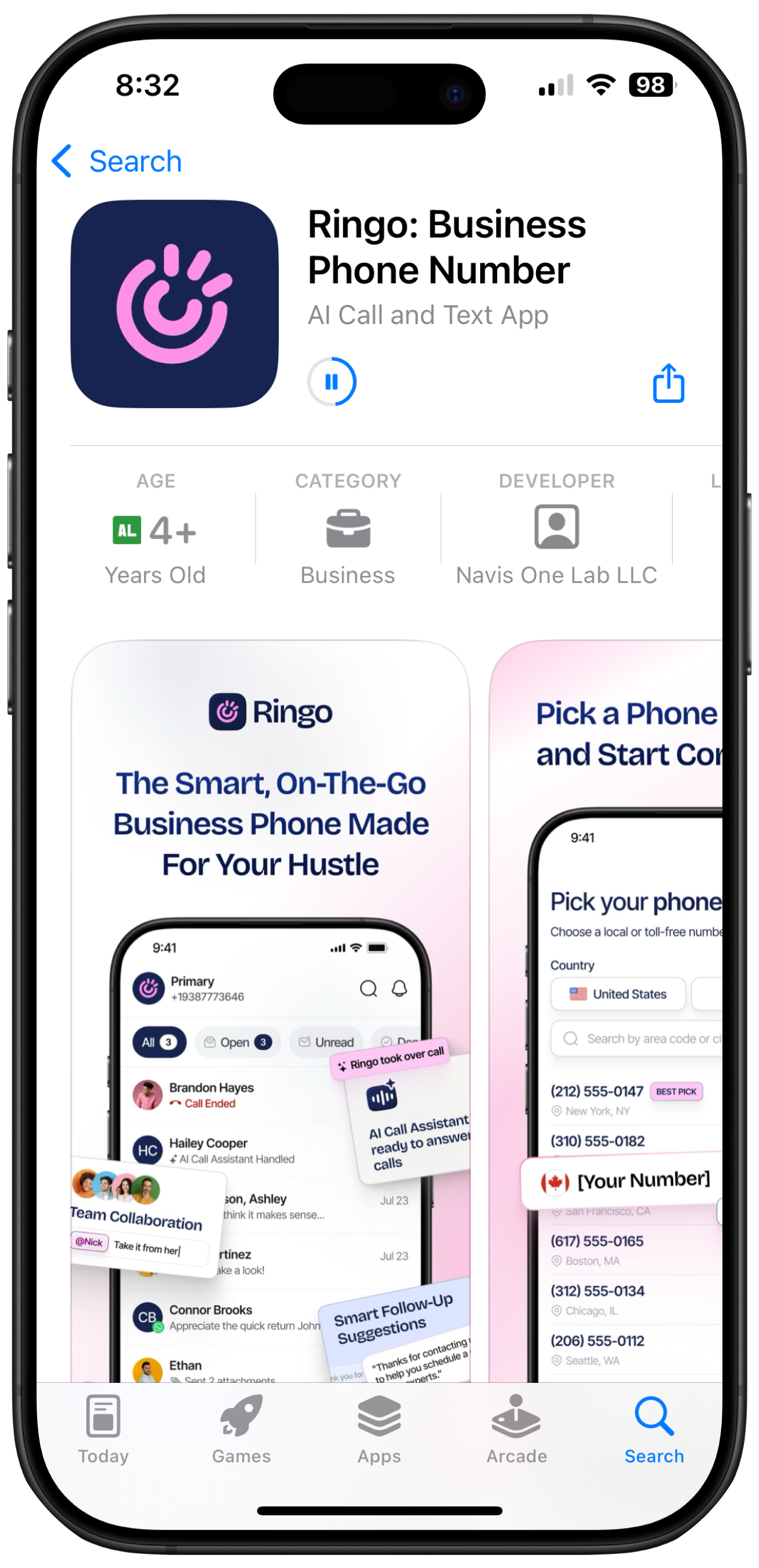
1. Download the Ringo App
As a team member, the first thing you need to do is download the app on your mobile.
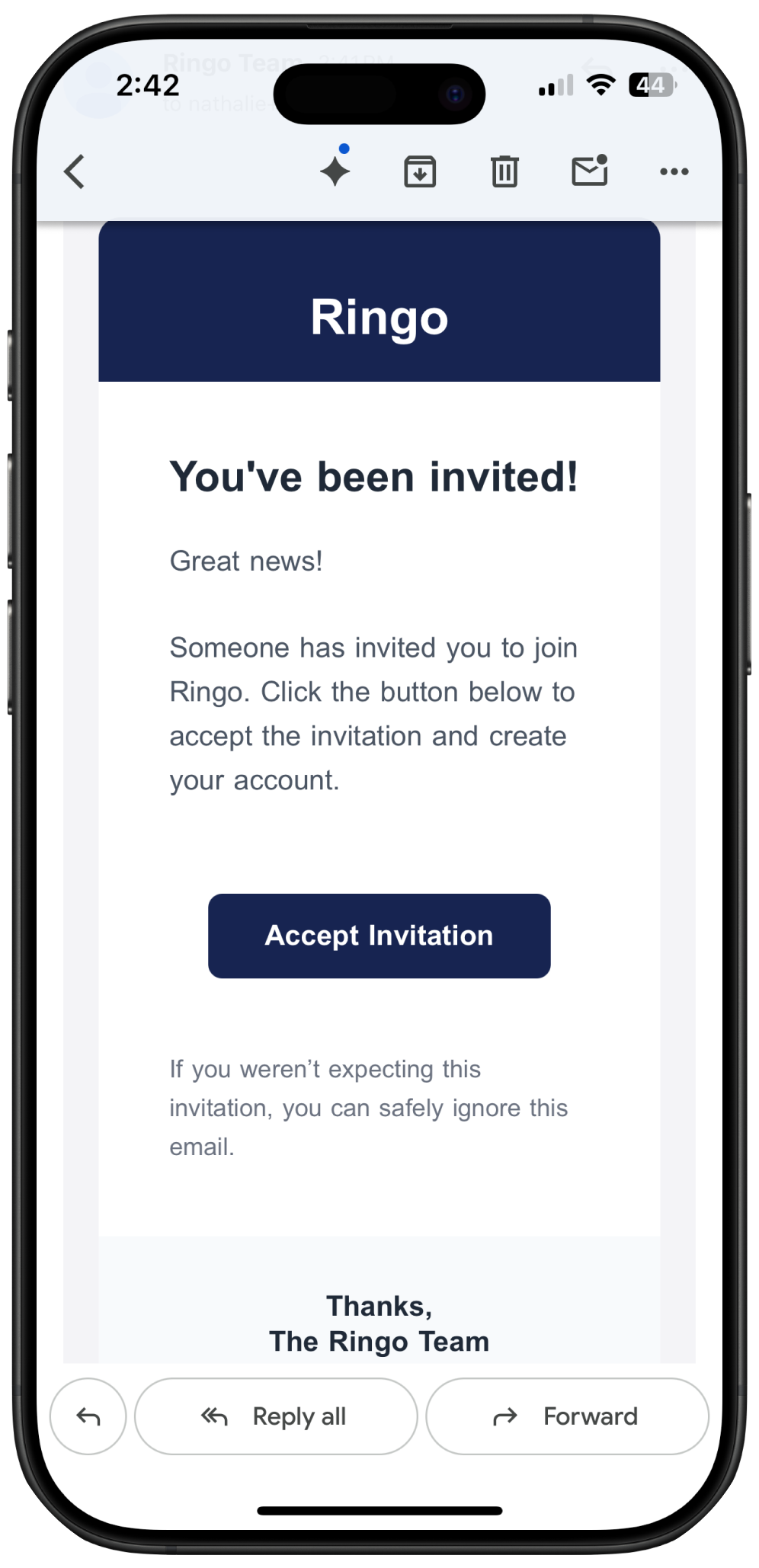
2. Receive Workspace Email Invite
Your workspace owner or any admin must send you an invitation to join their workspace. Once it arrives, check your email inbox for the message from Ringo and click “Accept Invitation” to get started.
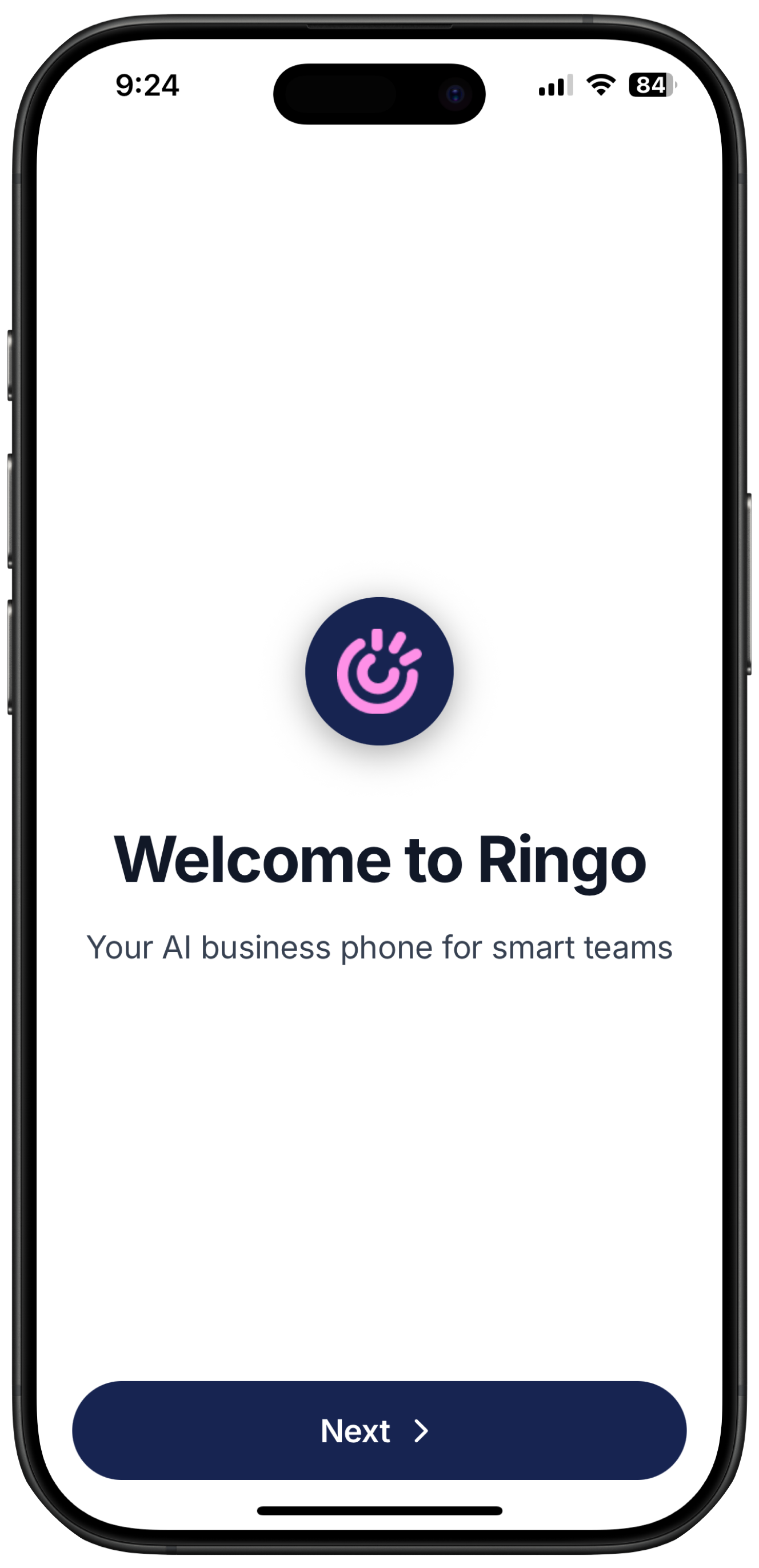
3. Open Ringo
The link will automatically take you to Ringo where you can start joining your workspace.
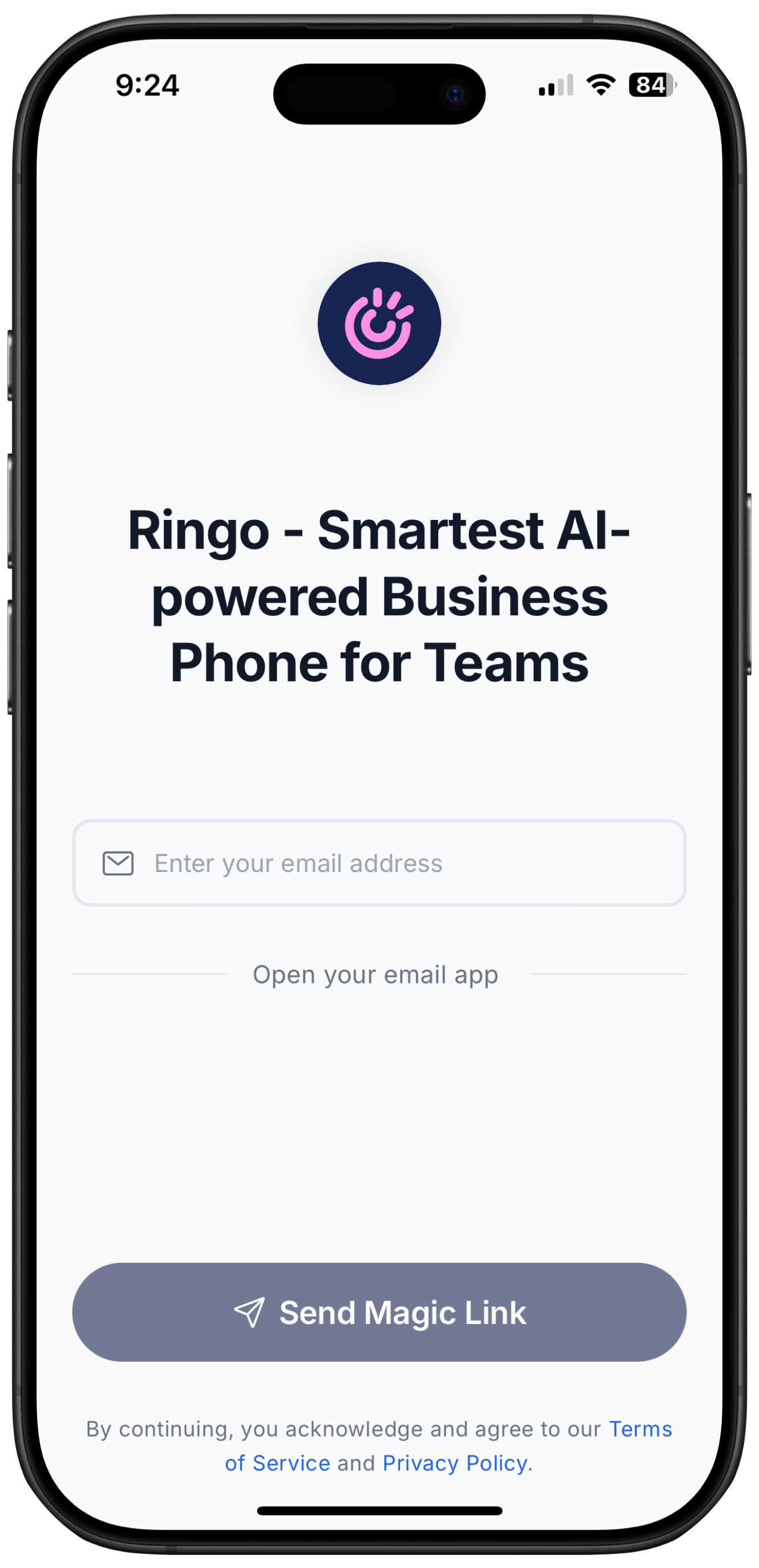
4. Insert your email
Login with the same email address the invite link was sent to, there is no need to create a password. A magic link will be sent to your inbox.
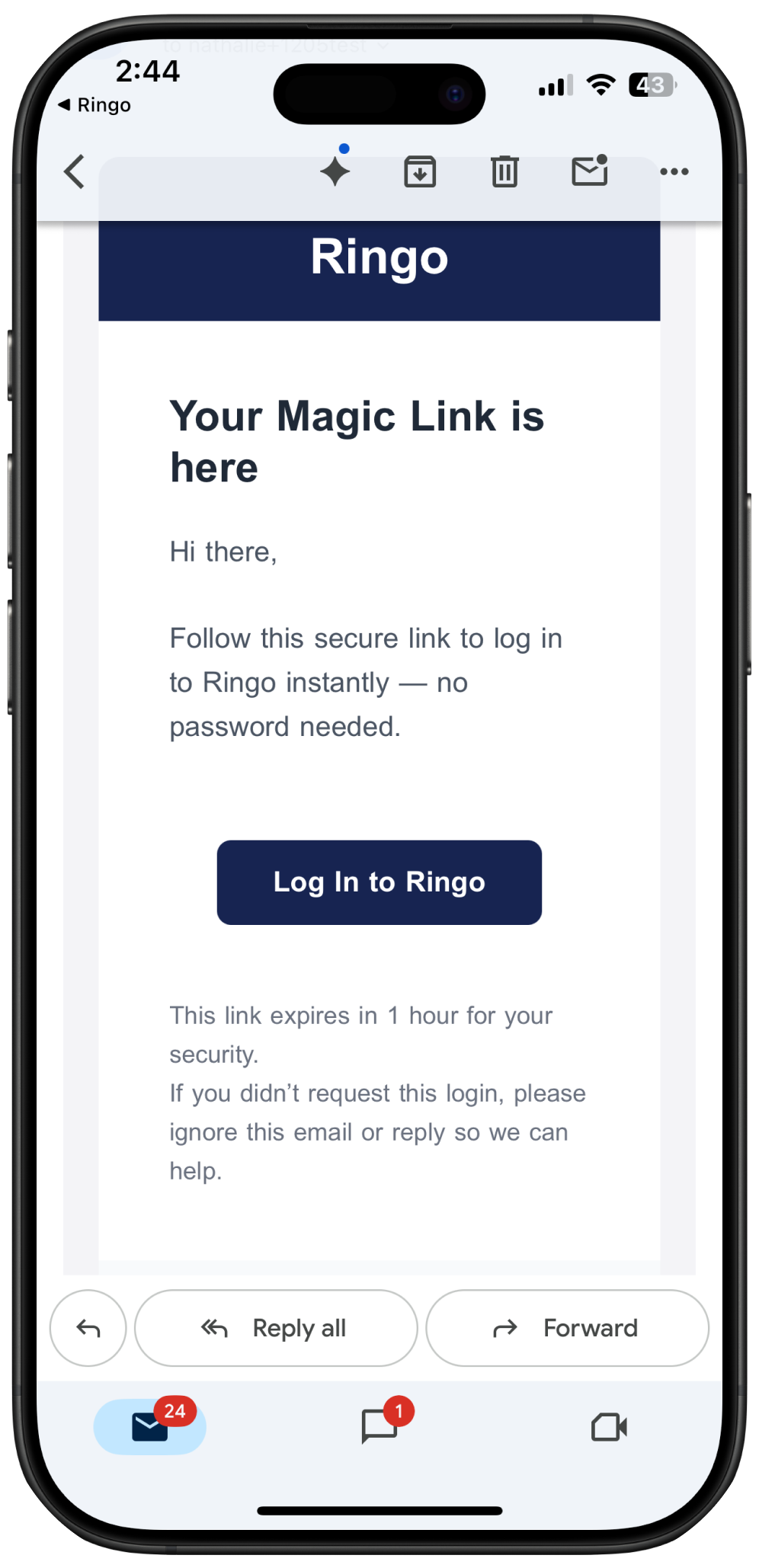
5. Open your inbox to verify your log in
Confirm your sign up by clicking on “Log In to Ringo”. Once done, you will be taken back to the Ringo app.
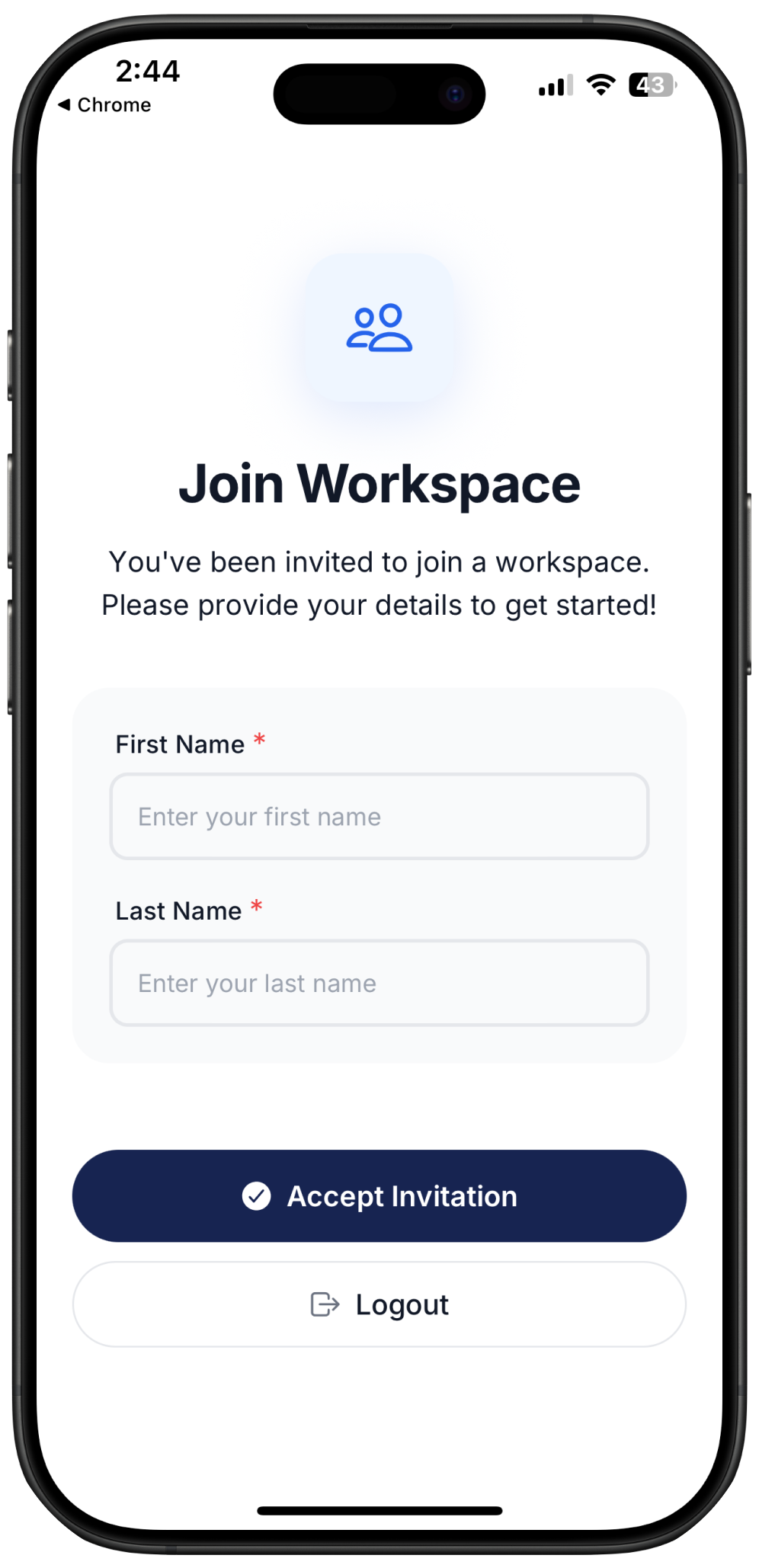
6. Insert your information
Write down your first and last name to accept the invite and join the workspace. Make sure to enable notification and microphone access to the app. And that’s it, you’re in!
And now you’re in as a team member! If you want to learn more about collaborative tools check here.