Create Ringo Workspace
Getting started with Ringo is quick and easy. This guide walks you through each step to set up your account, personalize your workspace, and activate your communication tools.
Last updated 9 months ago
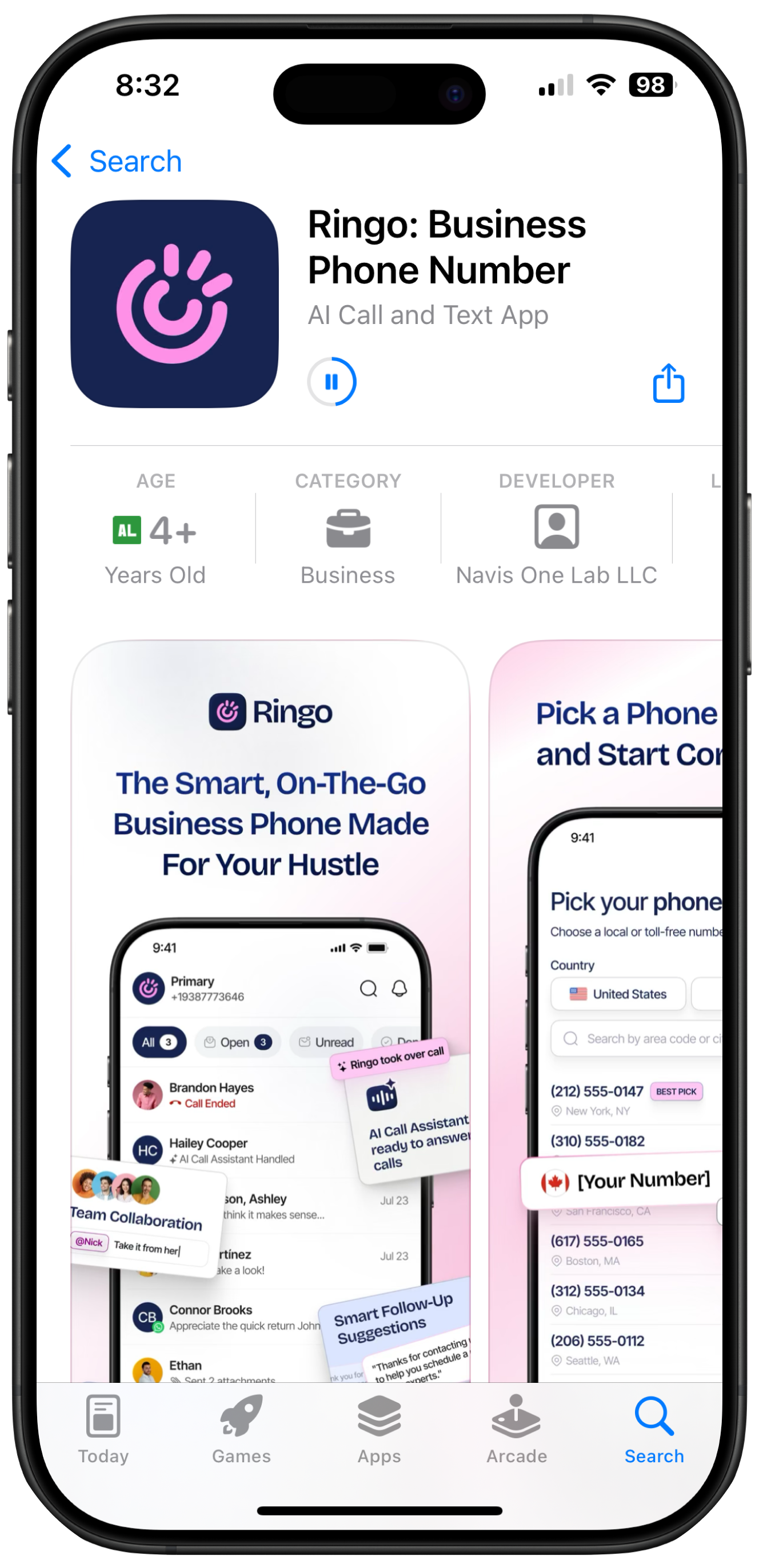
1. Download the Ringo App
Click here to download the app and install it on your device.
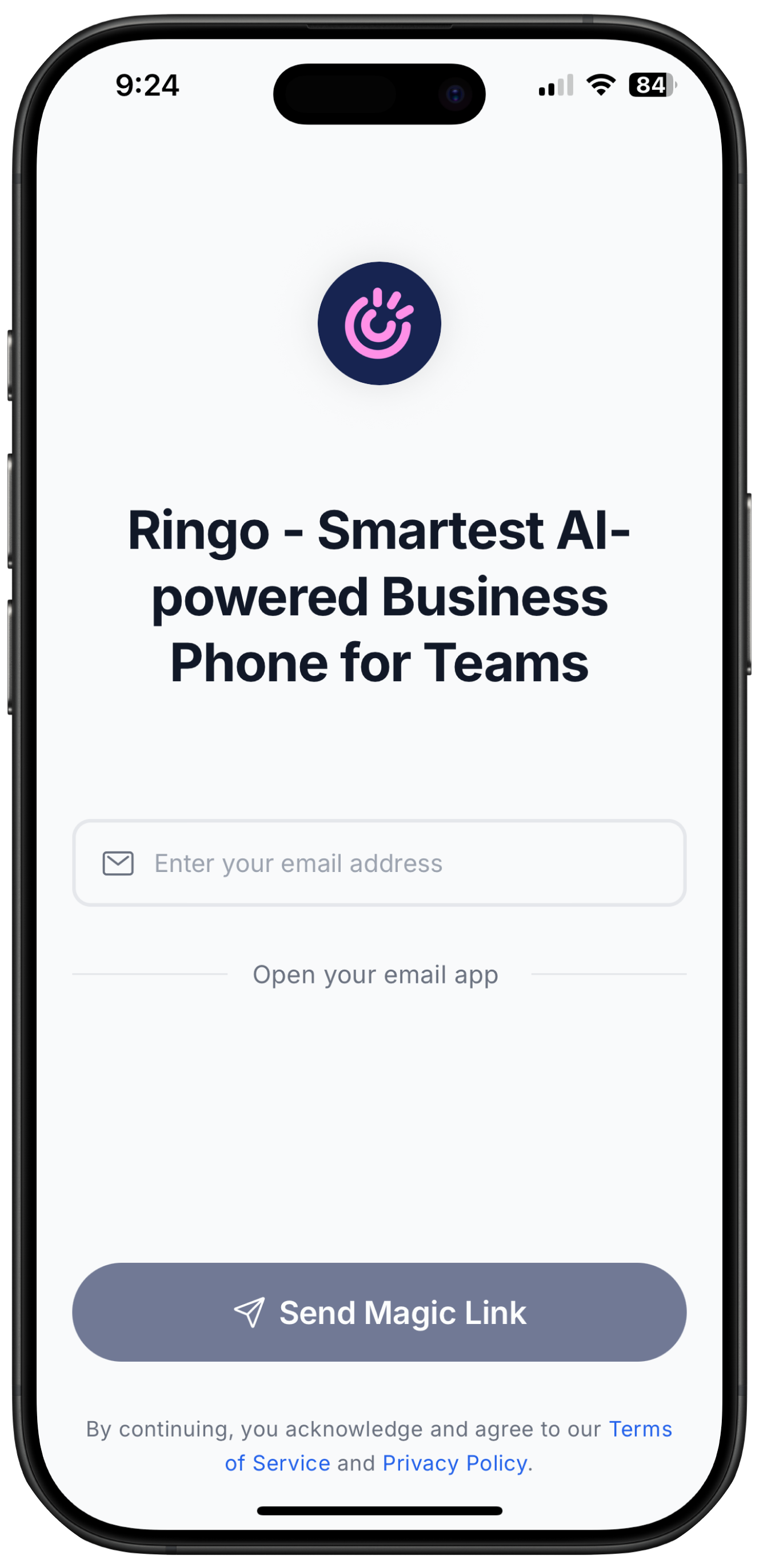
2. Sign Up with Your Email
Open the app and sign up using your email address, no need to set up a password. You’ll receive a Magic Link sent directly to your inbox.
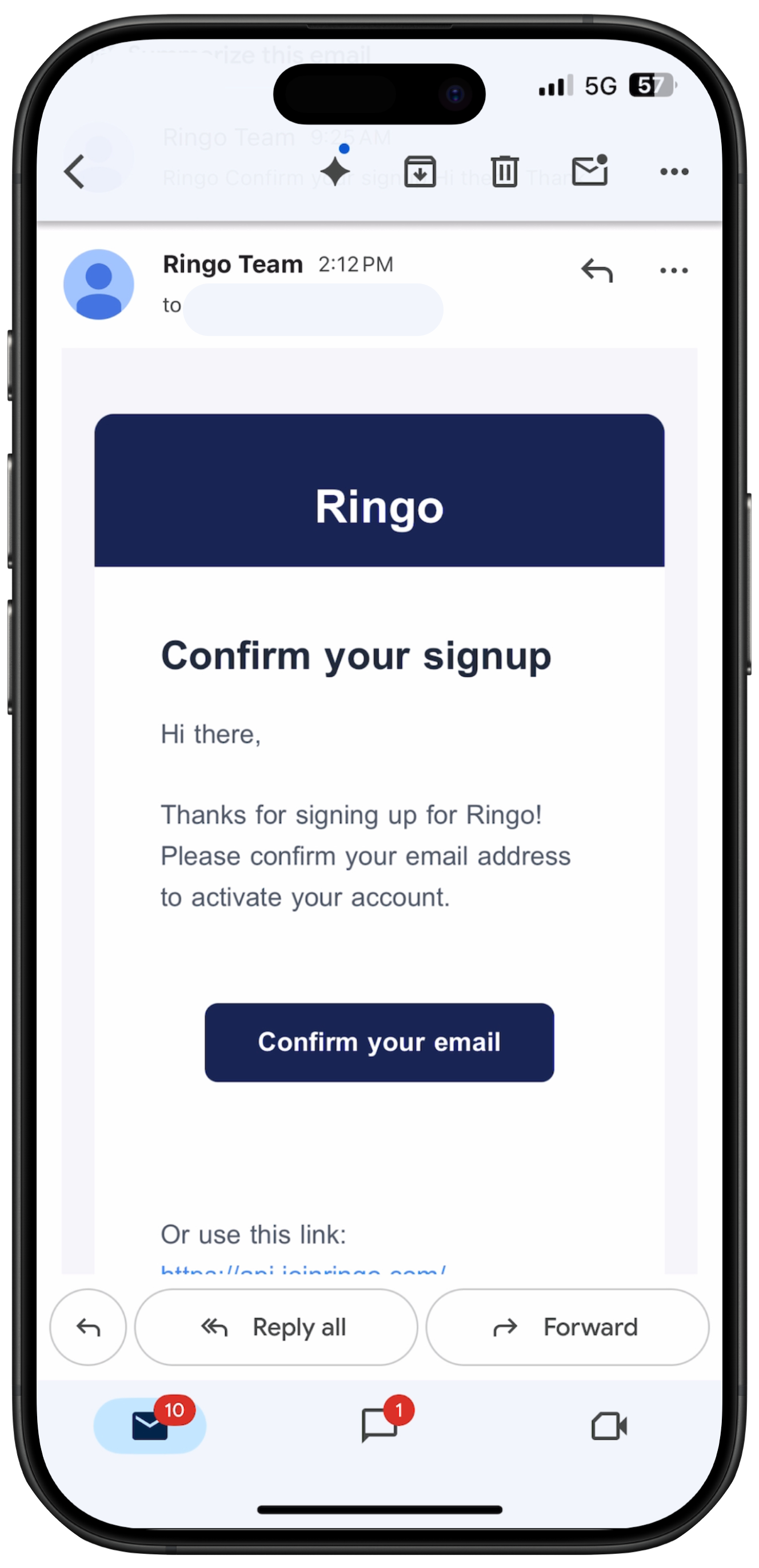
3. Confirm Your Email
Open your email and click the Confirm your email to activate your account and complete your login.
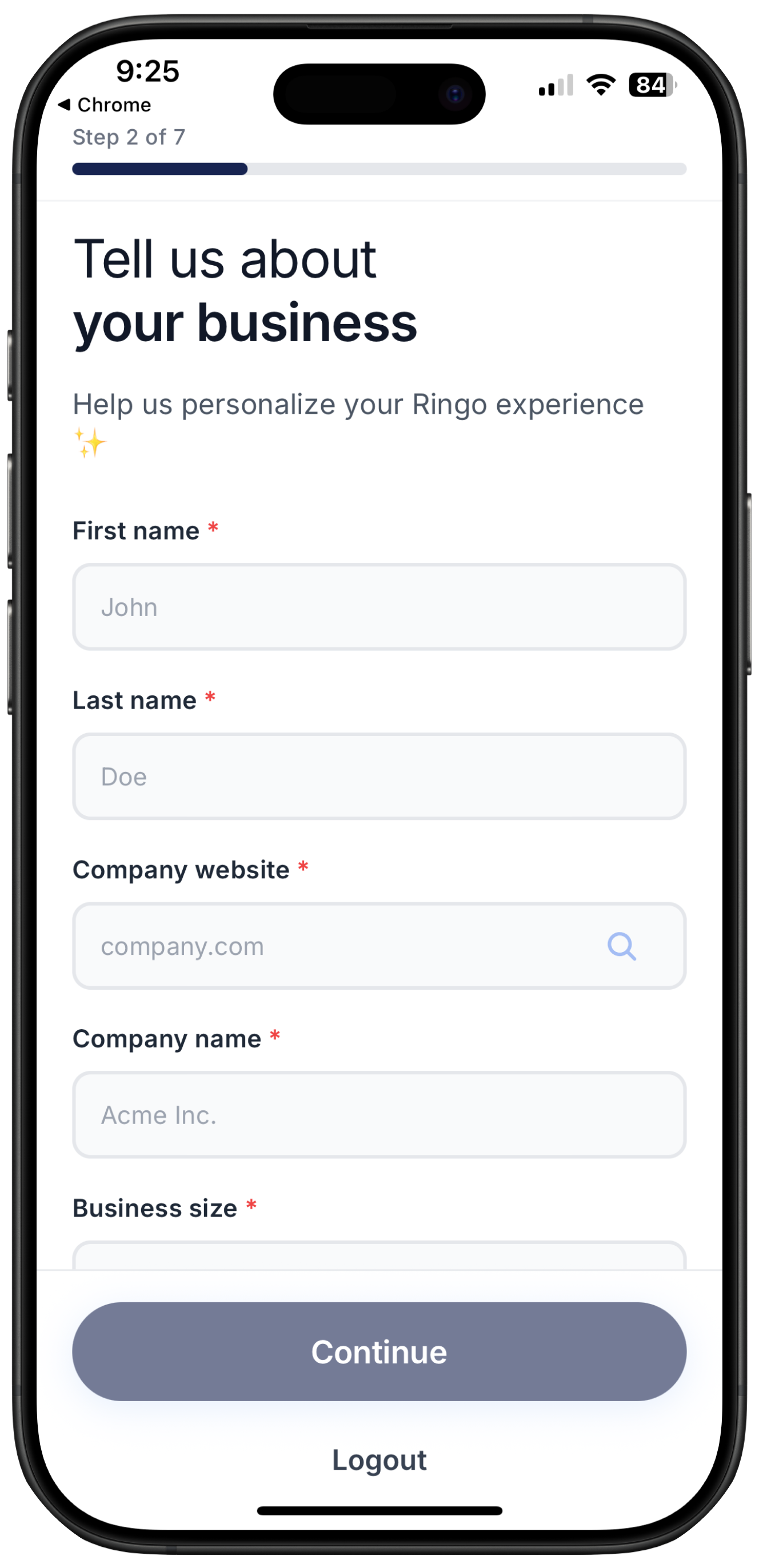
4. Tell Us About Your Business
Fill in your company details so we can personalize your experience and optimize Ringo for your business needs.
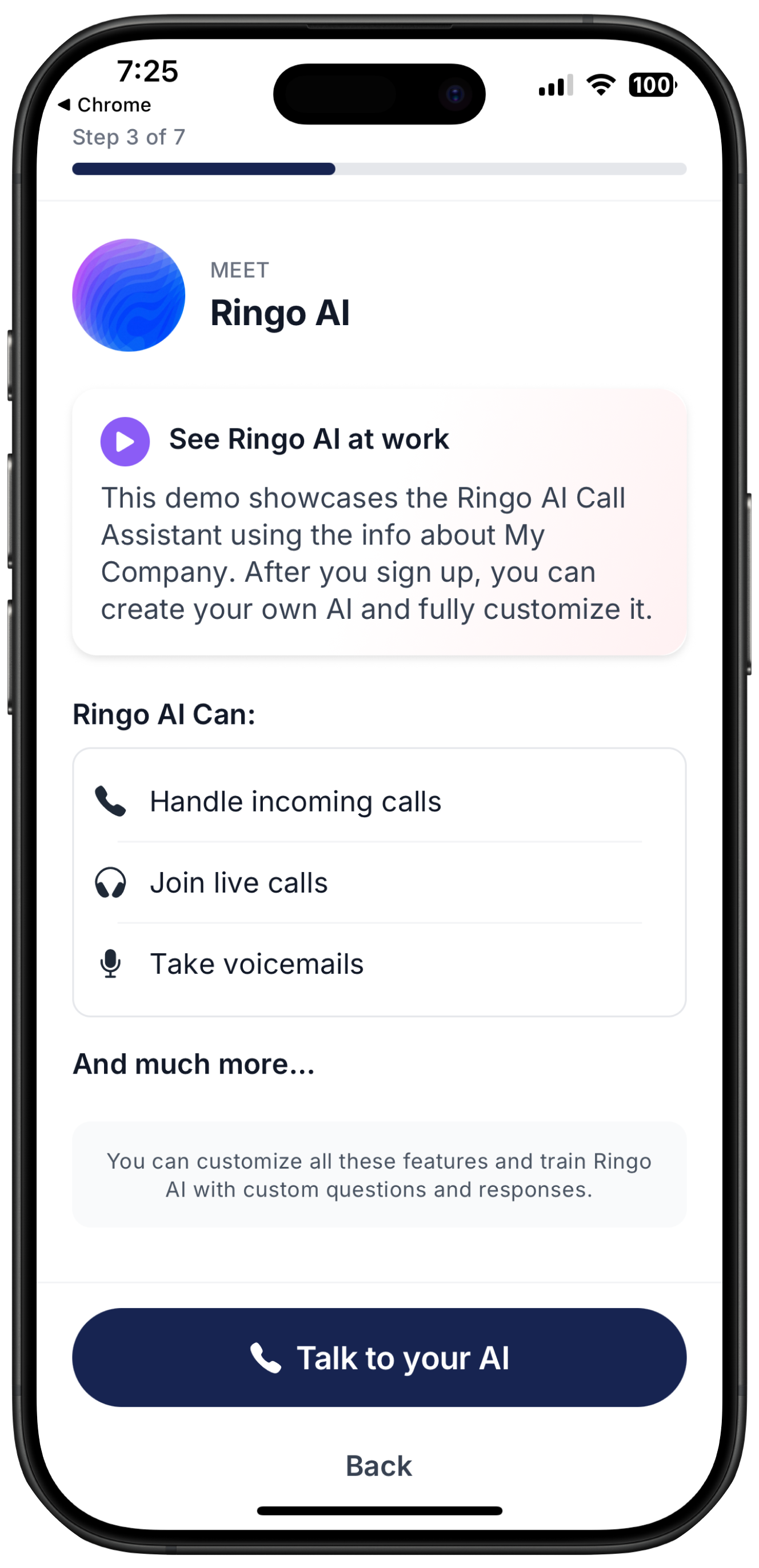
5. Meet Ringo’s AI Call Assistant
Experience an interactive call with Ringo’s AI Assistant. You can ask her any questions about how Ringo works. End the call anytime when you're ready to move on.
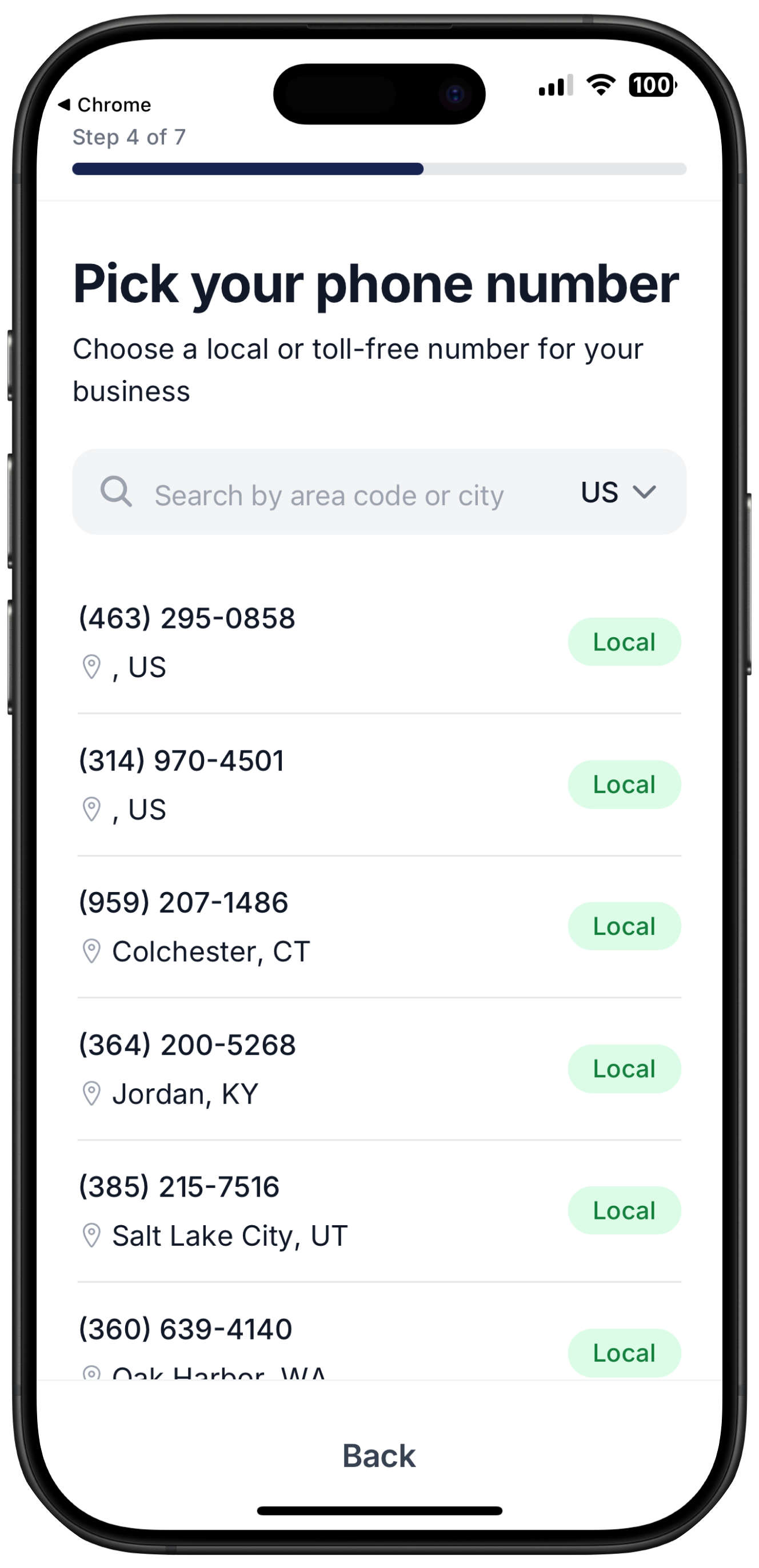
6. Choose Your Phone Number
Select your preferred phone number using your area code or city. We currently support both U.S. and Canadian numbers. If you want to port your existing phone number check here, or contact us directly.
7. Complete Your Setup
Follow the recommended steps to finish your onboarding:
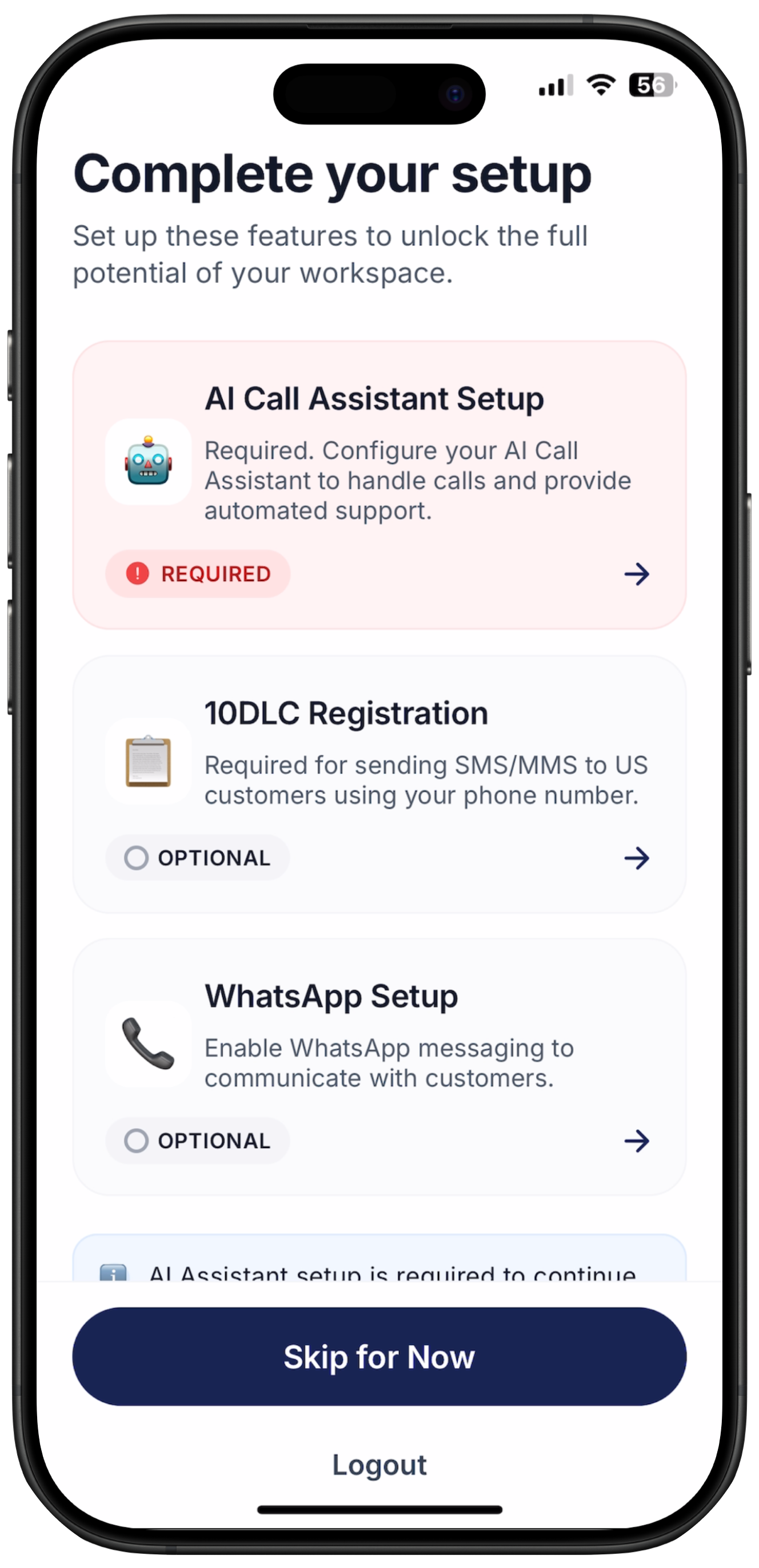
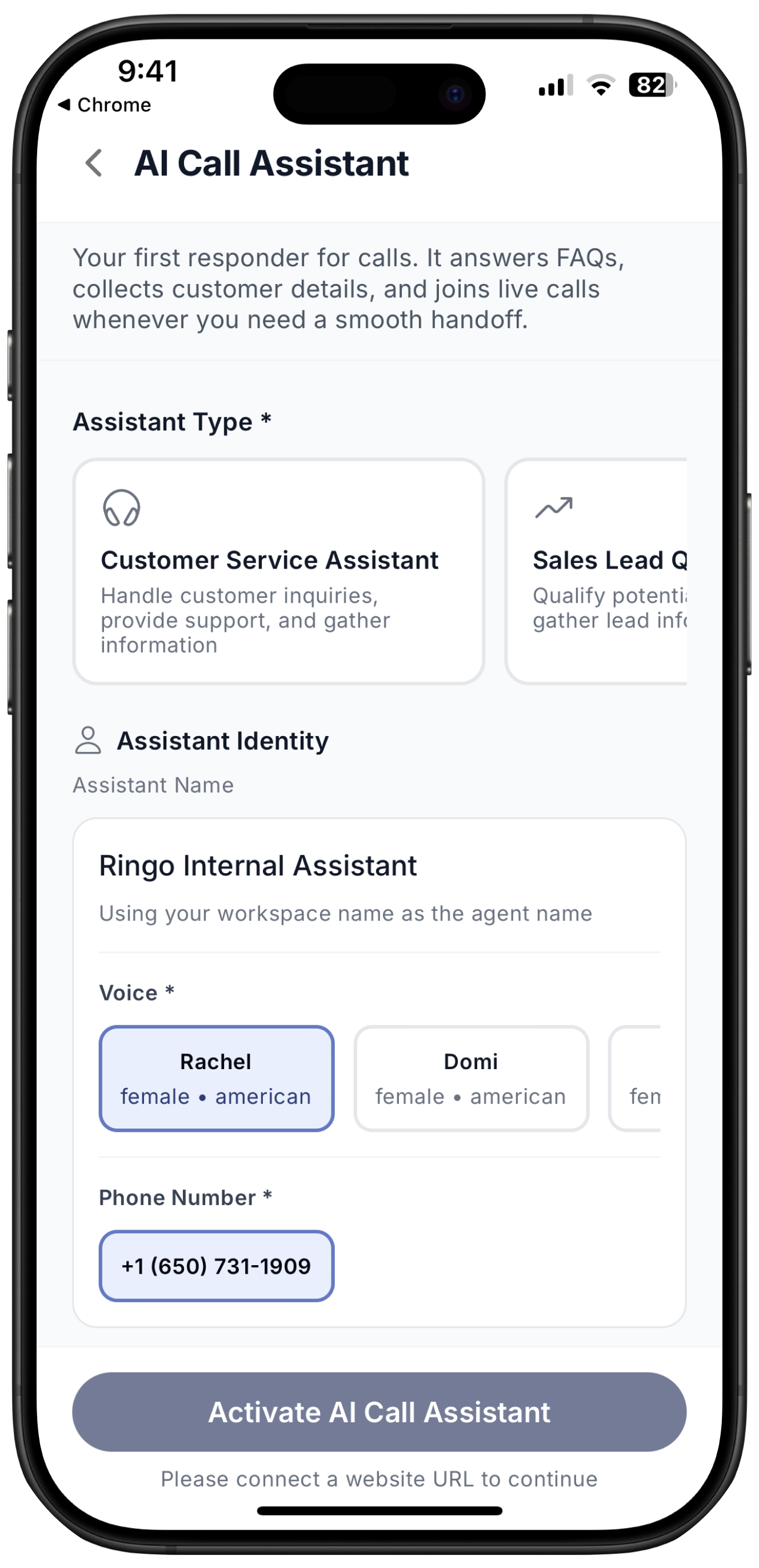
1. AI Call Assistant (Required)
Enables your virtual receptionist and call-handling features. The AI Call Assistant setup is required to ensure someone always answers your calls. You can adjust how long it takes for the AI Call Assistant to take over a call, along with any other settings, at any time. For more information on the AI Call Assistant check here.
2. 10DLC Registration (Optional, unless messaging U.S. or Canadian numbers)
Required for sending SMS or MMS to U.S. or Canadian recipients. It’s not required if you plan to use WhatsApp only. For more information on 10DLC carrier registration check here.
3. WhatsApp Setup (Optional)
Required only if you plan to send WhatsApp messages or WhatsApp templates through Meta. More information on WhatsApp Setup here.
Next Steps
Want to add team members to your Ringo account? Check out our guide here on how to manage your team workspace.