Inbox
Your Inbox is the core of your daily operations. Keeping it well organized is essential for delivering great service. In this guide, we’ll walk you through the main functionalities of your Inbox and share best-practice tips to help you get the most out of it.
Last updated 9 months ago
Tabs
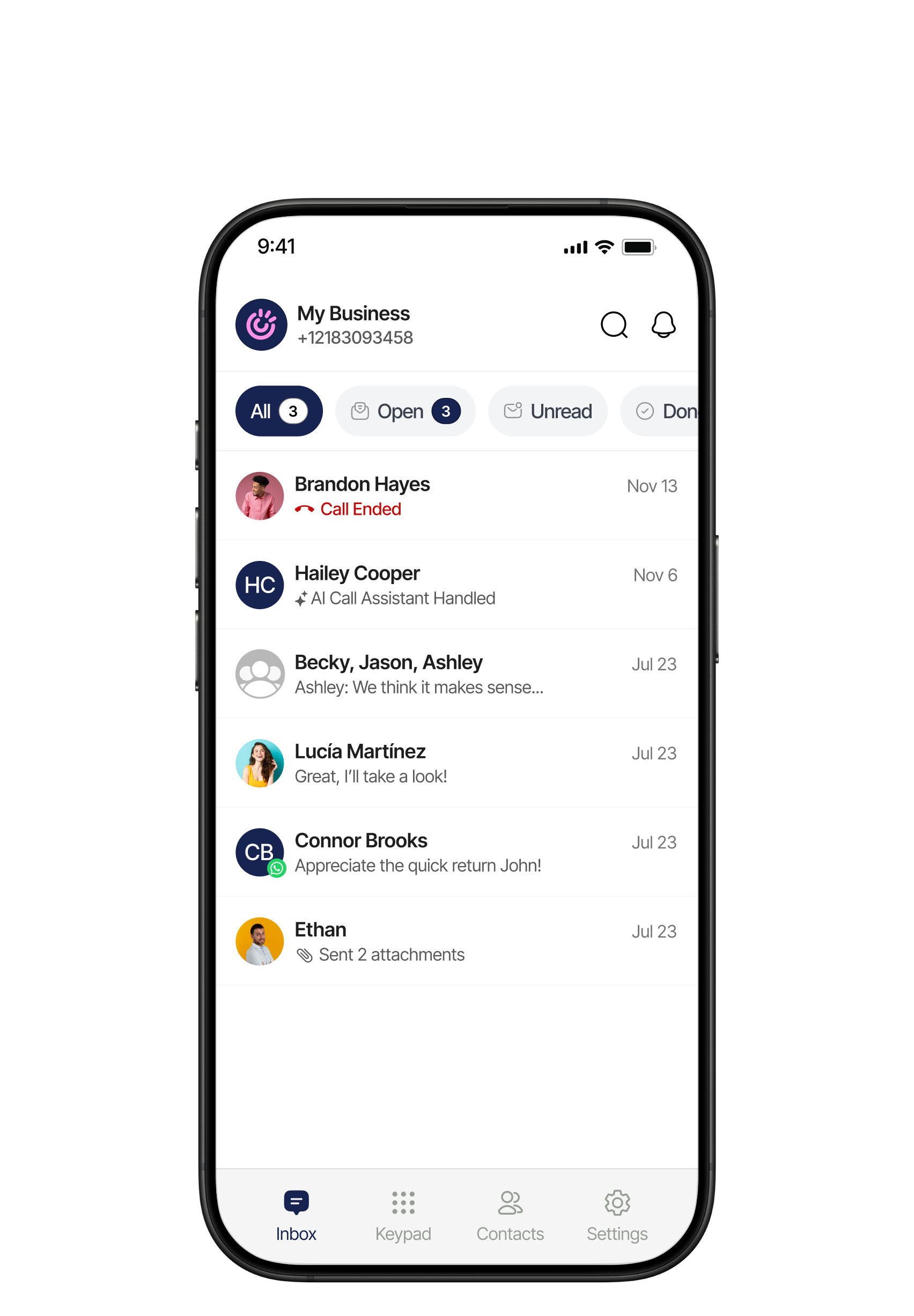
All – Shows every message that has not been marked as Done. All unread messages will also appear here.
Open – Includes messages you have opened since the last message was received.
Unread – Messages or calls initiated by the customer that you haven’t opened yet.
Done – Messages you have manually marked as Done, meaning the customer’s issue has been resolved and you no longer need the conversation in your active view. The message remains stored for future reference.
Conversations
Your Inbox is where you’ll find all your active and past conversations with customers.
Managing Conversations
Keeping your inbox organized it’s very easy with Ringo, here are some quick ways you can take manage any contact:
Delete a conversation
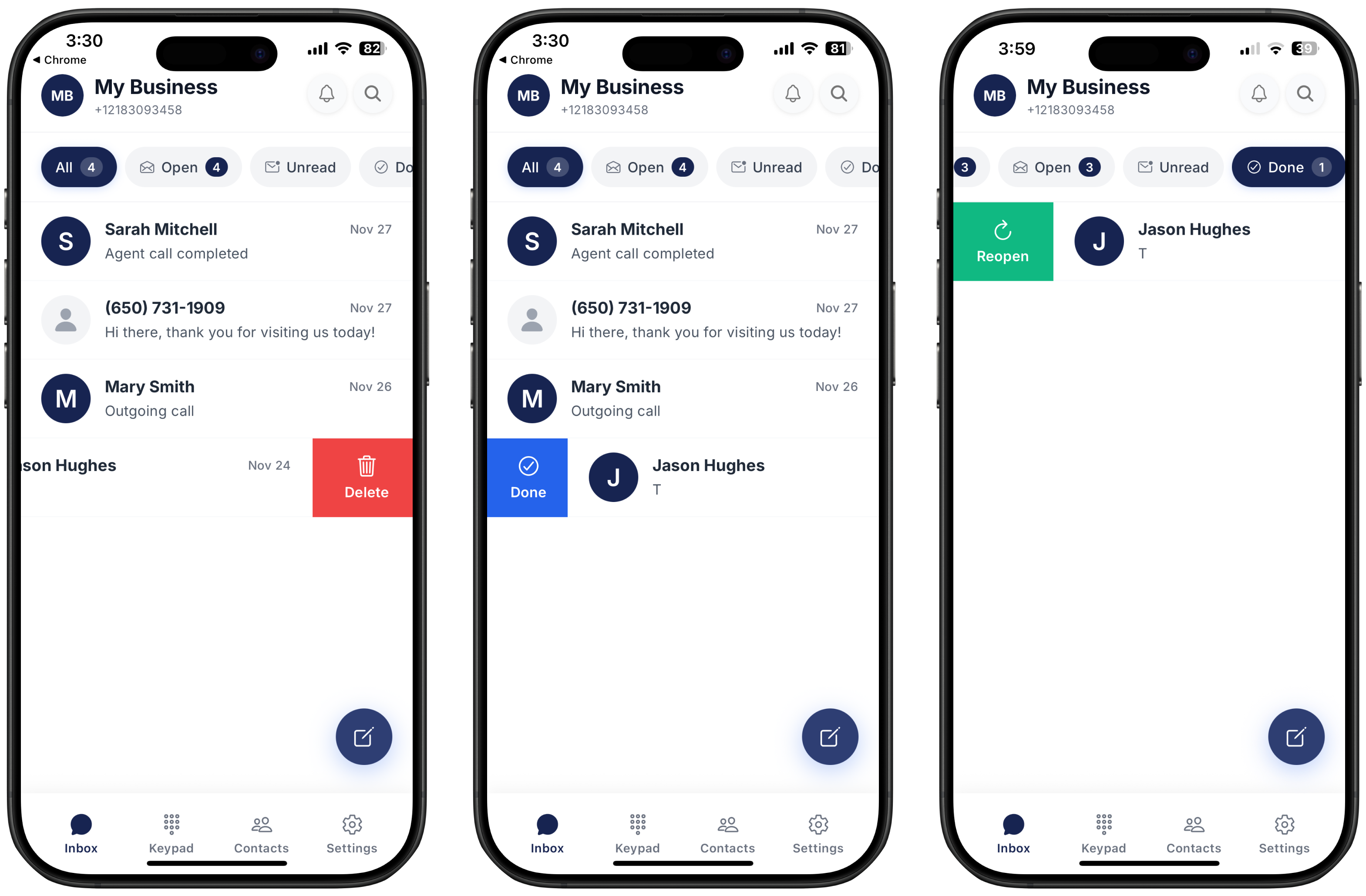
Swipe the conversation to the right, then tap Delete.
Mark a conversation as Done
Swipe the conversation to the left, then tap Done.
Reopen a “Done” conversation
Go to to the Done tab, and on the conversation that you want to reopen swipe left and tap “Reopen”
Types of conversations
Ringo supports several kinds of exchanges:
Make and receive calls
Get and send SMS messages
Exchange WhatsApp messages
Join and create group chats
Starting a New Conversation
1:1 Chats
If you want to start a new conversation, either with an existing contact or by adding a new one, you can do it directly from your Inbox:
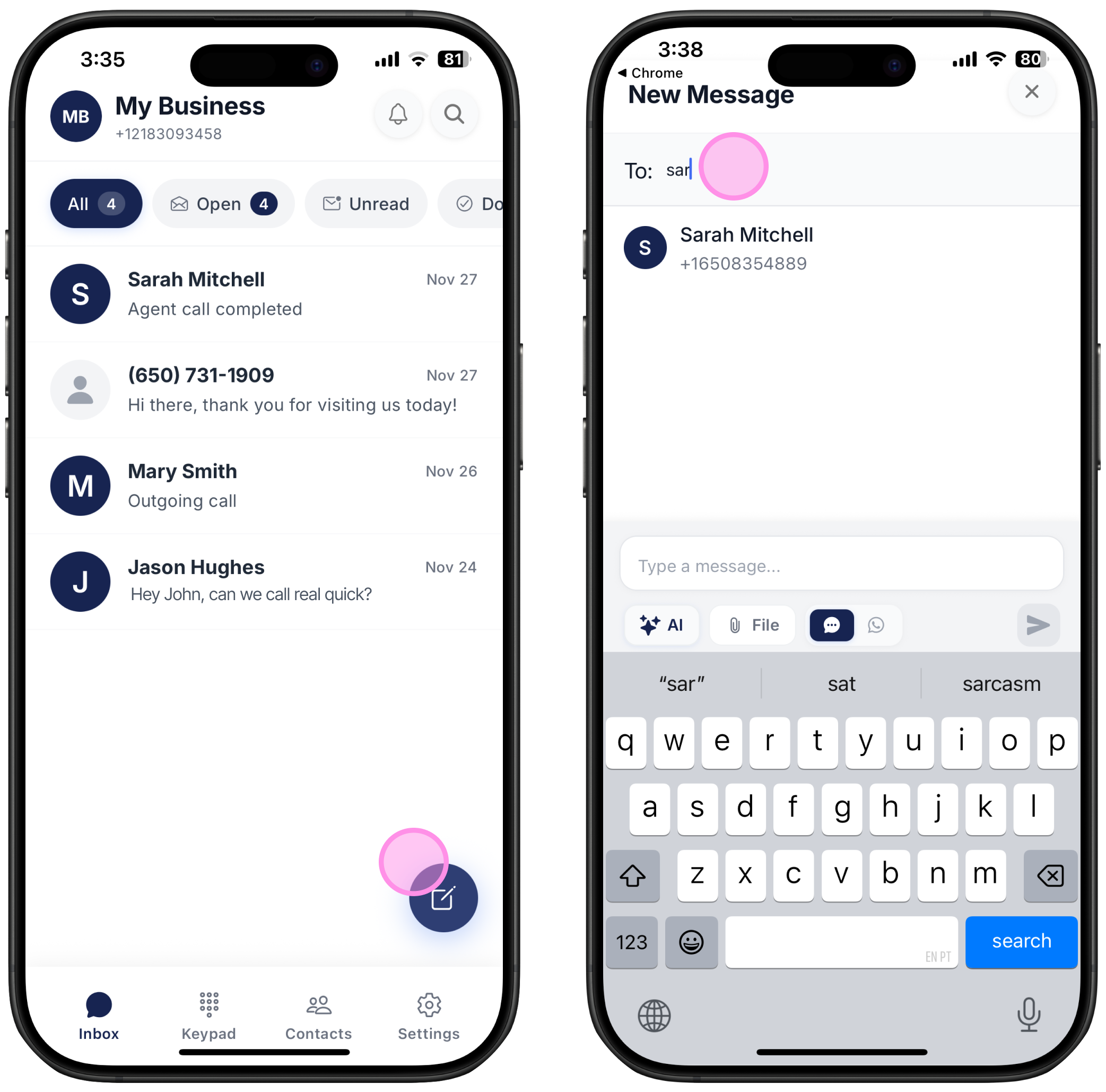
Tap the Write icon in the bottom-right corner of your Inbox.
Type one of the following:
To search for an existing contact – Type their name and select from the list.
To add a new contact – Type the phone number and tap Add Number.
Write your message.
You can use our AI Writing Assistant to help draft your message
You can also attach files
Tap Send!
Group chats
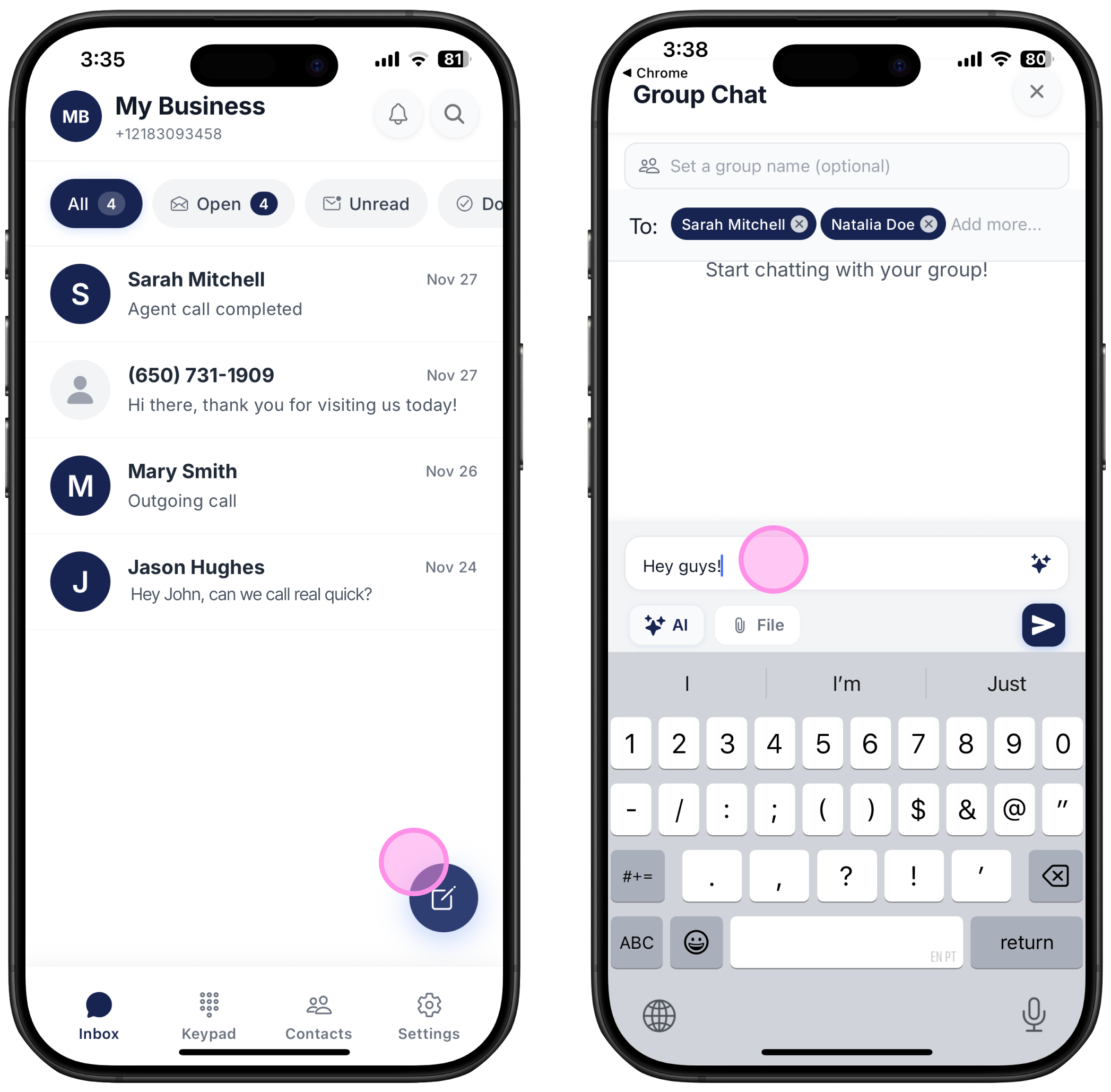
If you want to start a new group conversation, here’s how to do it:
Tap the Write icon in the bottom-right corner of your Inbox.
Type one of the following to add first person
To search for an existing contact – Type their name and select from the list.
To add a new contact – Type the phone number and tap Add Number.
Click enter, and do the same step to add a second person.
Write your message and it will send to the group chat directly.
You can use AI Writing Assistant to help draft your message
You can also attach files
Tap Send!
Notifications and Team Activities
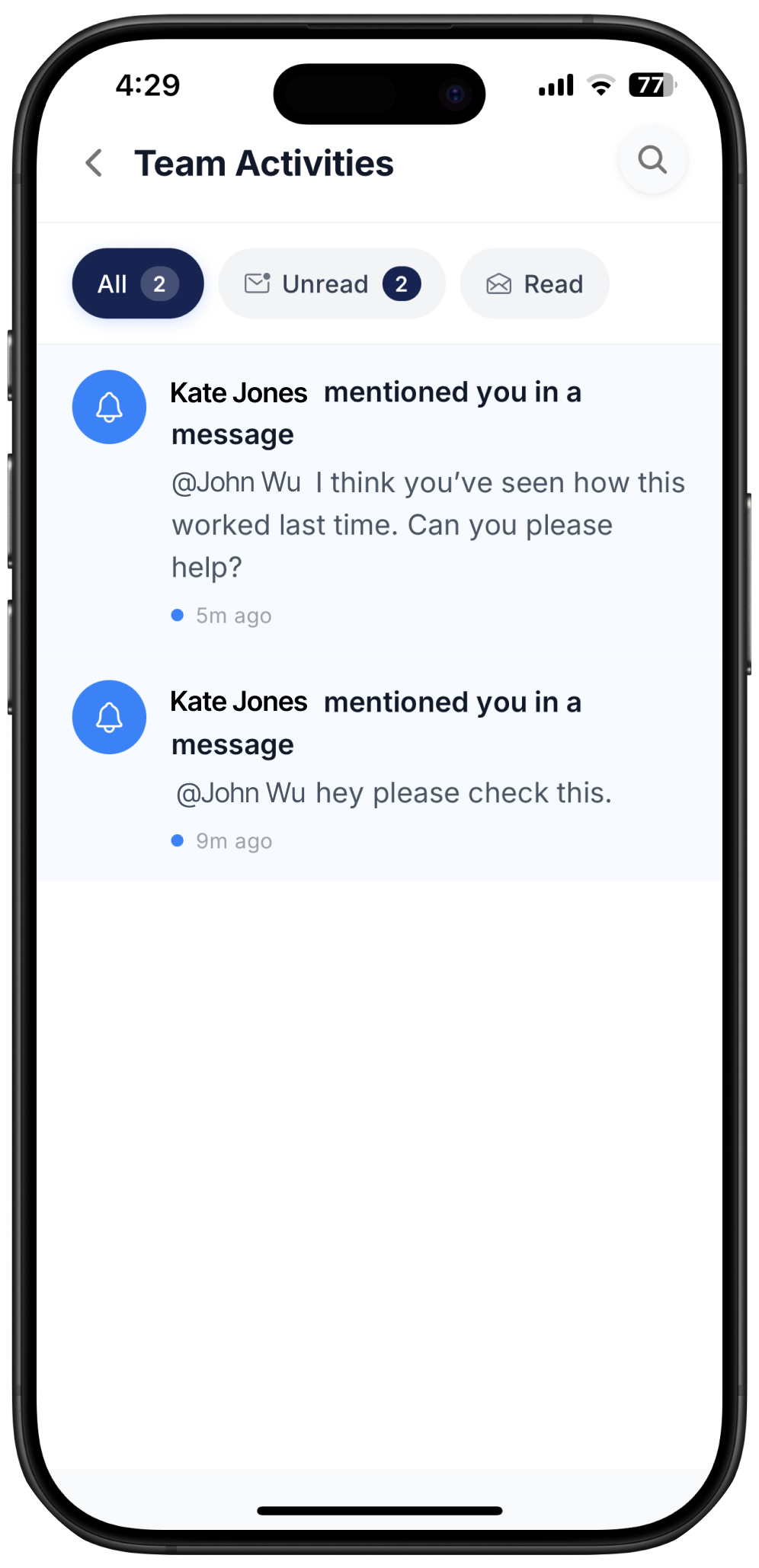
At the top-right corner of your Inbox, you’ll see a bell icon. This is where you can view your team’s activity and any notifications you receive, including:
Messages where you’ve been mentioned
Messages that have been marked as resolved or open by you
Threads you’ve commented on
Threads on your activities such as calls and messages
You can also browse the activities using the tabs at the top of the page:
All – Includes every activity since you started using Ringo
Unread – Activities you haven’t viewed yet
Read – Activities you’ve already opened
When you click on an activity, the corresponding chat or thread will open immediately so you can jump into the conversation right away. For more information on messages, check here.
Search
On the top right corner of your inbox screen, click on the “Search” icon to start a search. It is possible to search by pre-set Tags. You can select one or multiple tags.
When creating a contact, you can add custom tags. These tags will be saved and can be used not only for that contact but also later to filter and refine your searches.