Calling
Ringo gives you and your team a simple, smart way to make and receive calls while ensuring your customers always have a smooth experience. In this guide, you’ll learn how to start and join calls, collaborate during calls and set up your call preferences.
Last updated 9 months ago
Making Calls
You can start a call in several ways: from the keypad, from your inbox or directly from a contact. Below is a quick overview of each method.
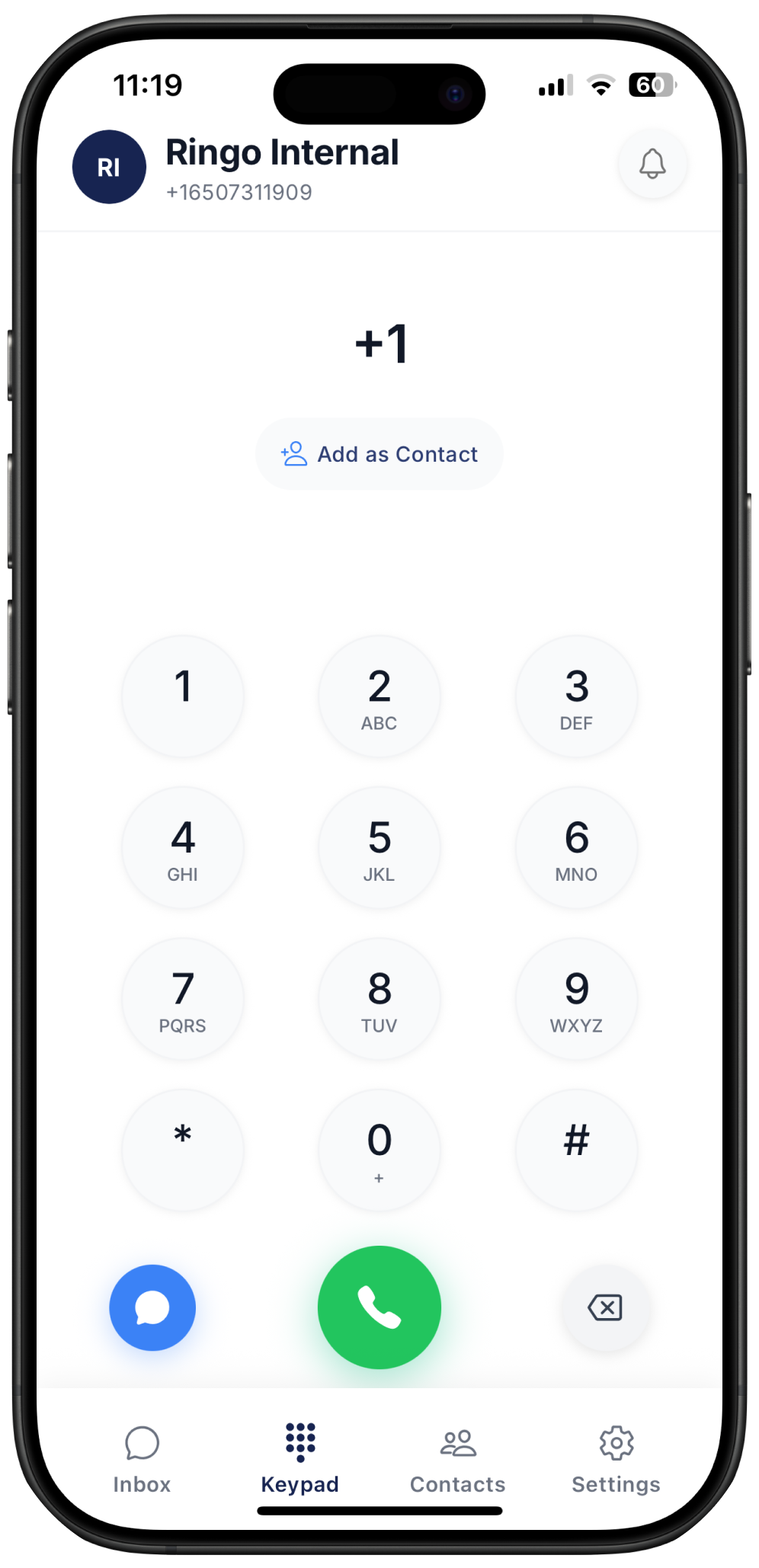
Calling New Numbers From the Keypad
Open the Keypad tab in the navigation bar.
Enter the number you want to call.
Call: Tap the phone icon to start a call.
Message: Tap the message icon to start a chat.
Add as Contact: Create a new contact using the number. (See our Contacts guide for more details.)
Calling Existing Contacts
Method 1 – Using the Keypad
Go to the Keypad tab.
Paste or type the number.
If it matches an existing contact, their contact card will appear automatically.
Method 2 – From the Inbox
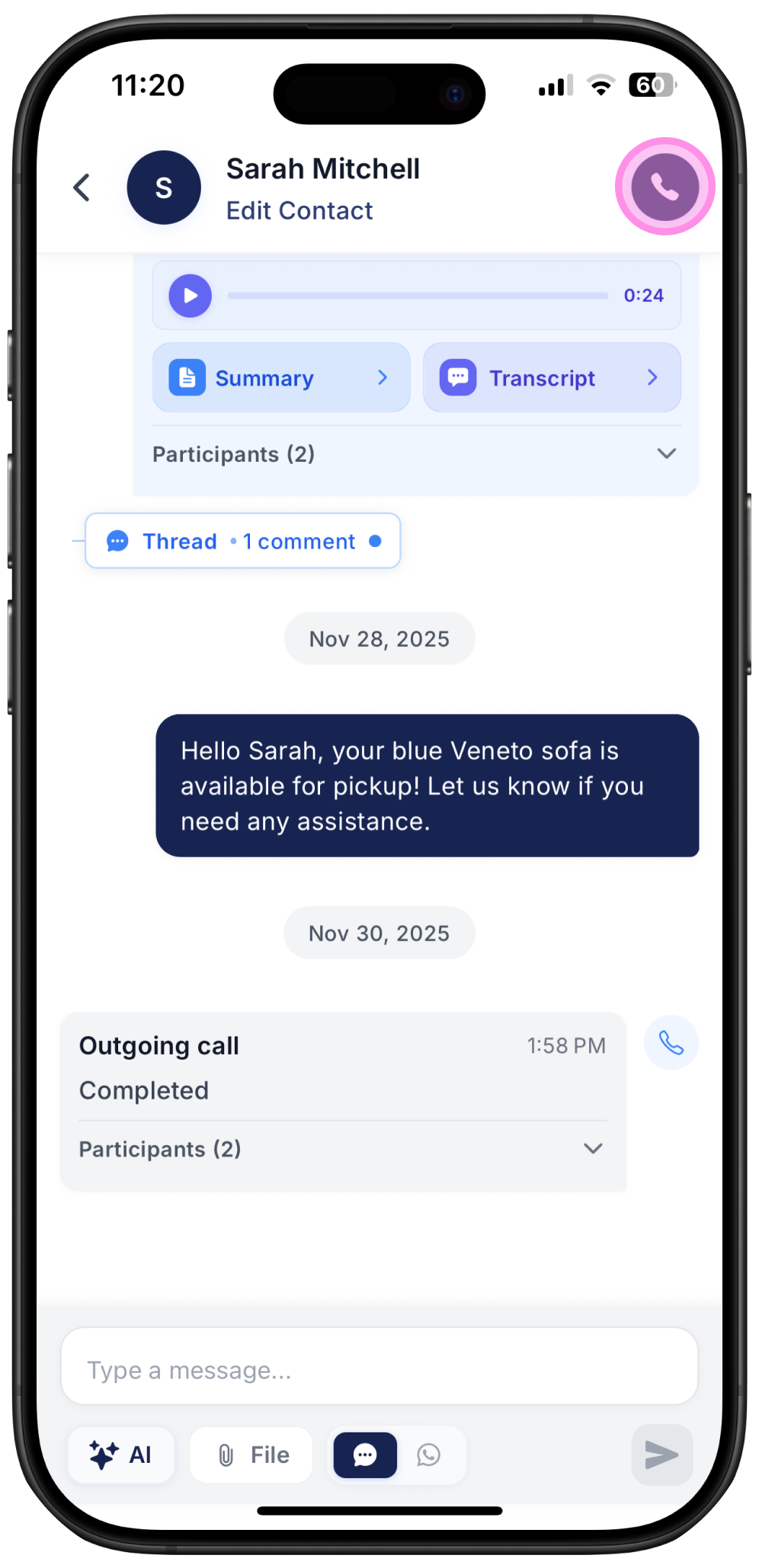
Open the Inbox.
Search for or select the conversation you want.
Tap the phone icon in the top right corner.
Method 3 – From Contacts
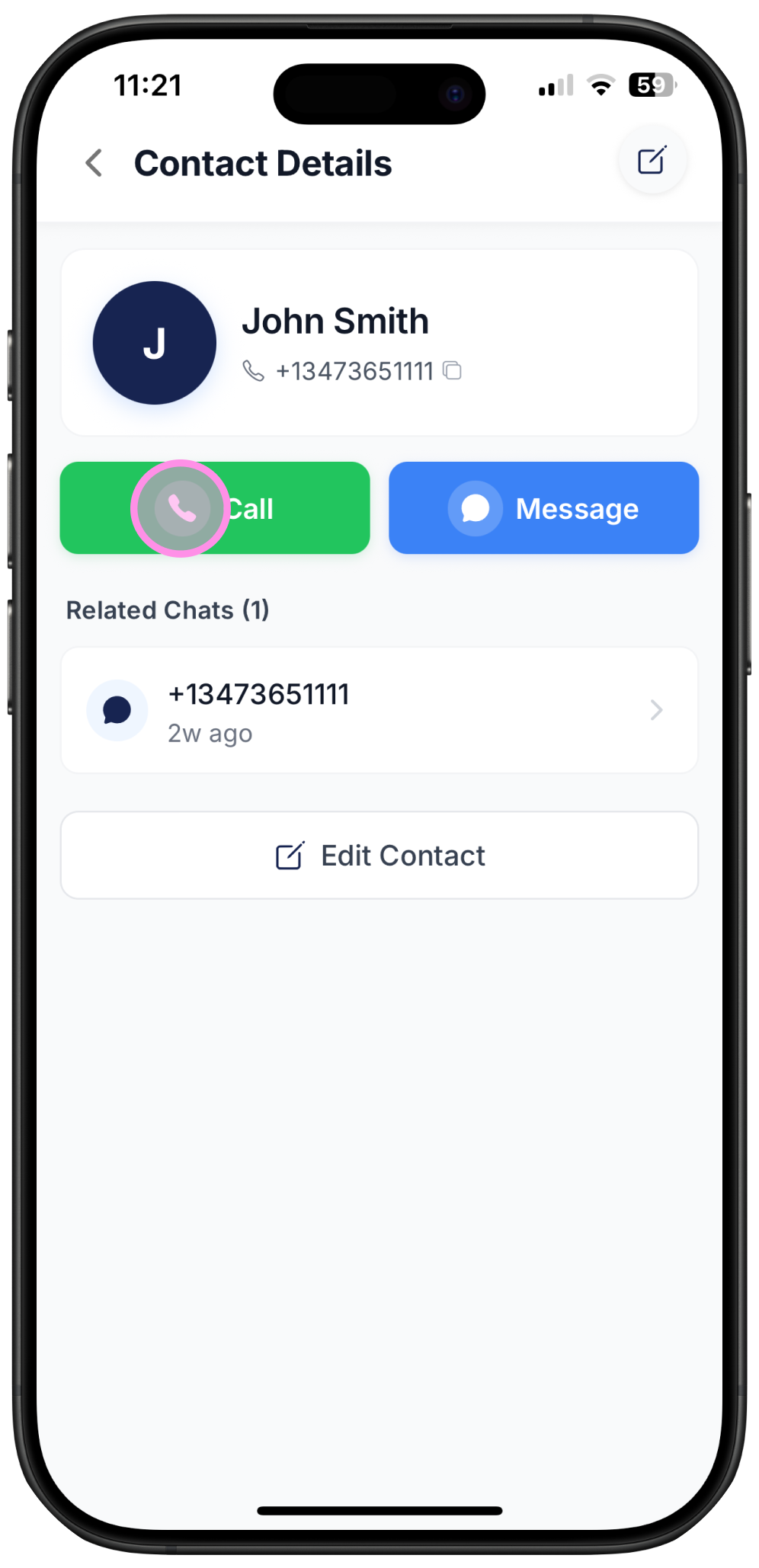
Open the Contacts tab.
Search for or select the contact.
Tap Call.
Receiving Calls
When you receive a call, Ringo gives you several options so you can respond to customers in the best possible way.
Answering a Call
When a call comes in, choose Accept or Decline:
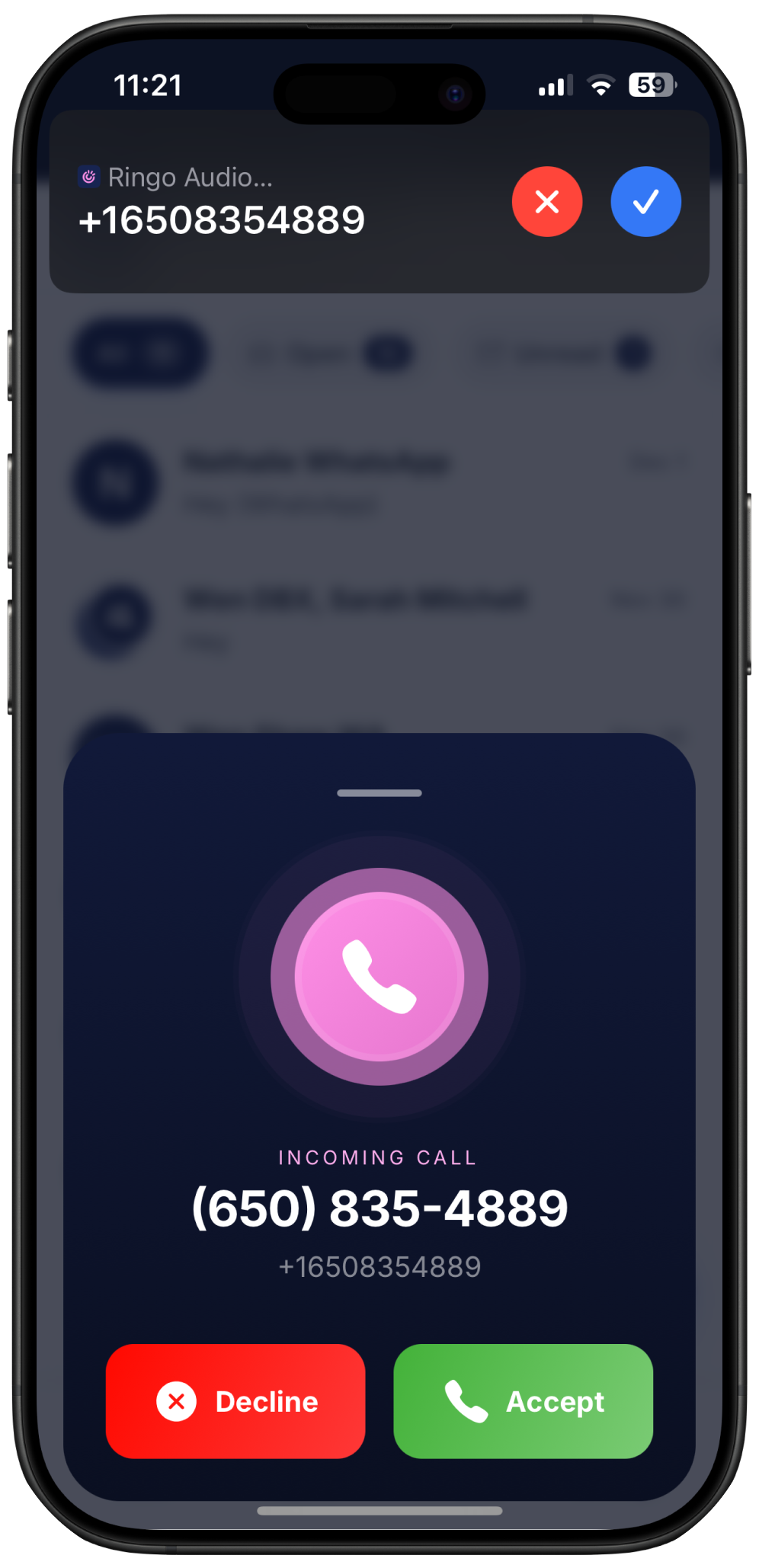
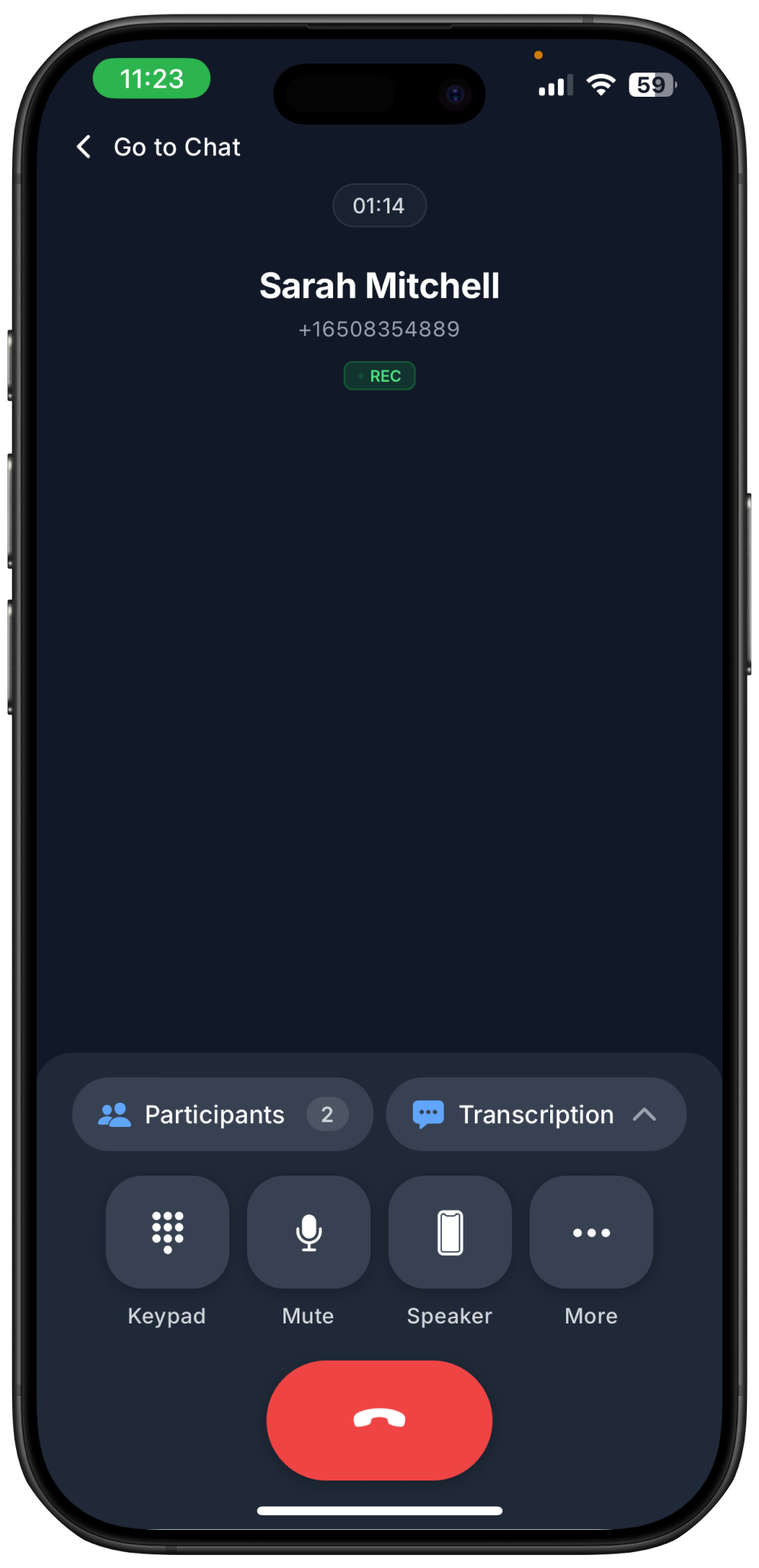
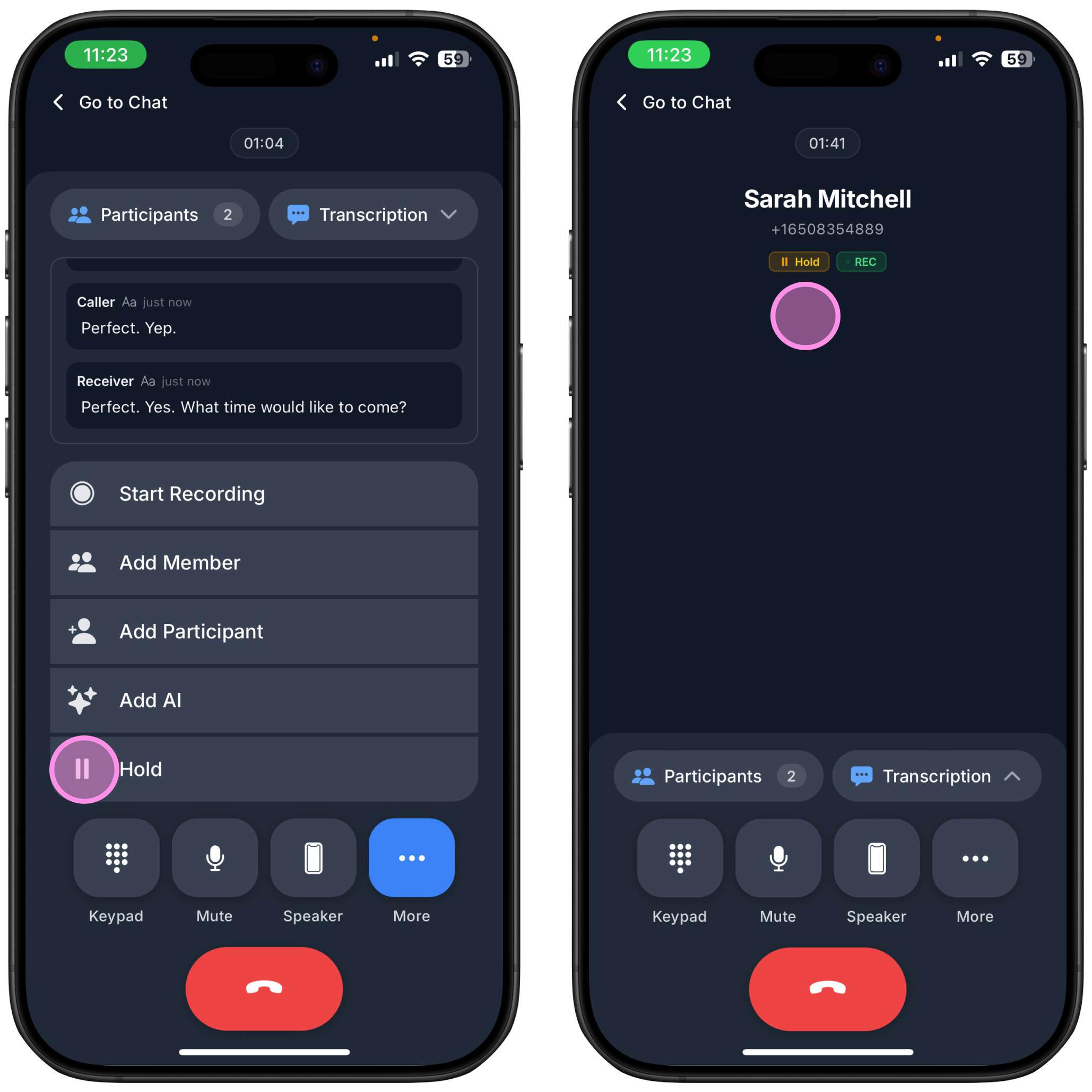
If you accept, you will see several features available during the call:
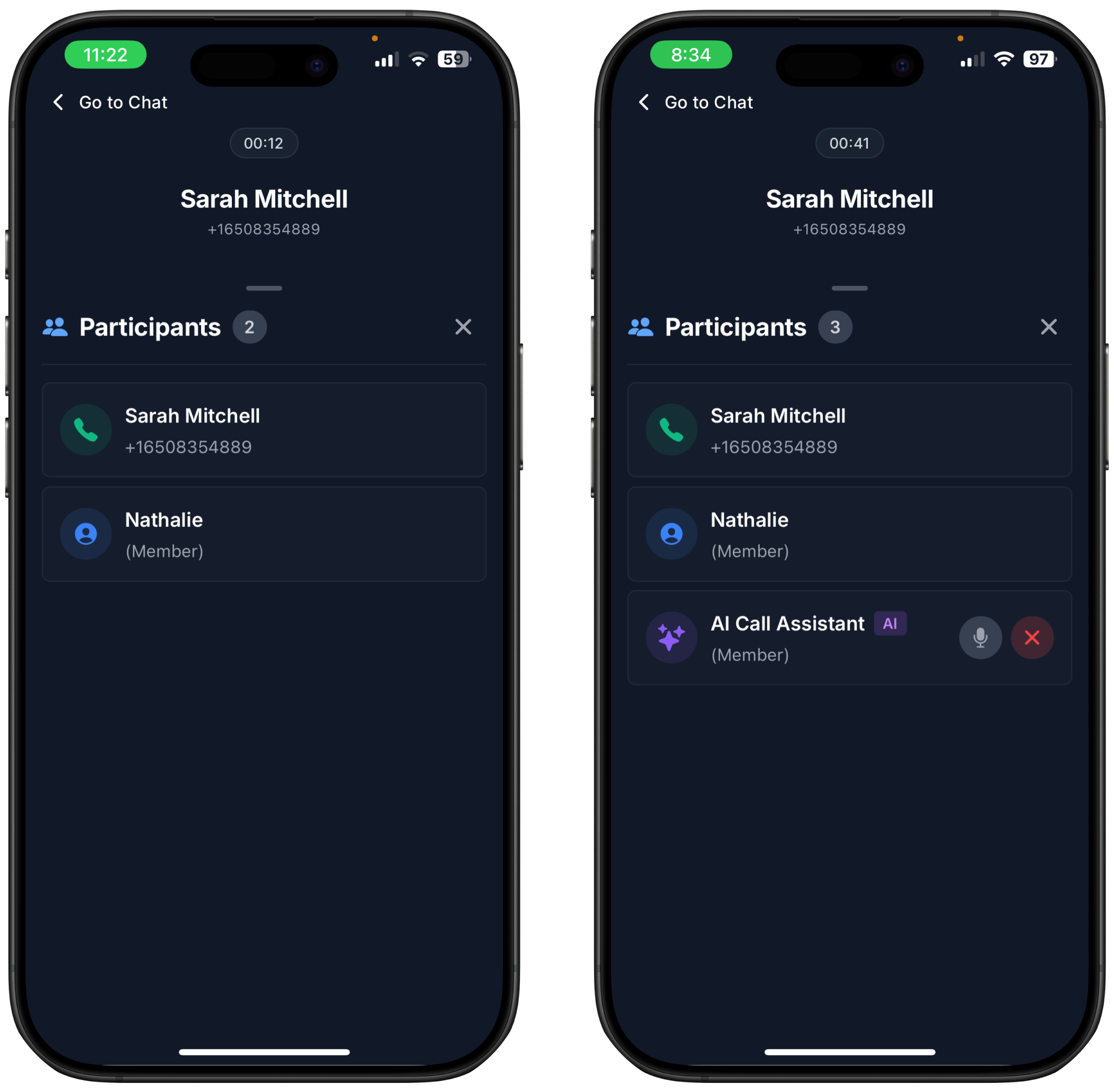
Call Participants
Participants can include you, the customer, teammates or Ringo’s AI Call Assistant.
If there are more than 2 participants in a call (including the AI Call Assistant or not) then you can:
Mute participants if needed
Remove participants if needed
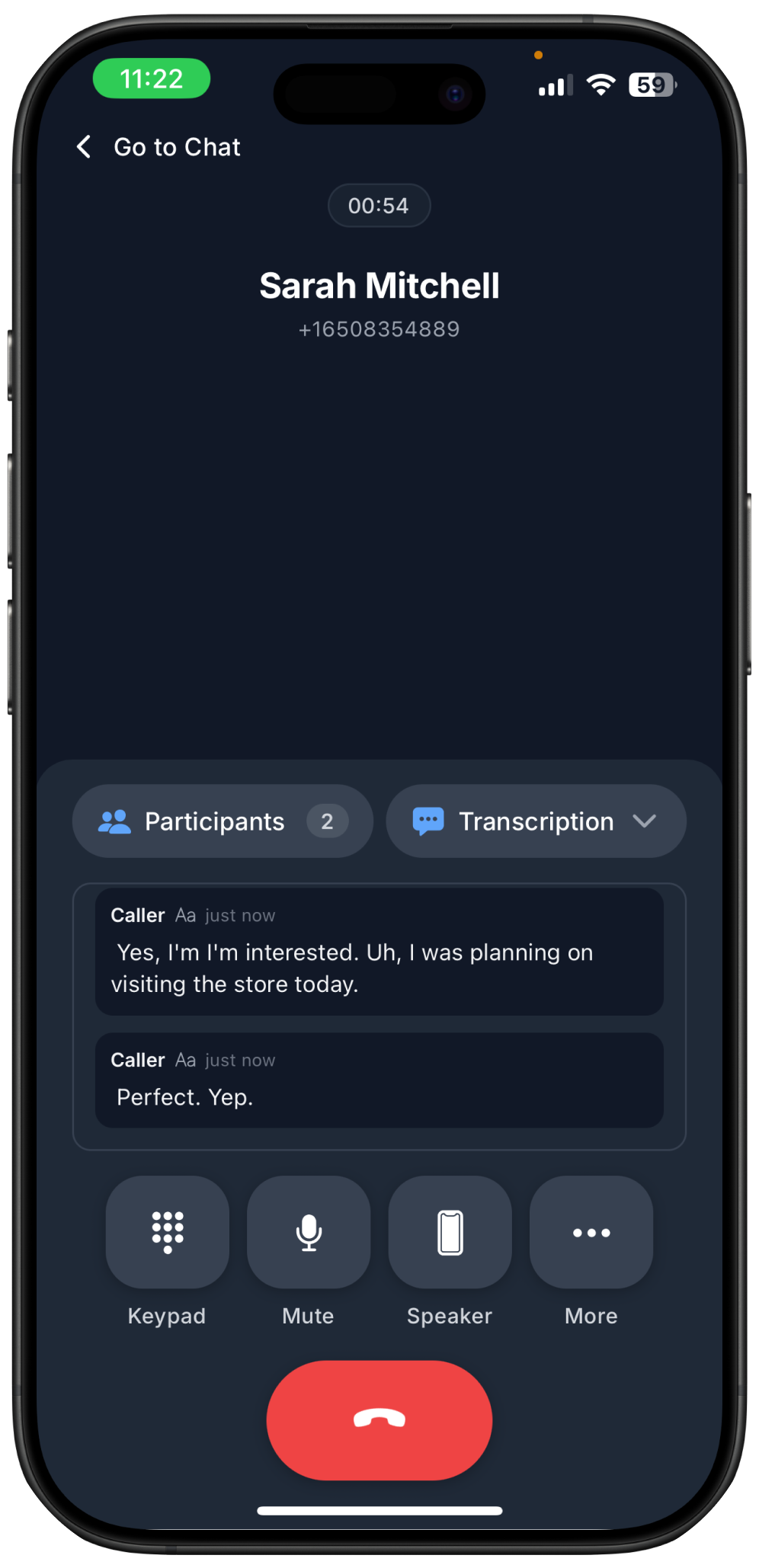
Live Transcription
See a live caption of everything being said, word by word. After the call ends, the full transcript will be available in the chat.
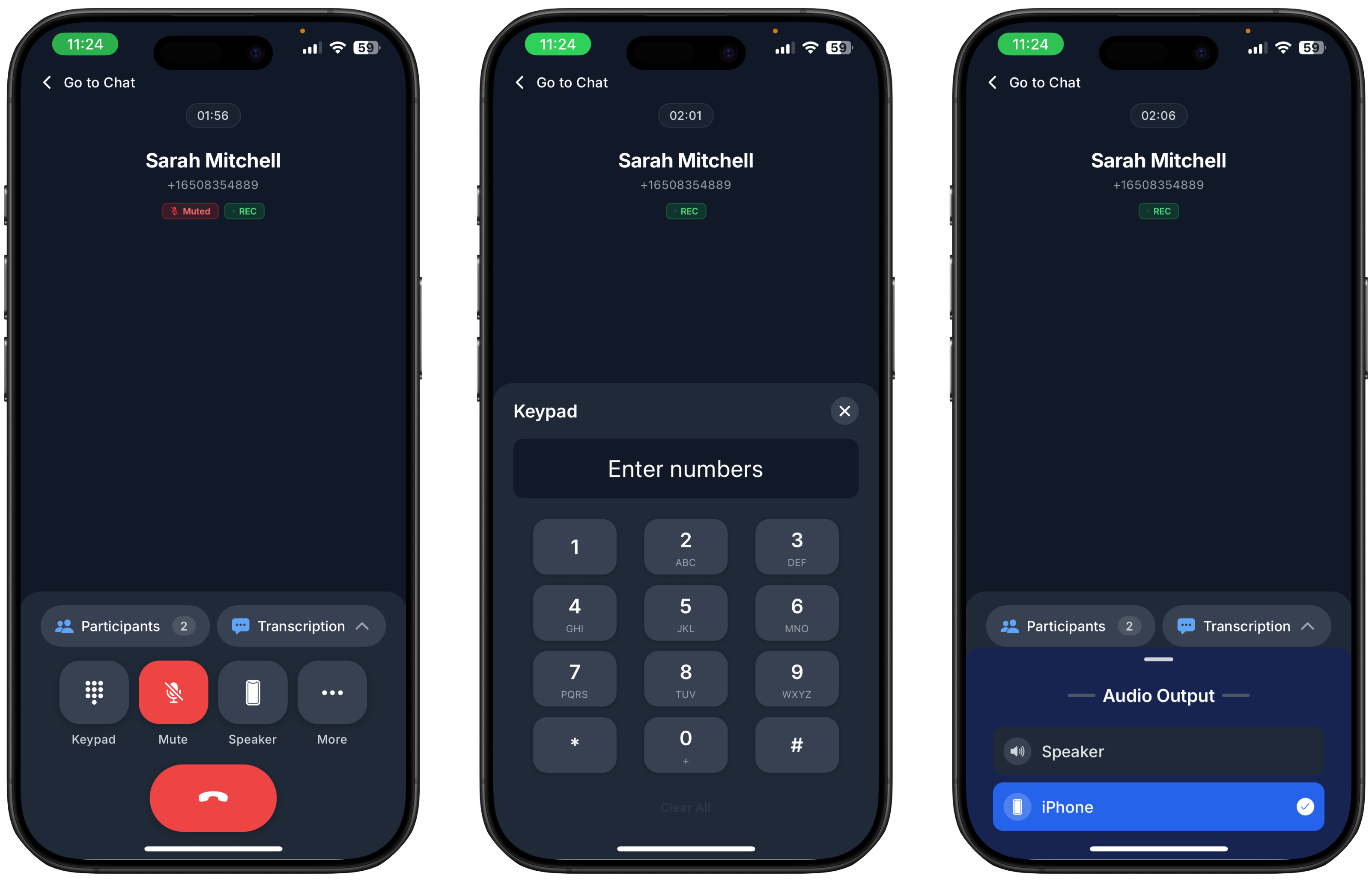
Call Options
Quick Actions:
Mute – Mute yourself anytime, this is useful in noisy environments.
Keypad – for when you have to enter other numbers
Speaker – Switch to loudspeaker.
Advanced Actions:
Tap “More” to see advanced call options:
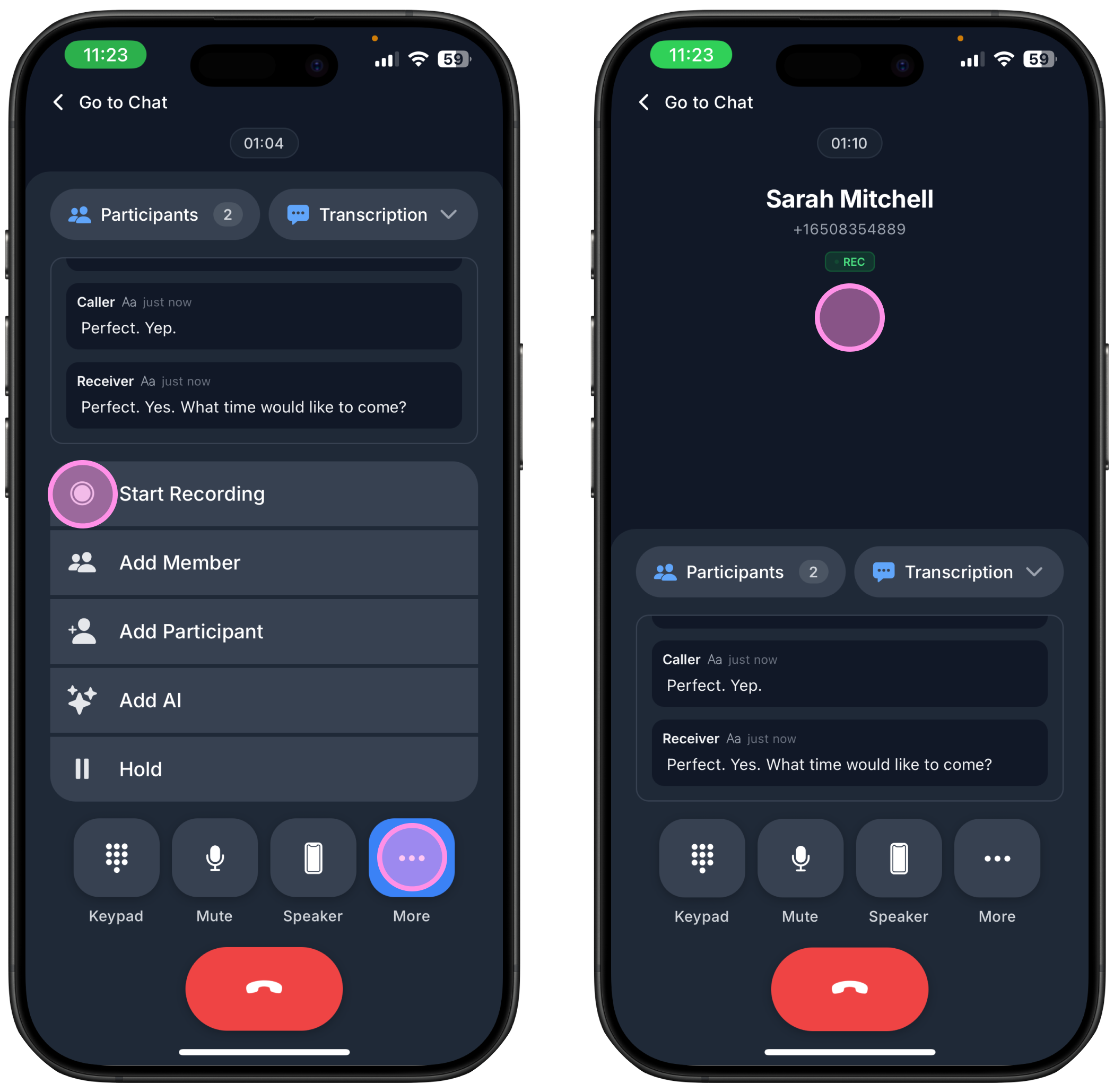
Record – If you want to access the call transcript, summary, or replay later, you must start recording at the beginning of the call.
Click the More button.
Select Record.
A “Rec” sign will pop on your screen
After the call ends, you will receive all call details in the chat with the customer.
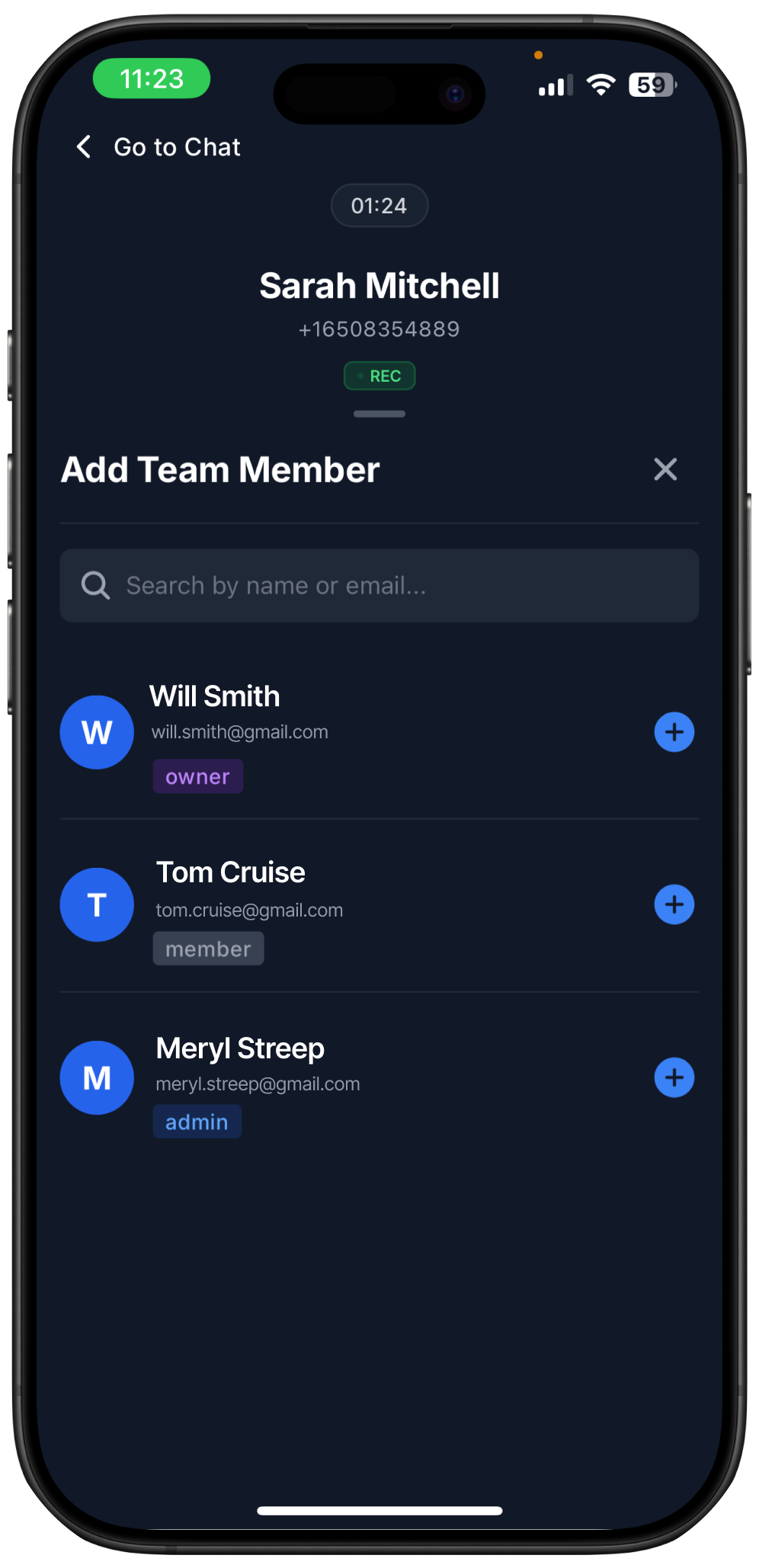
Add member – Invite a teammate to join the call.
Choose from your current teammates already added to your workspace
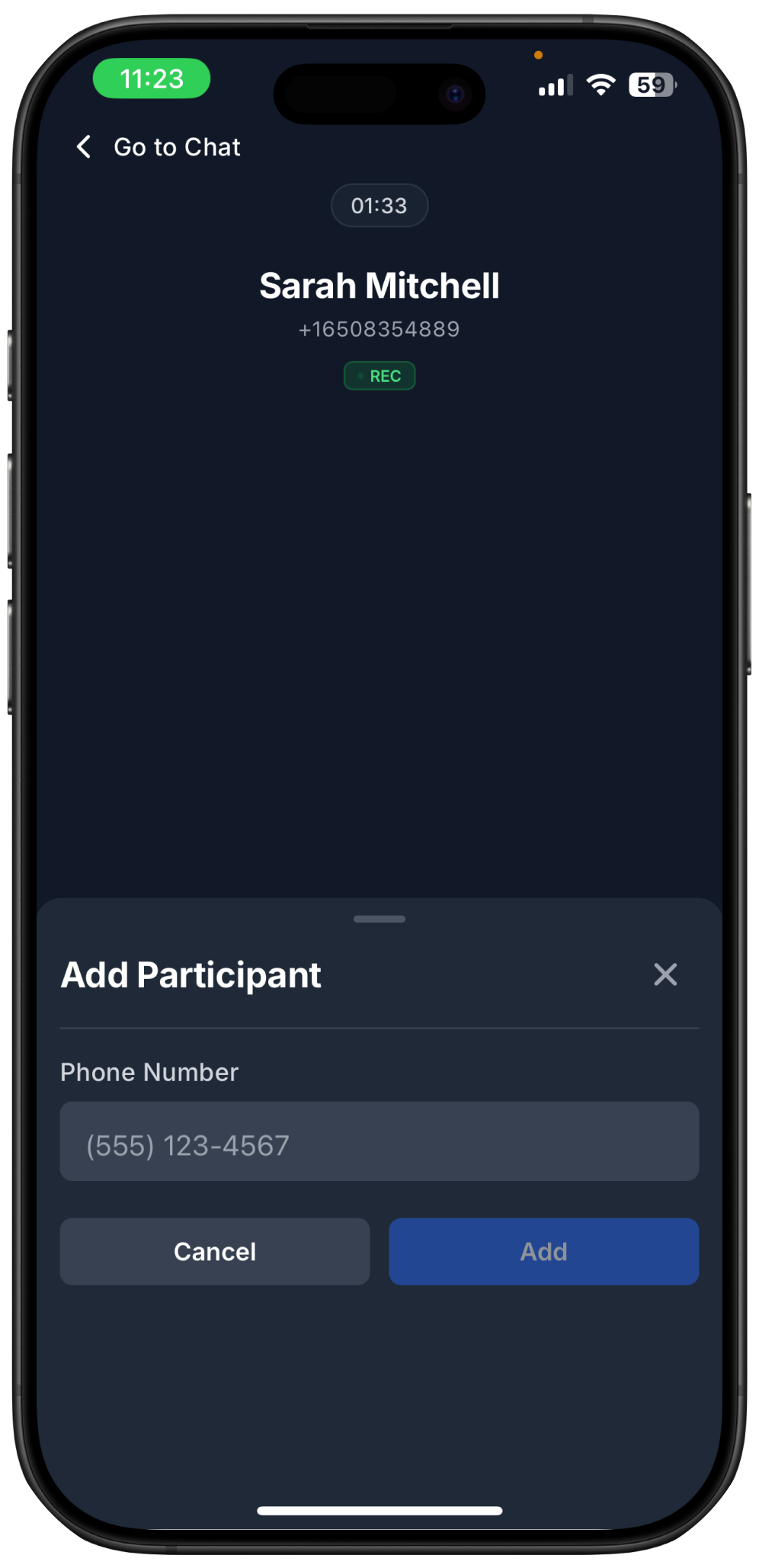
Add participant – Add a new phone number.
Write down the number you want to add to the call, the click “Add”
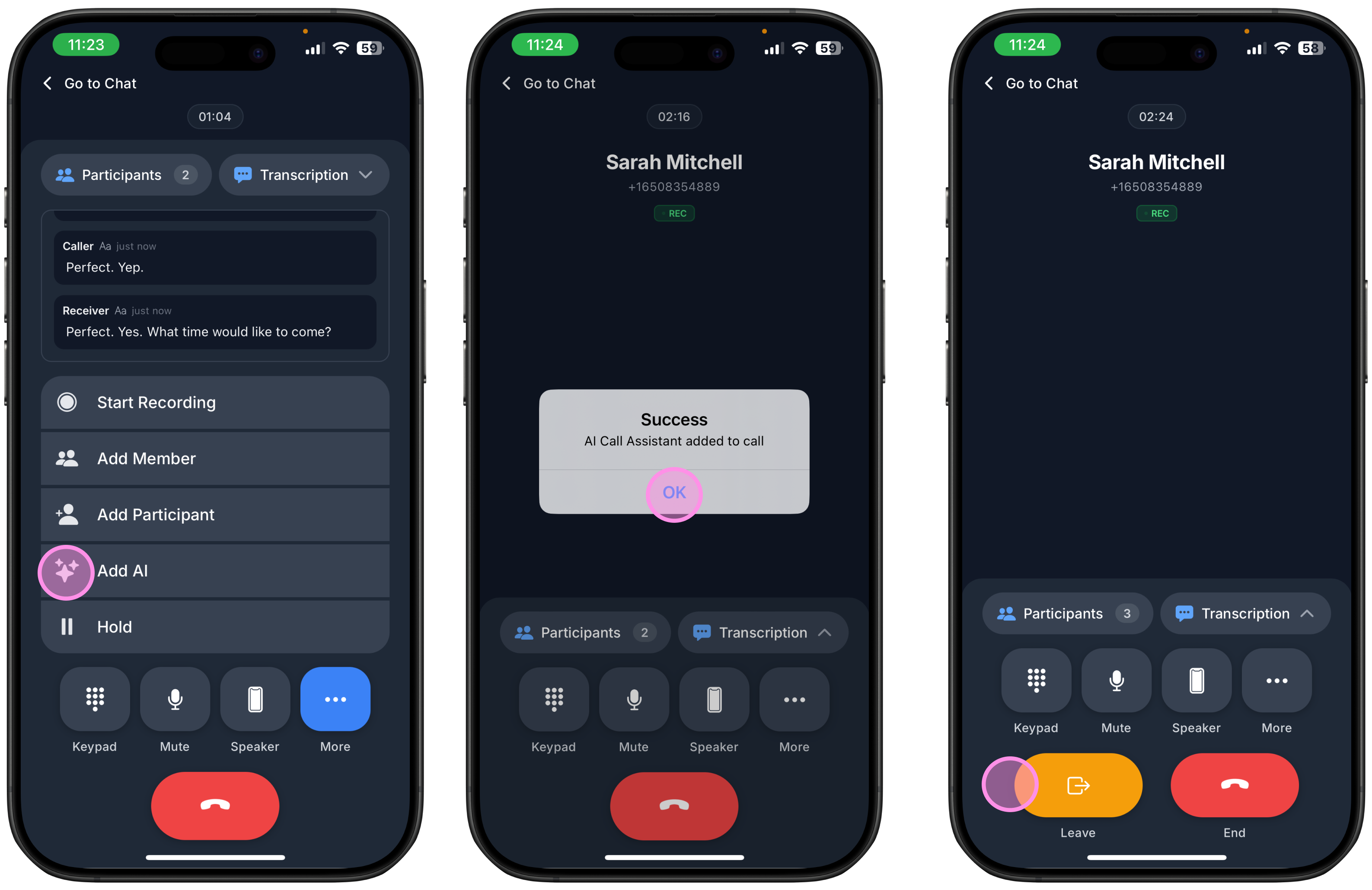
Add AI – Bring your AI Call Assistant into the call so it can take over if needed.
You will see a new participant has been added to the call
You can leave the call once the AI has taken over
Hold – Place the call on hold and resume it anytime.
Call Setup
At Ringo we want to give you the simplest and most flexible calling experience. This guide explains how to adjust your call settings, including the AI Call Assistant. We also included some useful tips so you can make the most of these unique functionalities.
Call First Responder Setup
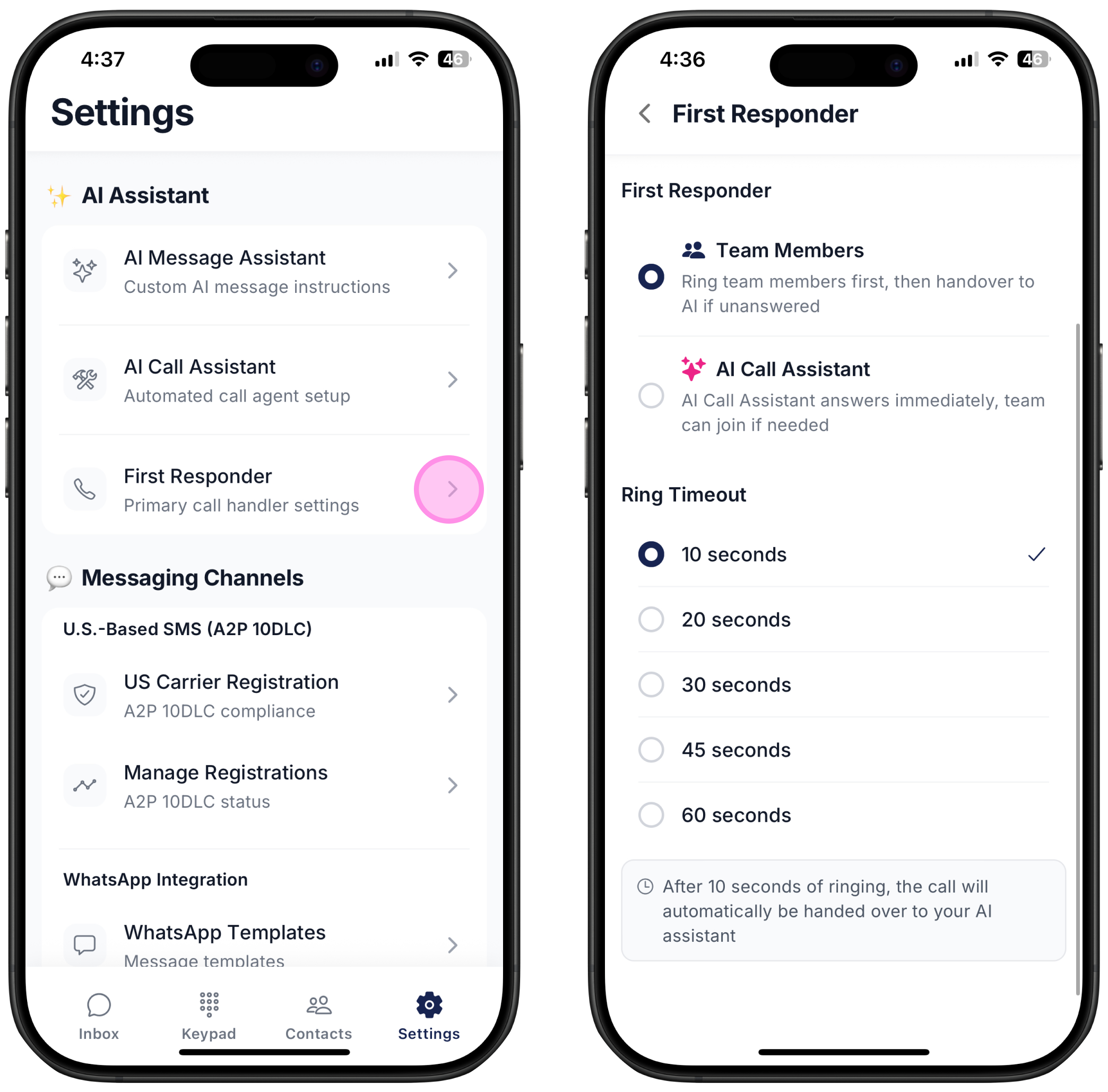
When a call comes in, you can choose whether it rings your team first or goes directly to your AI Call assistant. You can also set a timeout so the call is handed to AI if no one answers in time.
If you select:
Team Members - The call rings your team first. If no one answers or the timeout ends, it is handed over to the AI assistant.
AI Assistant - The AI answers the call, any team member can still join the call at any time.
Ring Timeout - Choose how many seconds the call should ring before the AI takes over. You can set it between 10 and 60 seconds.
For information on AI Call Assistant, please check here.