Contact Handling
This guide will help you understand how to add and manage contacts in Ringo so you can easily keep track of who you’re speaking with. We’ve also included best practices to help you consistently deliver great service.
Last updated 9 months ago
Adding Contacts
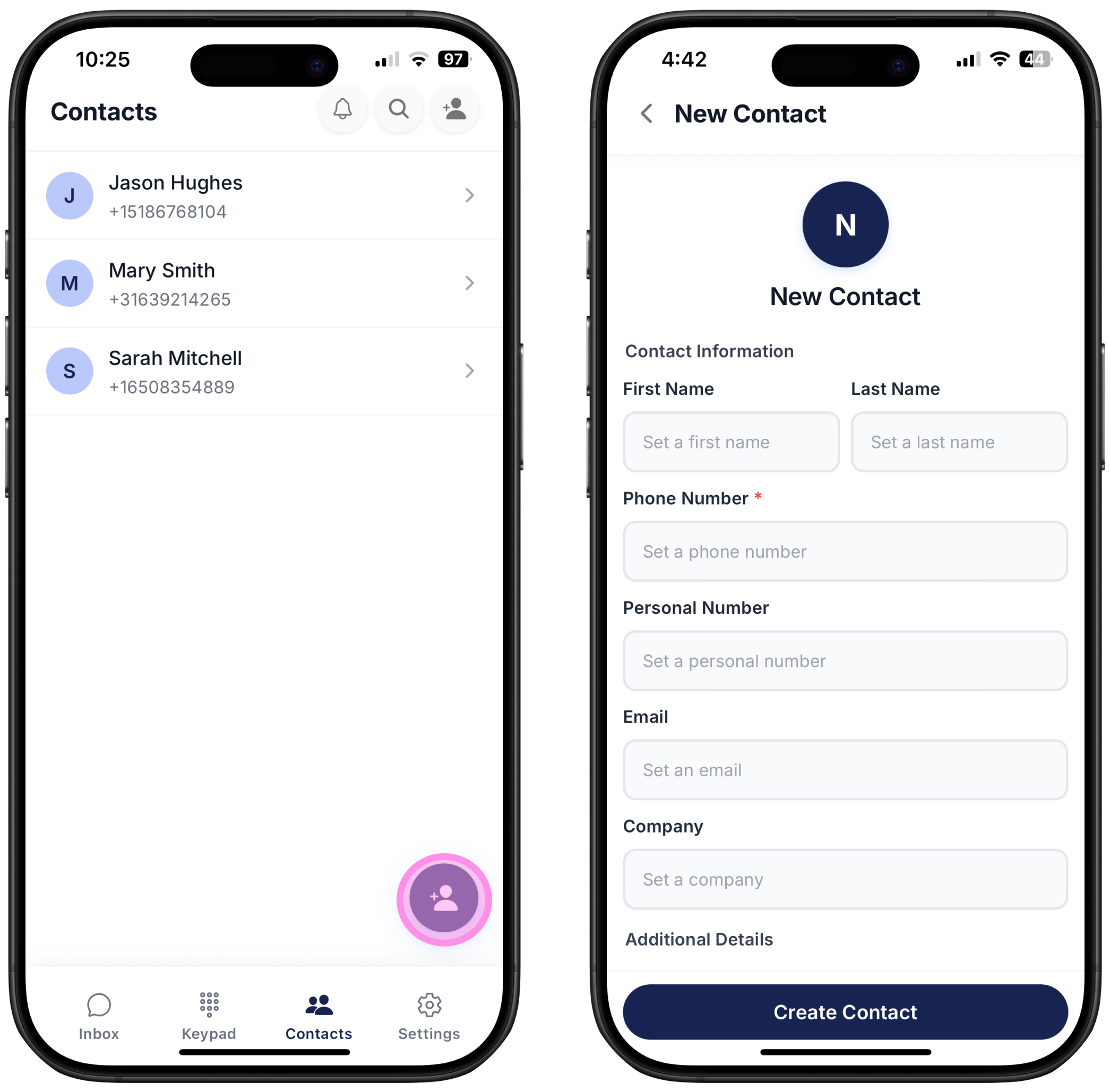
Go to the Contacts tab.
Click on the
( + )button.Fill in the contact information (add as much as possible!).
Click
Create Contact.
Best Practices When Creating a Contact
Notes – Add any observations or details about the customer to track preferences, past issues, or context.
Tags – Categorize your contacts using tags (city, role, lead stage, etc.).
Click the ( + ) button to create new tags.
After adding a tag to a contact, you can filter by that tag:
Go to your Inbox.
Click
SearchSelect Filter by Tags.
Choose the tag you want to filter.
Any information you add to a contact is shared with everyone. Each team member can maintain their own notes and tags.
Editing Contacts
There are two ways to edit contact information:
1. Via the Contacts Tab
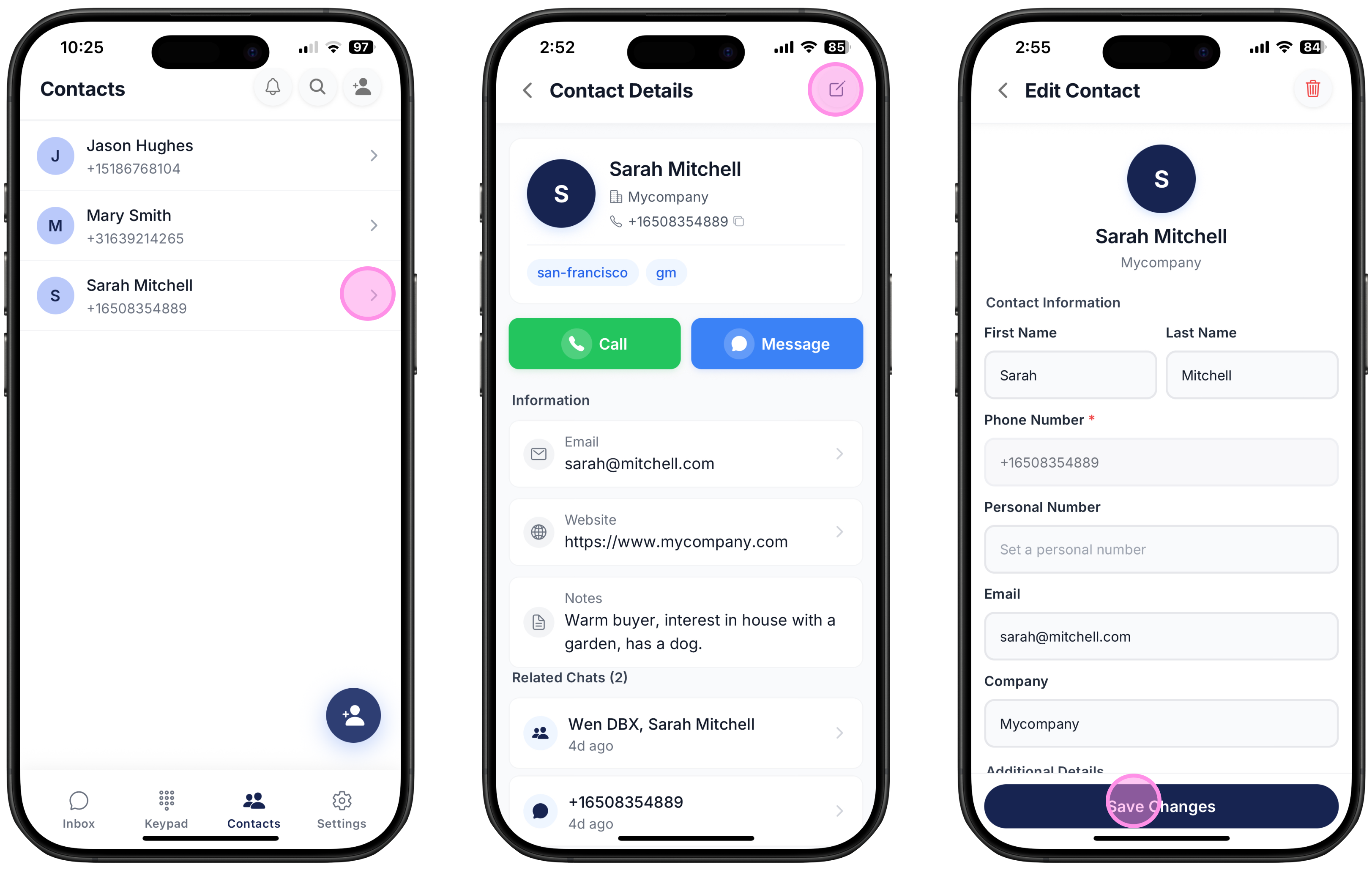
Search for and click on the contact you want to edit.
Scroll down and click Edit Contact on their Contact Details page.
2. Via Your Inbox
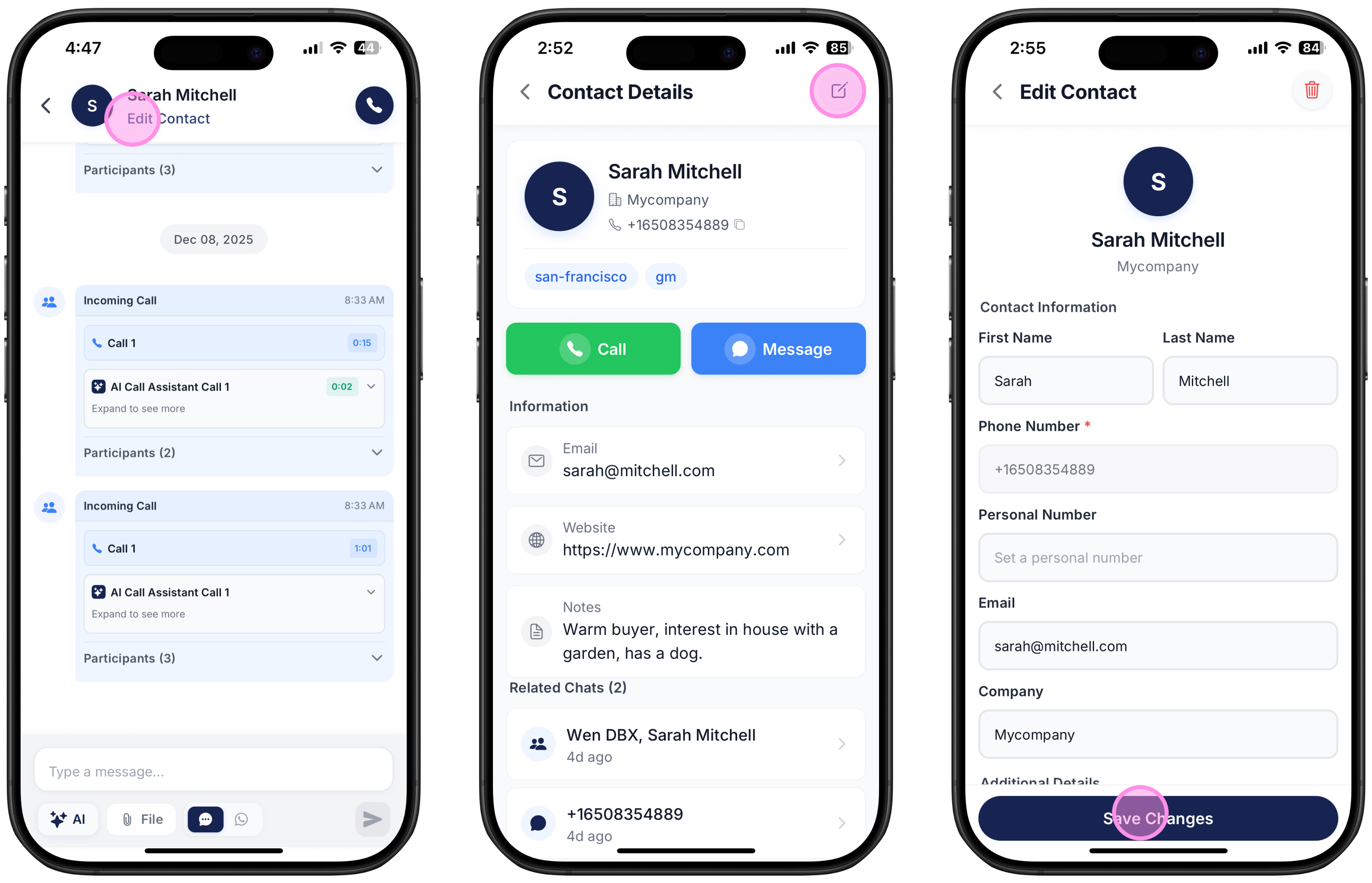
Search for the contact you’re chatting with.
At the top of the screen, under their name, click Edit Contact.
Then either:
Click the Edit icon (top-right corner) on the Contact Details screen, or
Scroll down and select Edit Contact.
Deleting Contacts
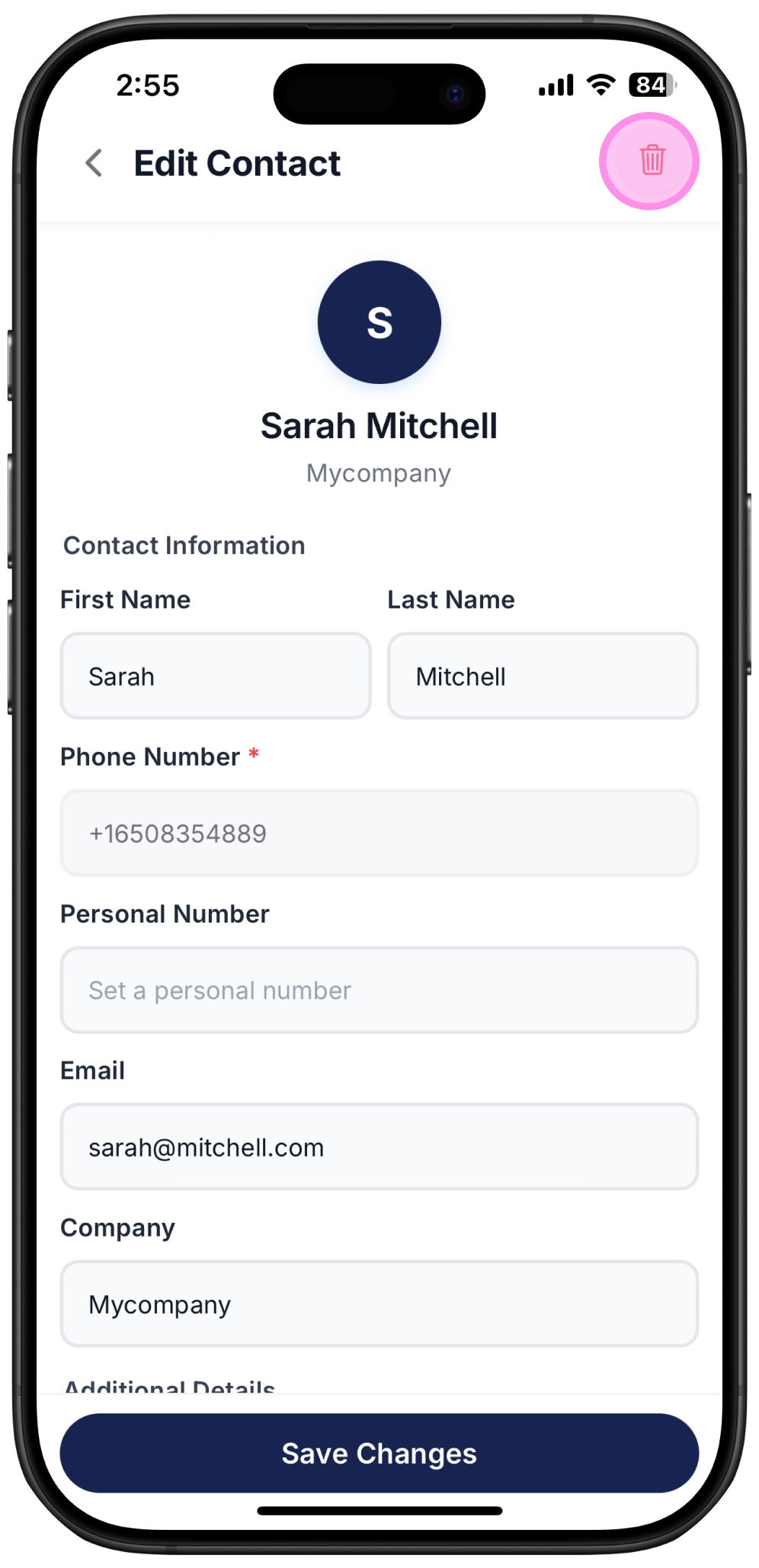
To delete a contact:
Click on the contact you want to delete.
Click Edit Contact.
Click the Trash icon in the top-right corner.