AI Call Assistant
Ringo offers powerful AI tools that help you stay consistently present for your customers while enabling you and your team to work more efficiently. In this guide, we’ll walk you through all of our AI features and show you how to set them up.
Last updated 9 months ago
Sometimes you or your team are not able to answer every call. The AI Call Assistant makes sure your business can always be available to speak with customers, even when you can’t. It can respond to common questions, schedule appointments, check order status, answer FAQs and much more.
Examples on when the AI Call Assistant can help you
When everyone is busy: Handles missed calls automatically
When you are understaffed: Provide specific department assistance
After business hours step: Offer after-hours support and message taking
Helping you with repetitive tasks: Assistance in FAQs or booking hours
Adding AI to the call
When a call comes in you can choose to handle it in different ways:
Option 1 - Let the AI Call Assistant answer the call for you
Allow Ringo’s AI Call Assistant to take over calls entirely, without any human intervention. The AI will handle customer requests on your behalf, and you can later review everything that was discussed to take any necessary action.
Check ongoing AI call
If you want to make sure the AI is handling the call correctly, you can check whether the call is active and review its live transcript.
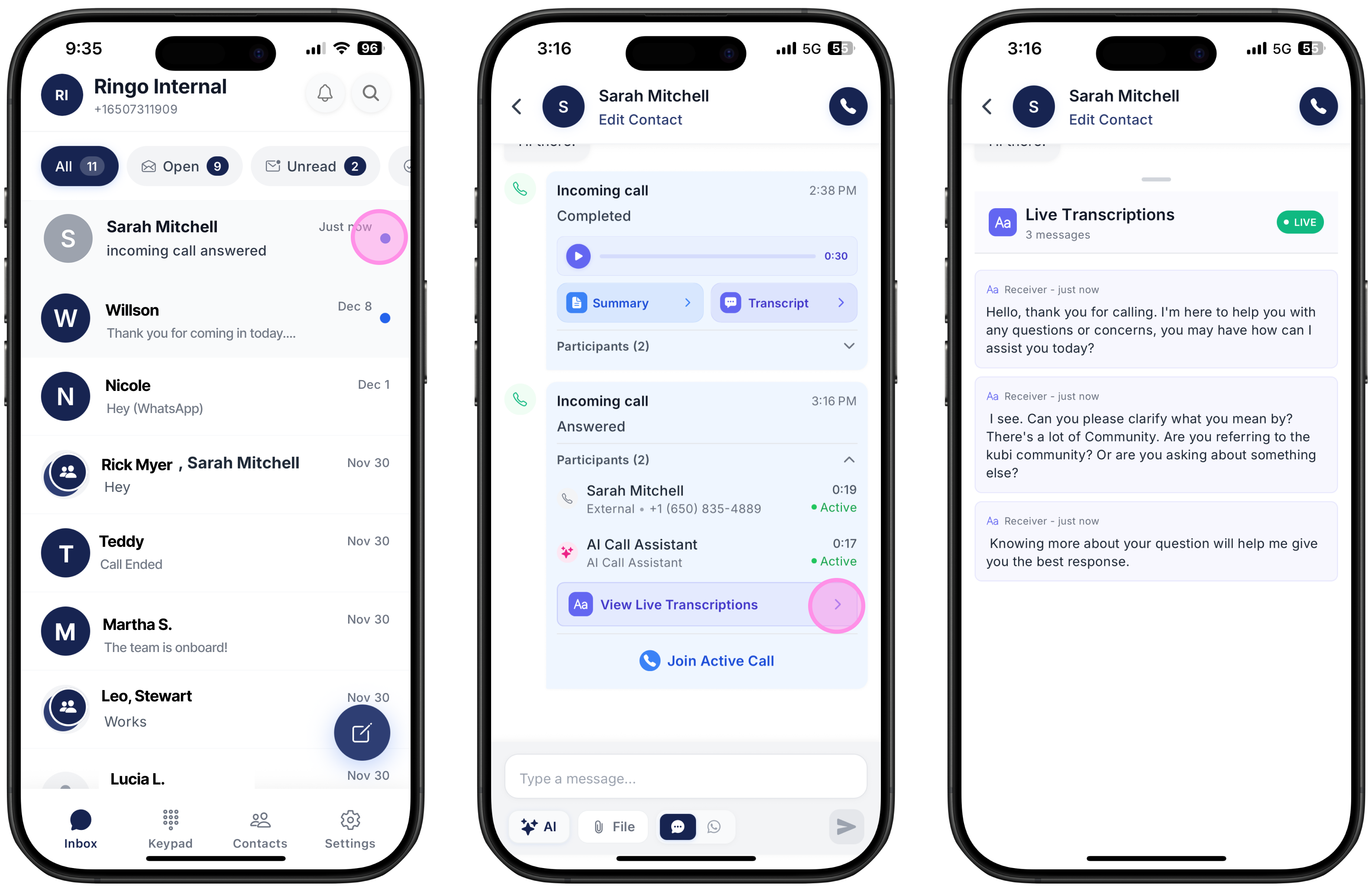
To have the AI Call Assistant answer calls immediately, make sure it is set as the first responder in your Settings.
When a call comes in, you will still receive a notification, but the AI will automatically answer it for you.
You will see the call marked as “Answered”, and you can view the live call transcript directly in the chat with the customer.
If needed, you can also join the call at any time.
How to Join the Call
If you want to join a call the AI is handling, you can easily do so at any time.
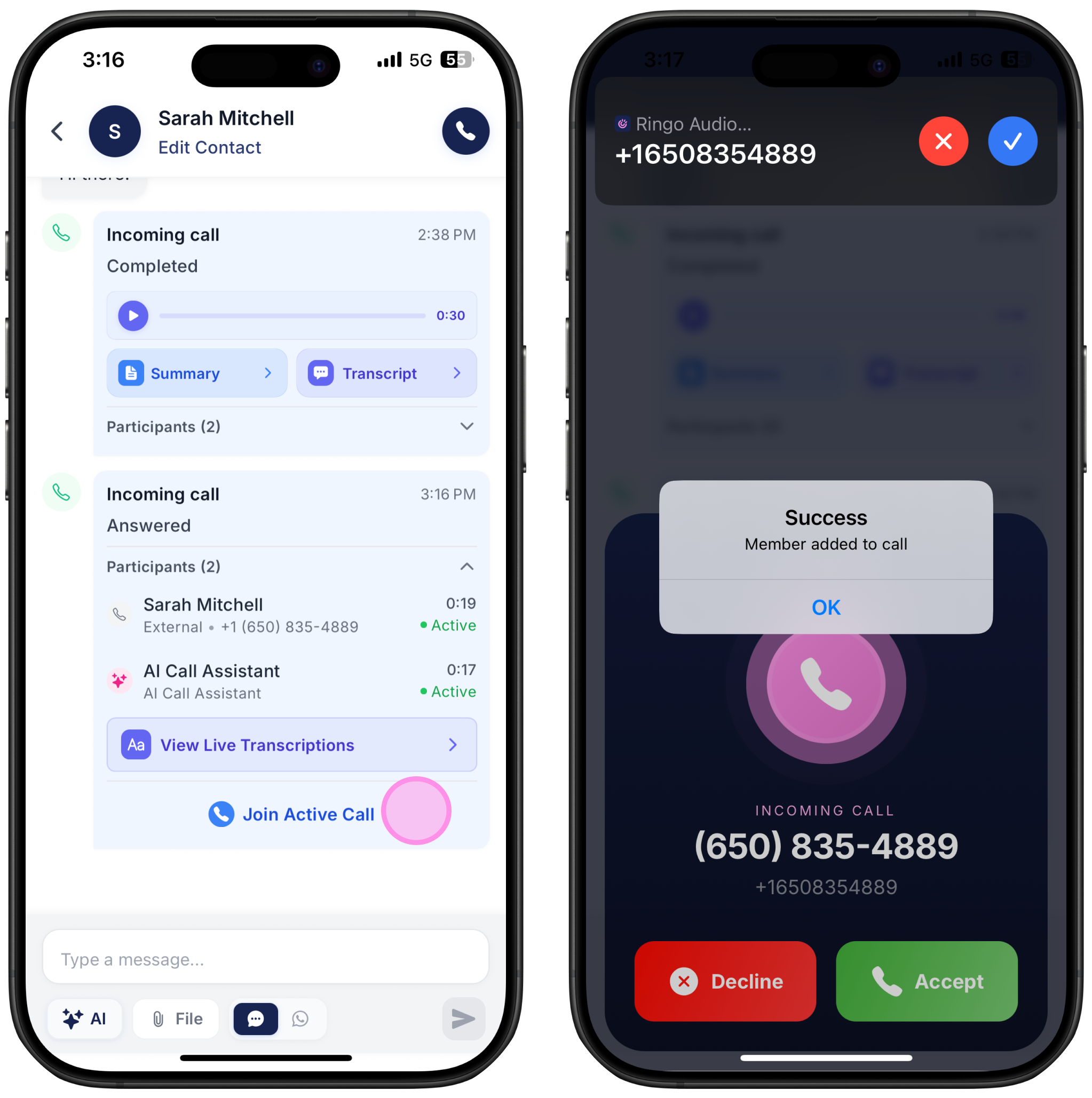
Click Join Active Call.
You will be added as a participant and can step in right away.
Option 2 - Add the AI to an ongoing call
If you’re on a call and something comes up, or you feel the AI can handle part of the conversation better, you can easily add the AI to the call at any time. Once the AI joins, you can leave the call if you’d like.
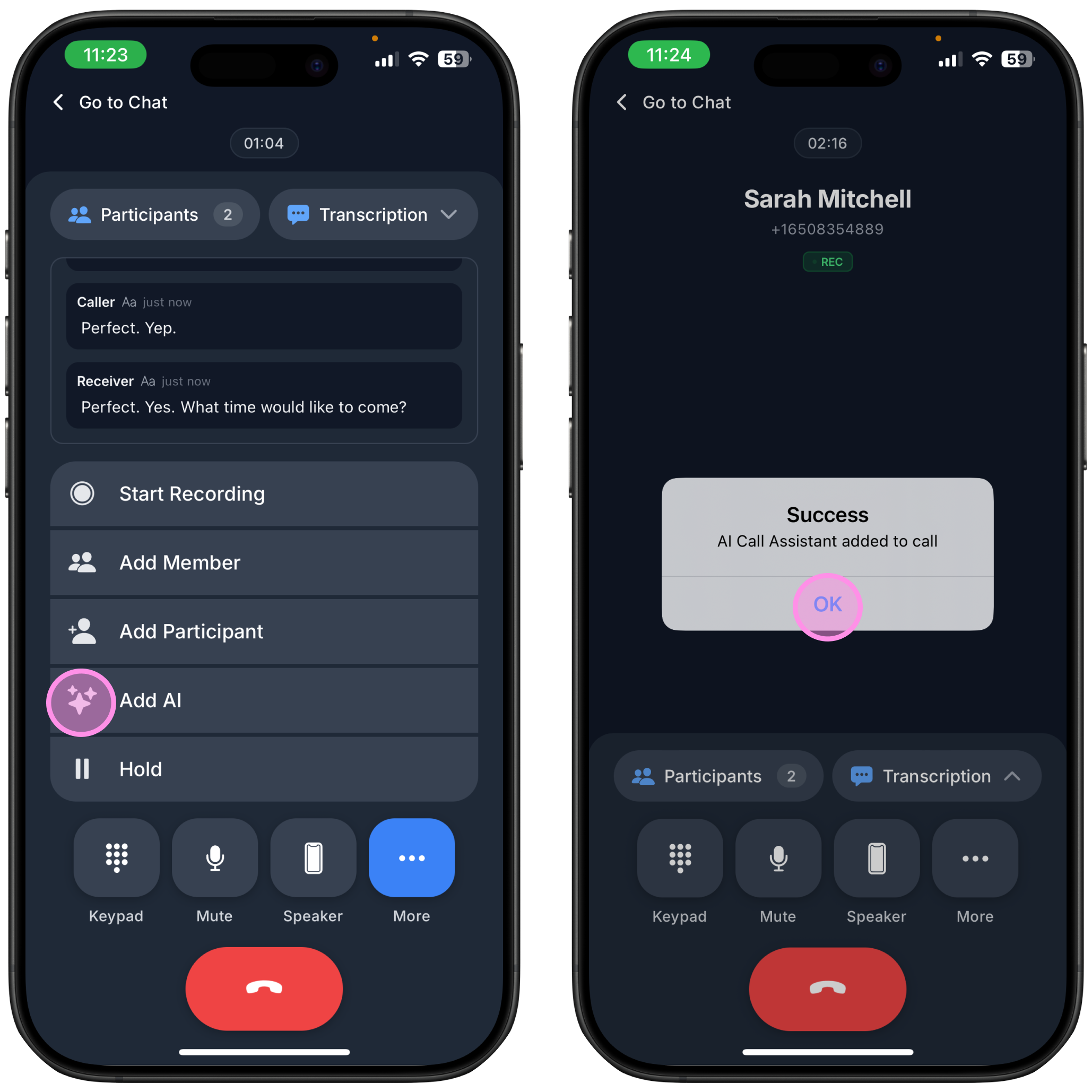
Pick up the call
Tap “More”
Select “Add AI” to let it join the call
Review AI Call
Each time the AI Call Assistant finishes handling a call, you receive a complete record of what happened automatically. This includes the call recording, transcript and an AI summary with the next steps. This helps you understand exactly what was discussed and what actions you may need to take.
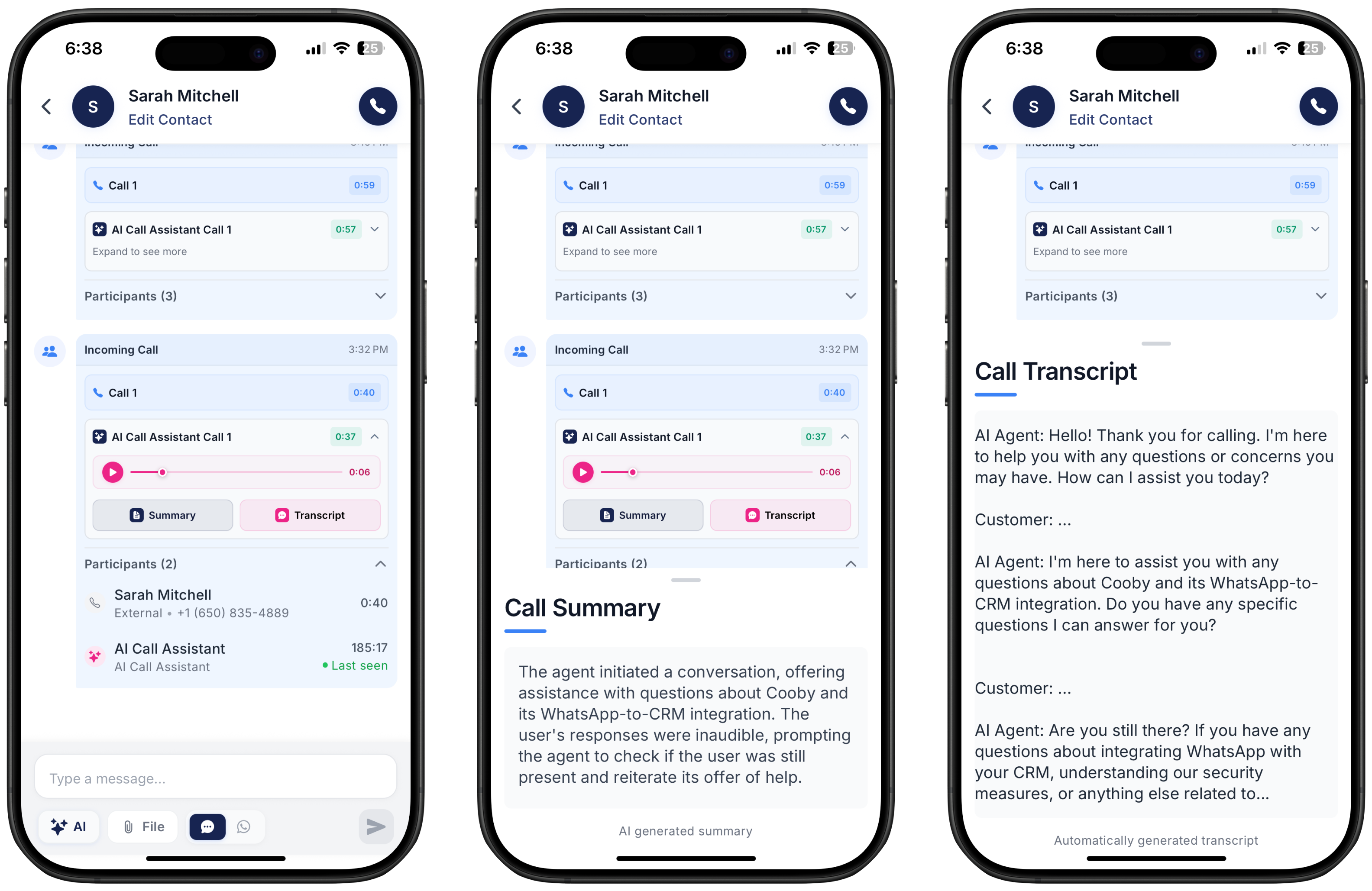
To review the details:
Open the chat with your customer
Replay the call recording
Read the AI call summary
Check the call transcript
See who was on the call
AI Call Assistant Setup
This is where you shape your assistant so it can respond to calls exactly the way you want. To access the assistant go to Ringo’s Settings and scroll down until you find “AI Call Assistant”.
Step 1: Assistant Type
Choose the role your AI should take when handling calls.
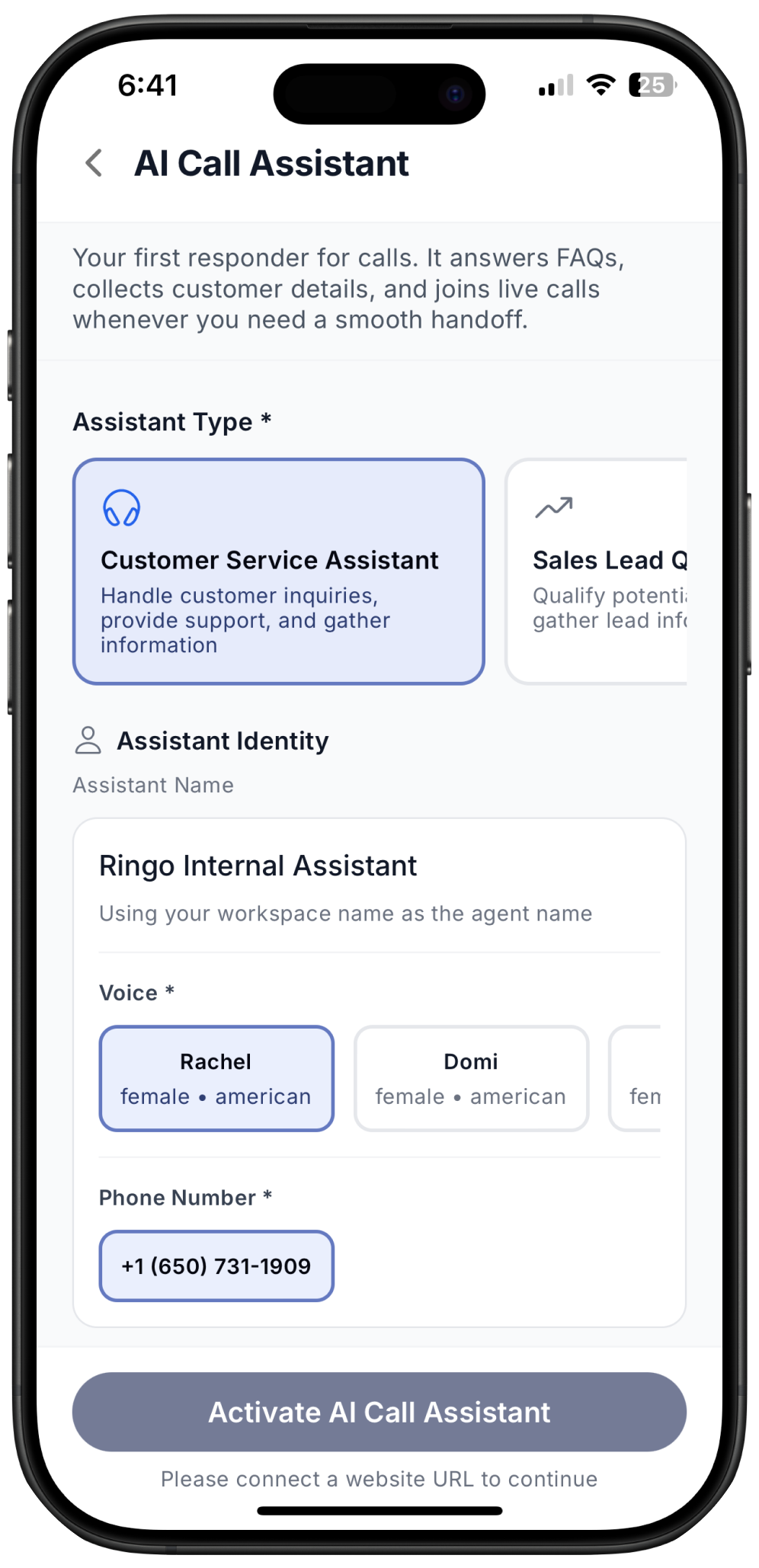
Customer Service Assistant - Ideal for general questions. If the assistant can’t answer something, it will transfer the call or pass details to your team.
Sales Lead Qualifier - Designed to identify buying intent. It asks questions about needs, budget and timeline, then collects contact information for follow ups.
Appointment Scheduler - Useful for businesses that rely on appointments. The assistant collects availability and contact information and checks with you before confirming.
Technical Support - Helps callers with technical issues using step by step guidance.
Order and Shipping Assistant - Perfect for delivery related questions. It asks for order numbers and shares expected delivery information.
Custom Agent - Create a fully personalized agent from scratch.
It’s important to highlight that all agent types are only starting points, you can edit and customize everything!
Pro Tip: Start with the agent type closest to your needs, then tailor the instructions to behave exactly like your team would.
Step 2: Assistant Identity
Choose the voice that best represents your business.
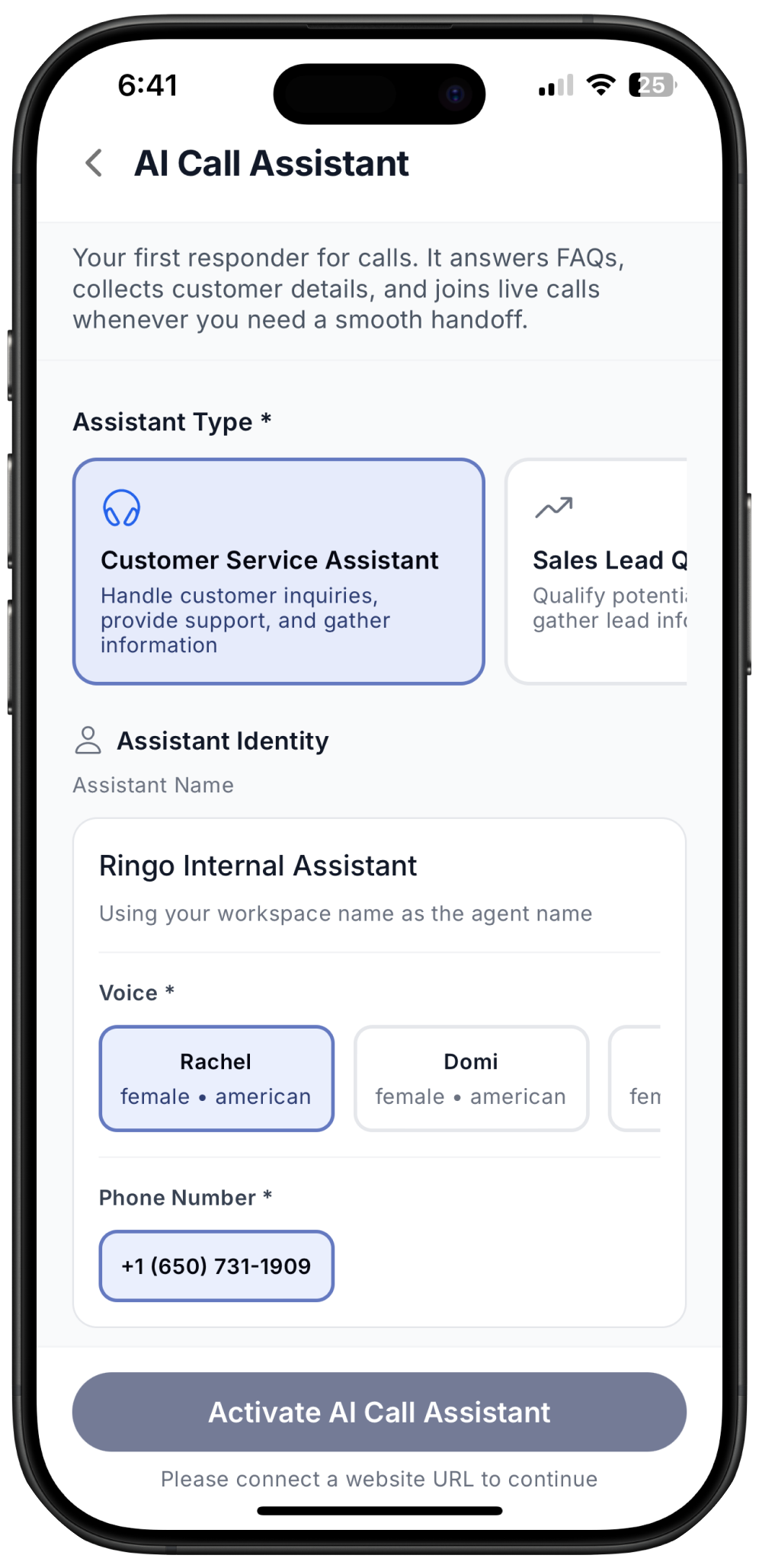
Pro Tip: Pick a voice that matches your brand personality. A calm voice works well for support teams, while a warmer one fits sales or hospitality. Make sure to call your own agent to test the best voice for your business.
Step 3: Knowledge Base
This is the information the agent will rely on. The more you include, the better it will perform.
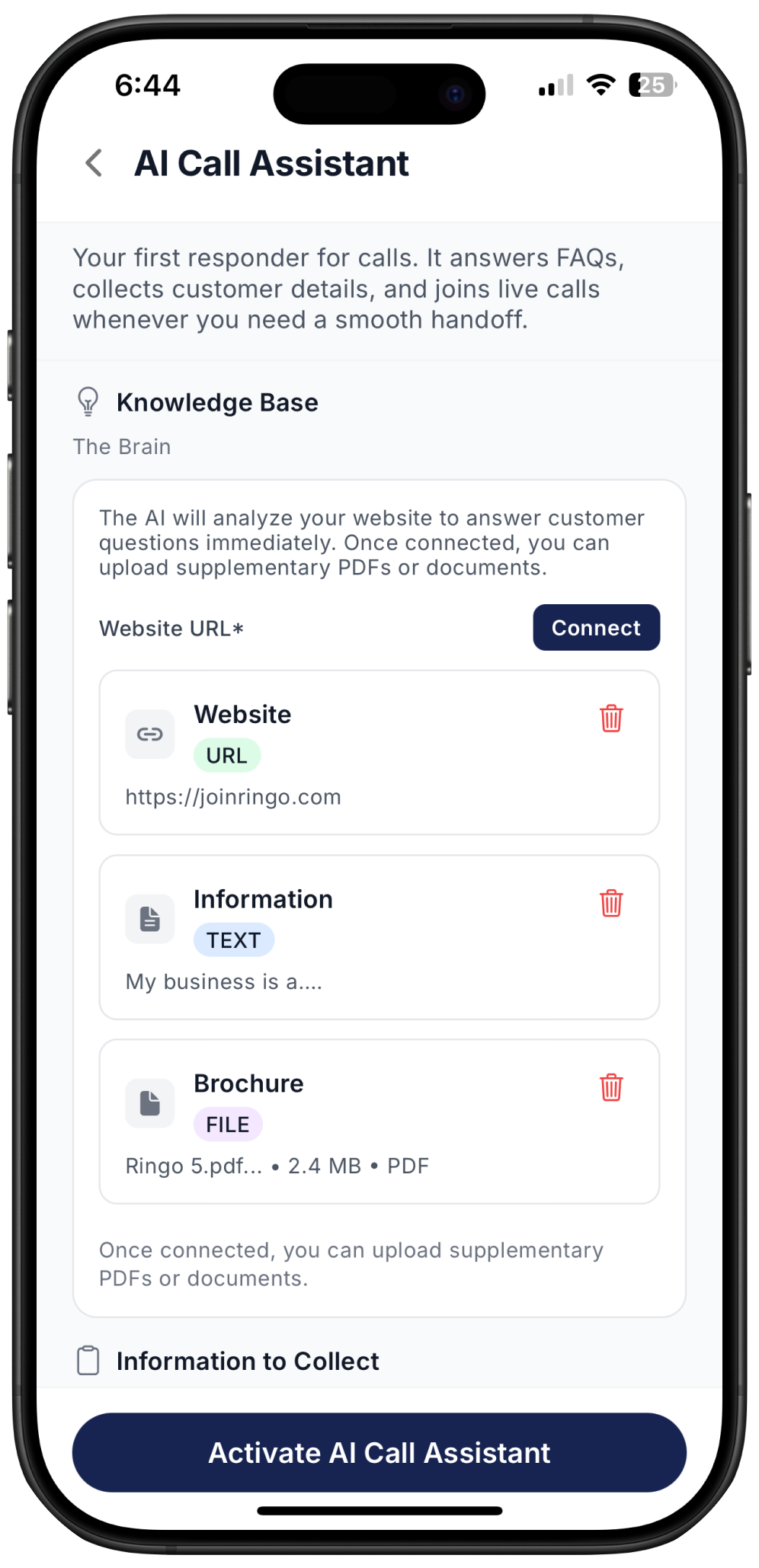
Company website
Helps the assistant learn about your business.
Text
Add key details like services, customer types and working hours.
Files
Upload documents such as brochures or price lists.
You can add as many documents as possible, just click on “Connect” to add more.
Pro Tip: Update your knowledge base whenever your pricing, services or policies change so the assistant always gives accurate information.
Step 4: Information to collect
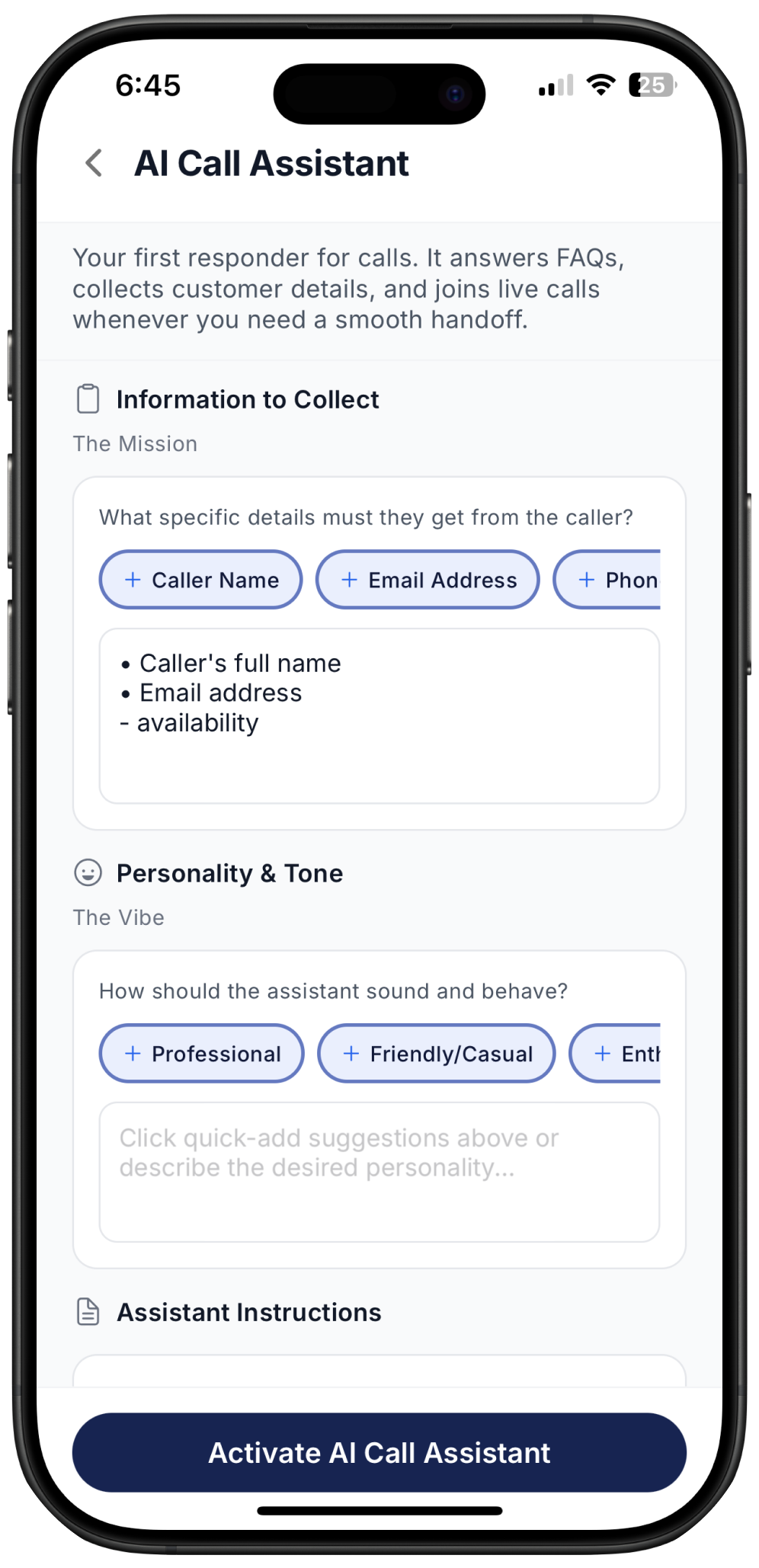
It’s important to give the AI Call Assistant a clear goal for each call, which can vary depending on your needs. This could be anything from collecting a name or email address to checking the caller’s availability or asking about their home preferences of you’re in real estate.
You can choose from the available goal options or write your own. Add as many goals as you’d like, just keep in mind that adding too many may make the conversation feel like an interview.
Step 5: Personality
Define how the assistant should speak with customers. Examples include friendly, formal, energetic or calm, but you can also write down your own preference.
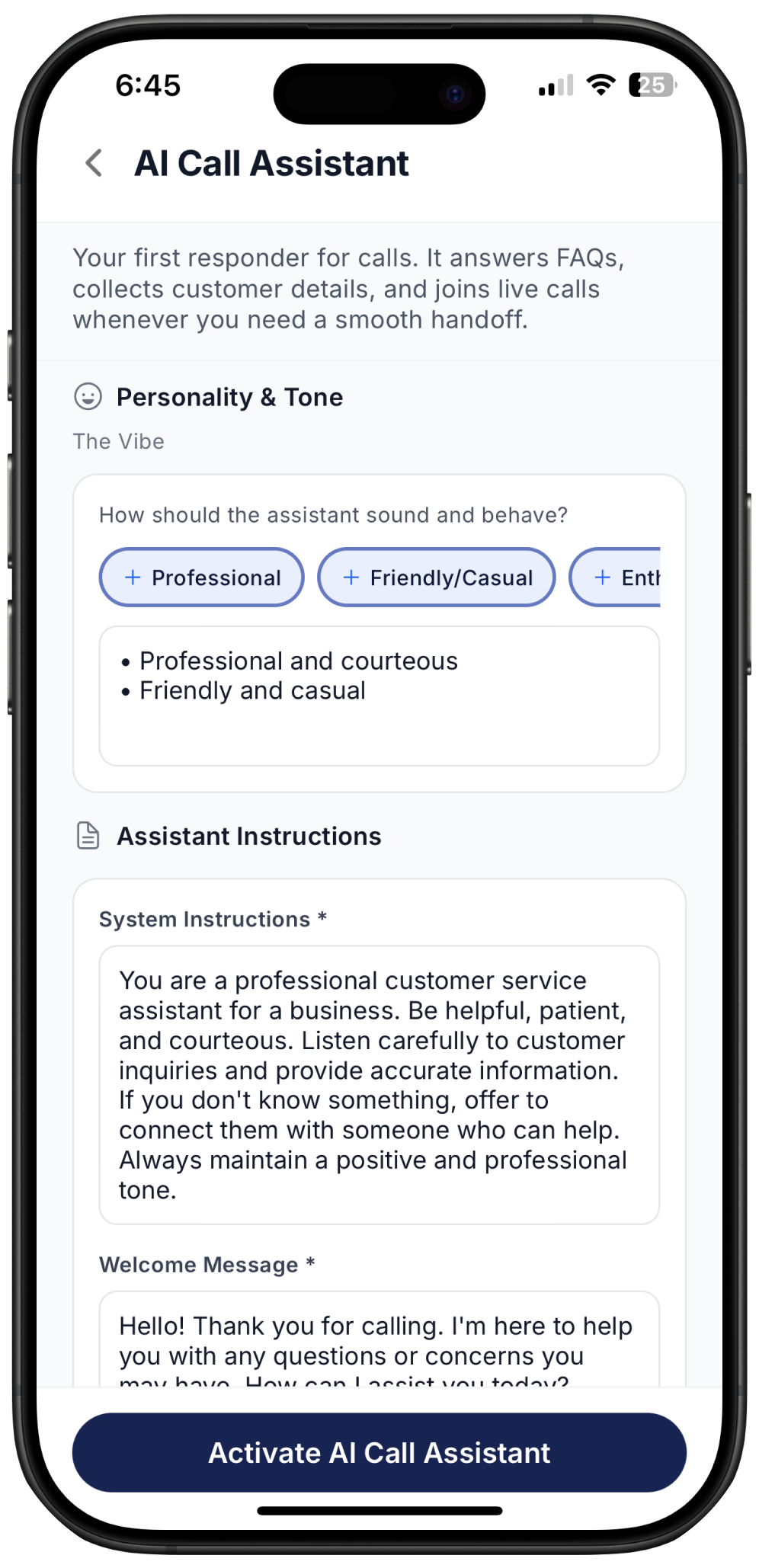
Pro Tip: Choose a tone that matches the way your team normally speaks so customers get a consistent experience.
Step 6: Assistant Instructions
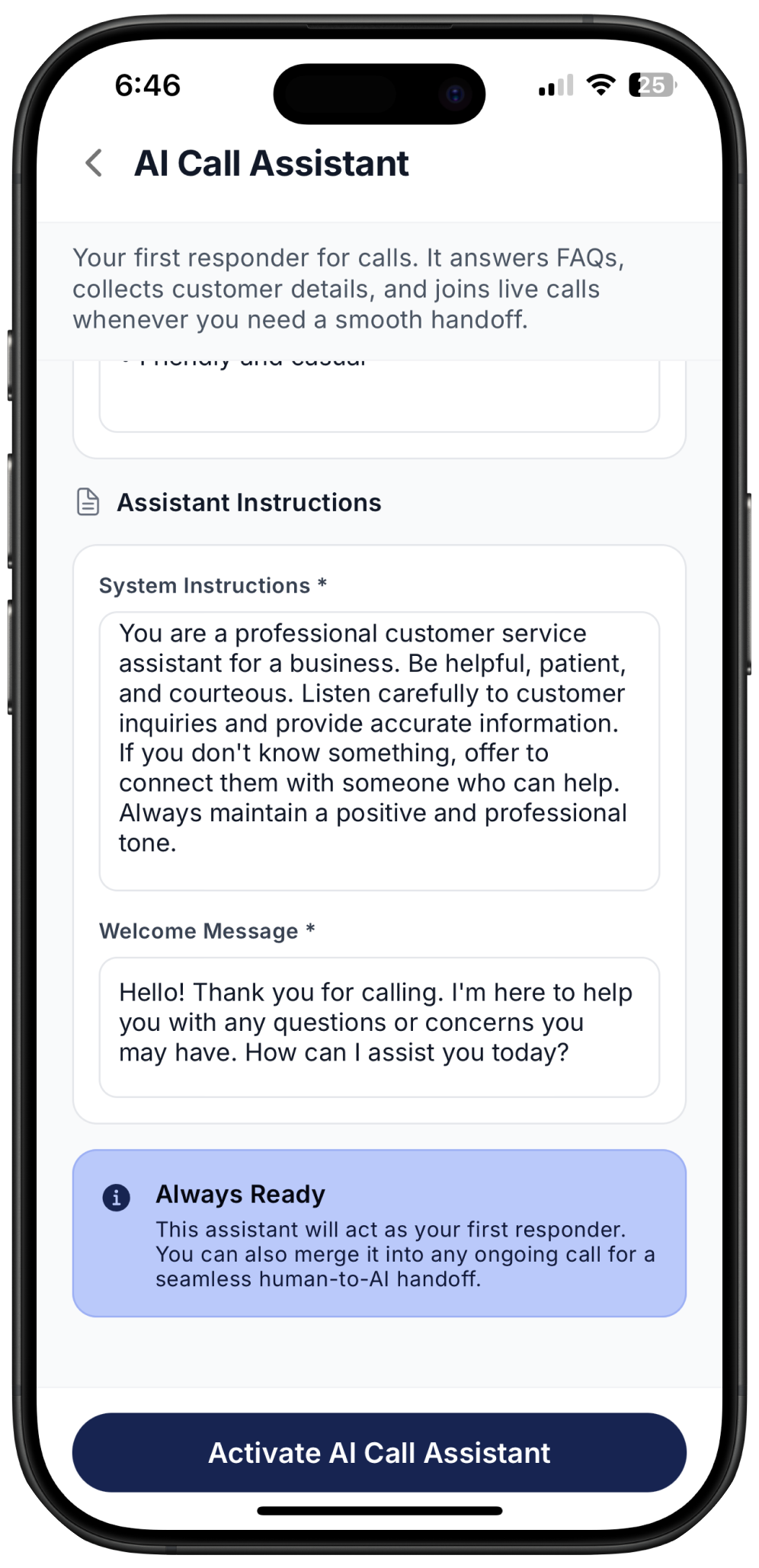
System Instruction
Describe how your assistant should behave. These instructions are prefilled based on the agent type you chose on Step 1, and you can edit or expand them as needed.
Pro Tip: Add three or four example scenarios to help the assistant understand how you want it to respond.
Welcome Message
This is the first message callers will hear from the AI Call Assistant.
Key components:
Business identification: State your business name clearly
AI transparency: Specify that you are using an AI assistant or virtual assistant
Recording notice: Inform callers that the call may be recorded for compliance
Tone: Use a friendly, professional style
Example: Hi there, this X business’ AI Call Assistant. I’m here to answer your questions or take a message. Please note that this call is being recorded. How can I assist you today?
And activate your AI Call Assistant!
Once your AI Call Assistant is setup, make sure to test it with your team and make small adjustments along the way to ensure your AI performs exactly as you expect and delivers a consistent customer experience.