Manage Subscription
In this guide we'll walk you through how Ringo's free trial works, the different subsription options and also how to manage it from your Settings.
Last updated 7 months ago
7-day free trial
Ringo offers a 7-day free trial so you can fully explore the app before committing to a subscription.
What’s included in the free trial?
Register with 10DLC and start communicating with your customers
Register with Meta to begin using WhatsApp
Text and call customers once registration is complete
Access to all AI-powered tools
What’s not included?
Team collaboration tools — these require a multi-seat subscription. Meaning you can't tag team members on customer inquiries, or share calls.
Subscription
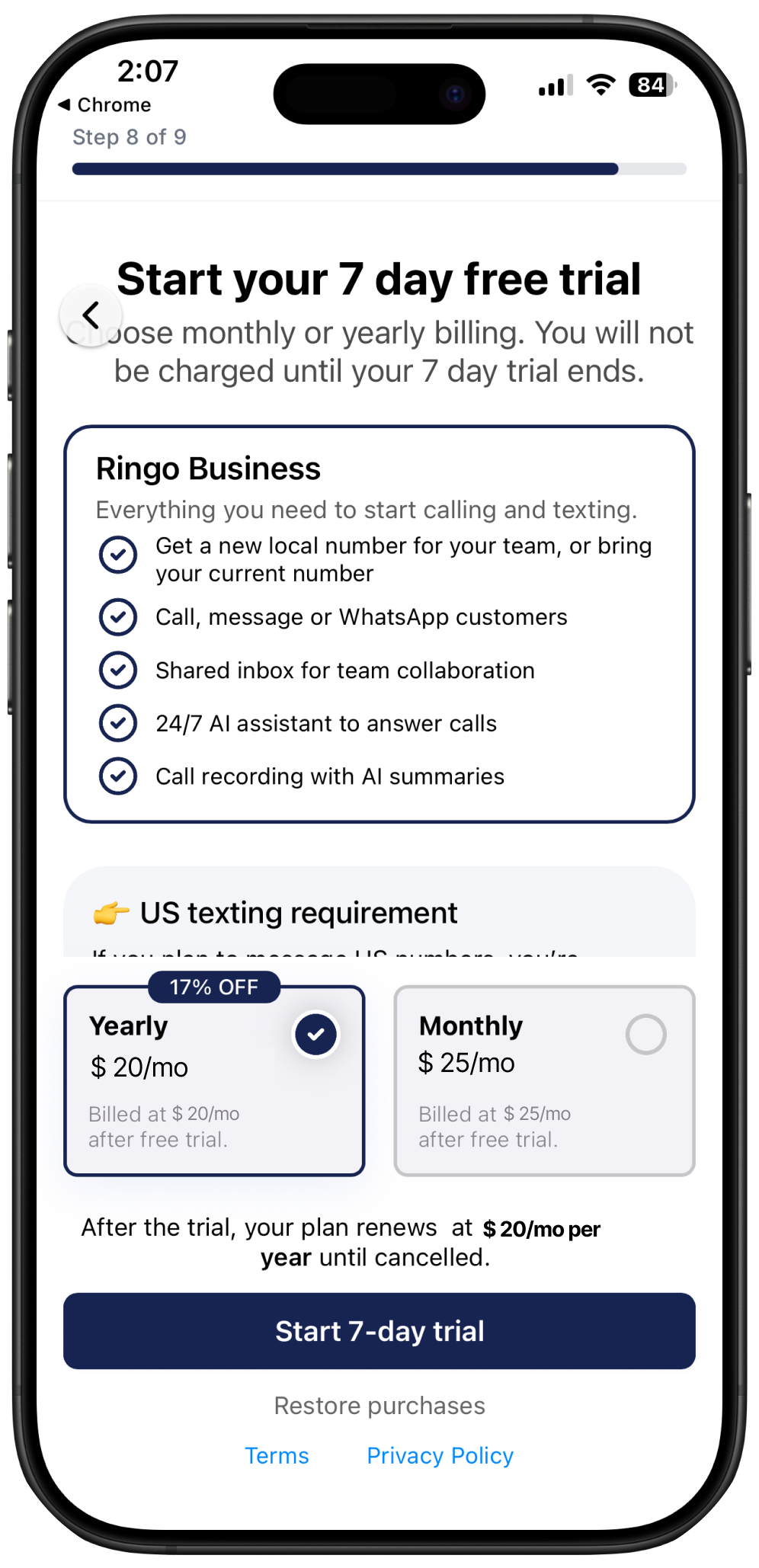
Ringo offers one subscription plan, available on either a monthly ($25/mo per user) or annual ($20/mo per user) billing option. Both subscriptions include the exact same features, the only thing that changes is whether you want a monthly or annual subscription, the later one includes a 17% discount.
Please note: In addition to your subscription fee, a one-time A2P 10DLC registration fee is required. This registration allows your business to legally send and receive application-to-person (A2P) text messages through U.S. carrier networks and helps ensure message delivery and compliance with carrier regulations. The carrier charge will be paid once you register with A2P 10CLD registration from the Ringo app, for more information check here.
Manage subscription
You can manage your subscription and billing at any time directly from your settings.
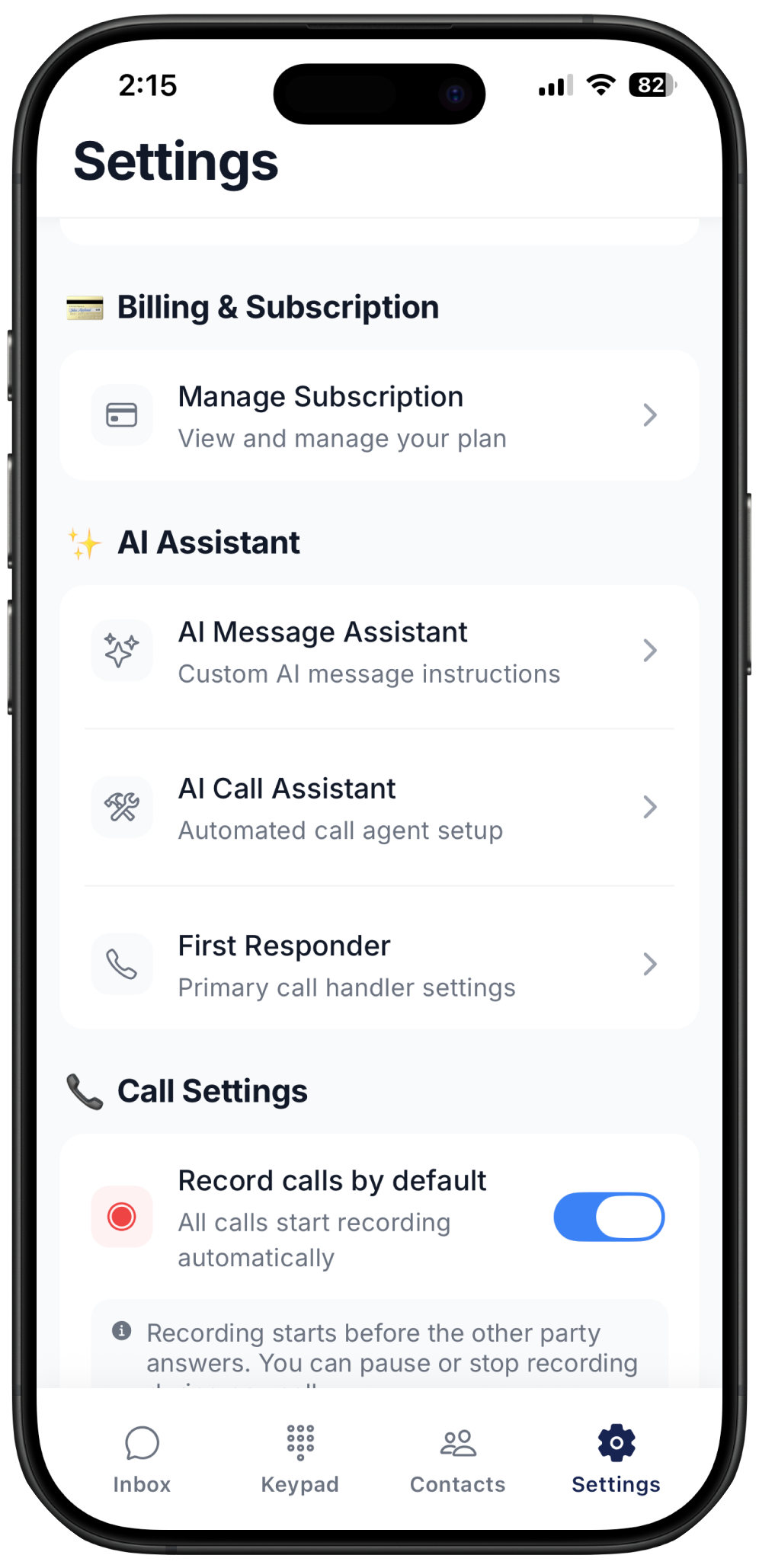
View your subscription
Open the Ringo app
Go to Settings
Select Billing & Subscription
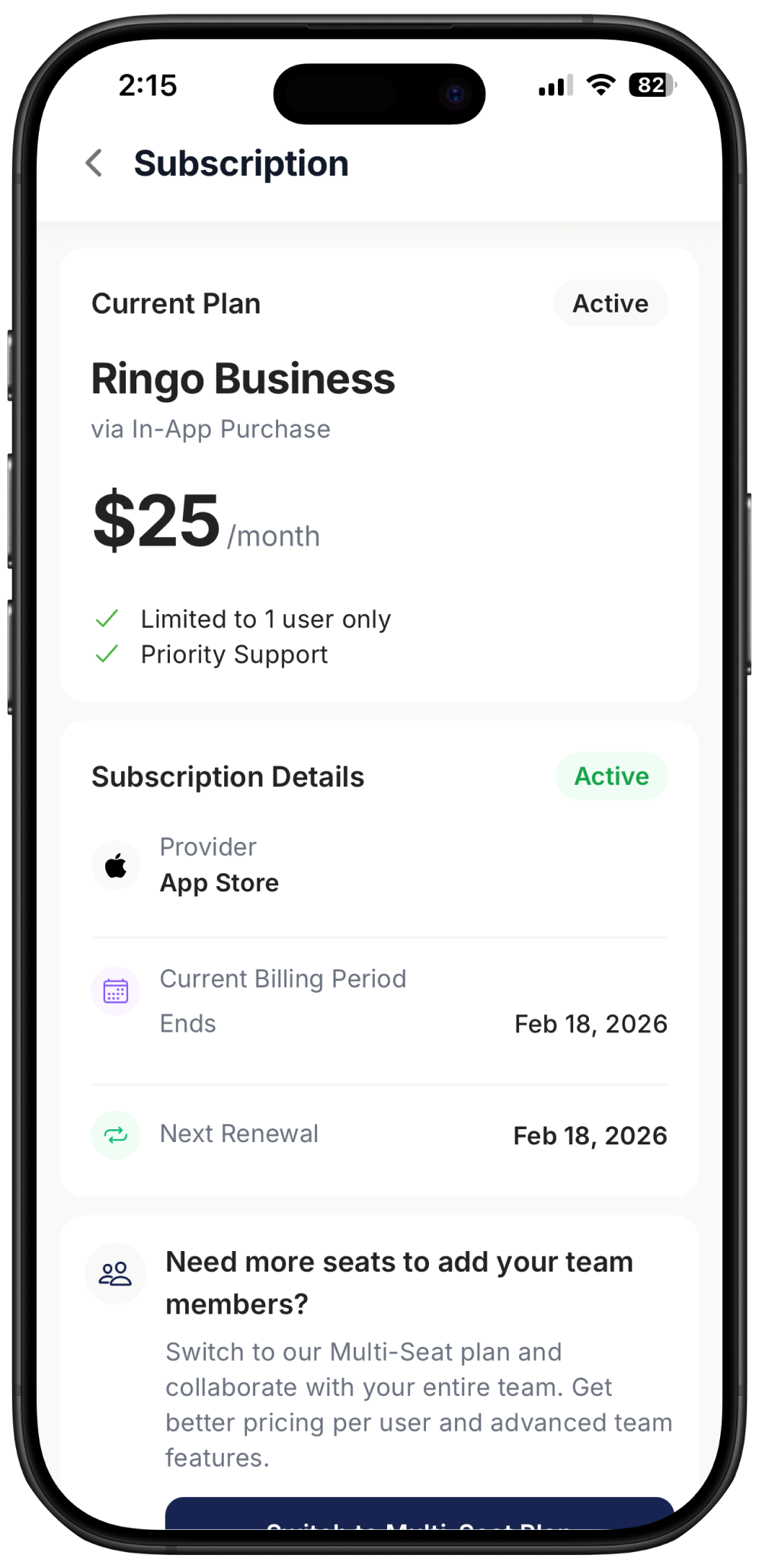
Here you can:
See your active subscription
Check when your current billing period ends
View your next renewal date
Switch to a Multi-Seat Plan
If you want to collaborate with your team, you’ll need to add seats before inviting members to your workspace.
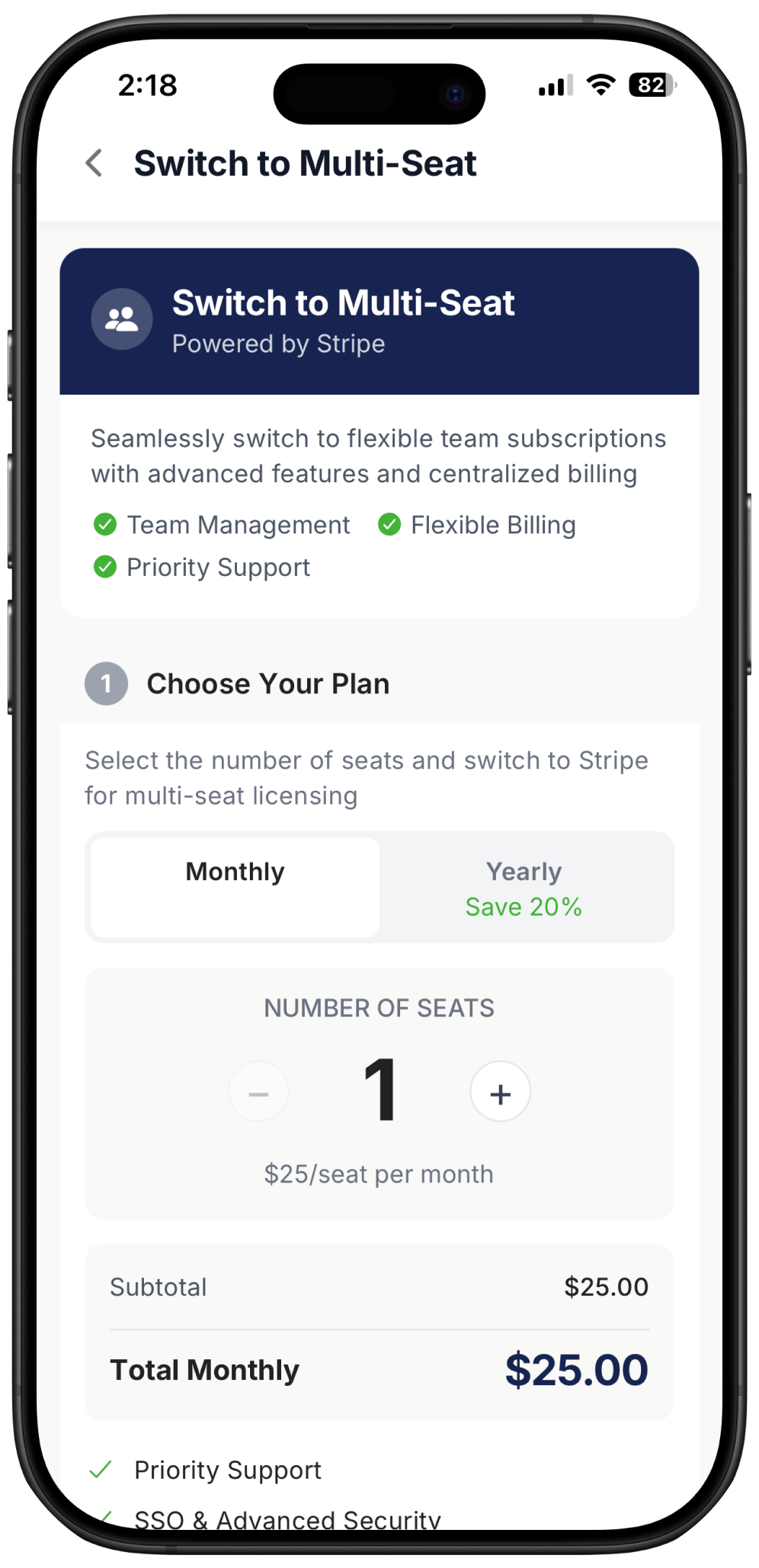
Go to Settings
Click Switch to Multi-Seat Plan
Choose the number of seats you need
Select whether you’d like monthly or annual billing
You’ll be redirected to Stripe to complete your purchase
Enter your payment details and confirm
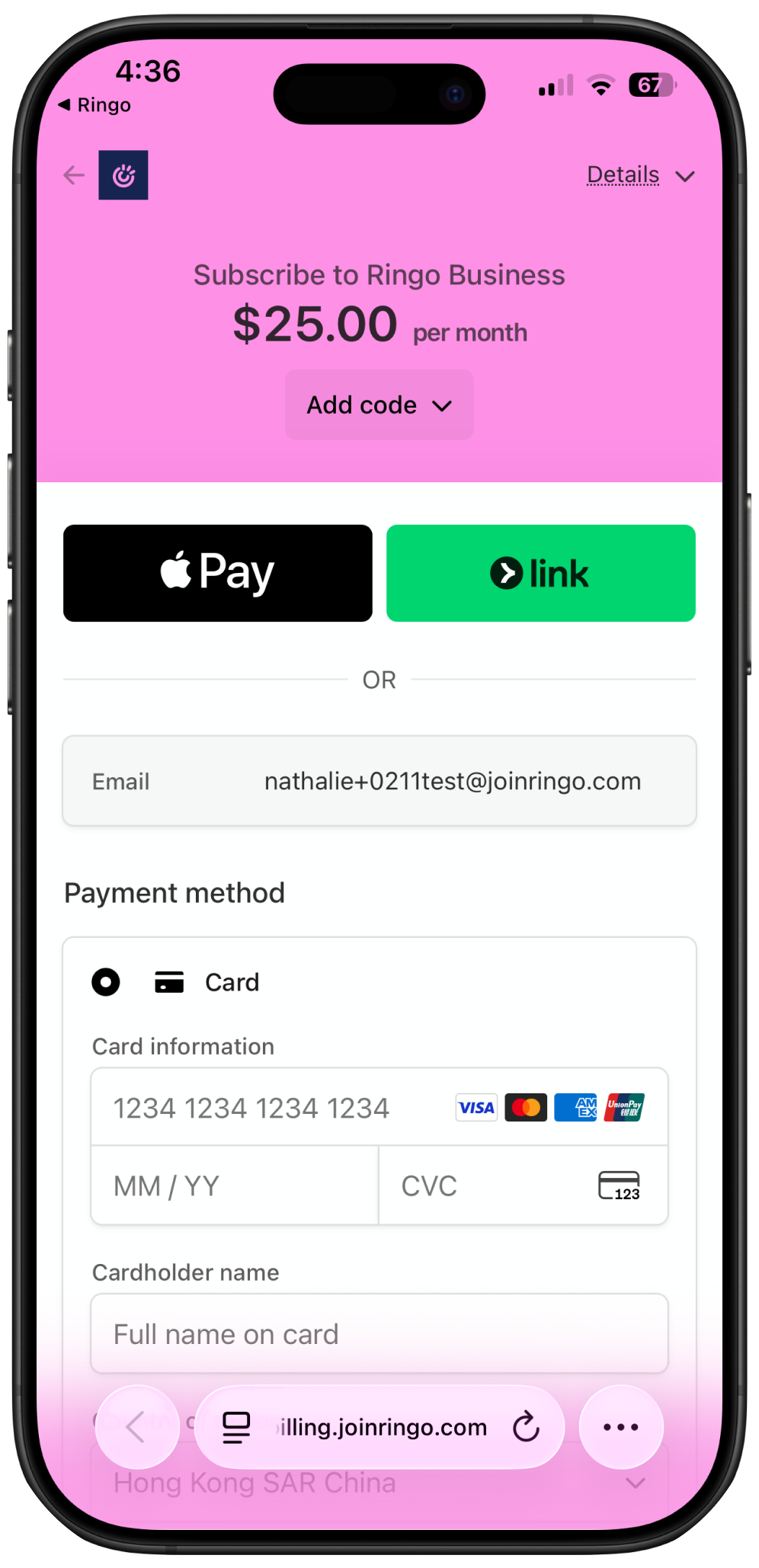
IMPORTANT: once you have switched to multi-seat plan, you need to cancel your IAP (in-app-purchase). Follow the steps below:
How to cancel your in-app-subscription once you switch to multi-seat plan?
On the Ringo app go to Settings
Tab Manage Subscriptions → Scroll down to Subscriptions
Click on "Cancel Subscription”
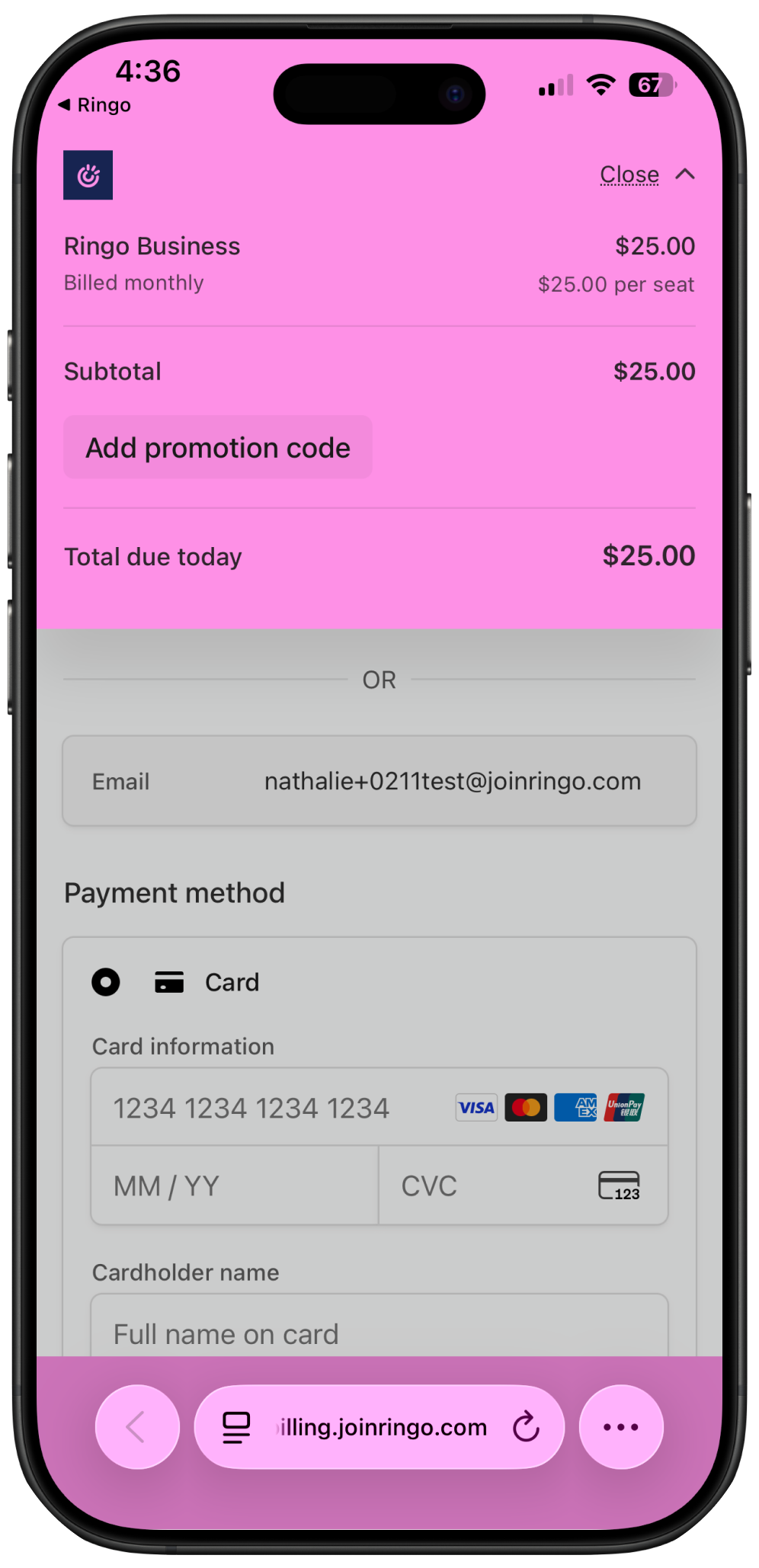
Have a promo code?
On the Stripe checkout page, click “Details” in the top-right corner and enter your promotion code there.
Change Your Billing Plan
To switch between monthly and annual billing:
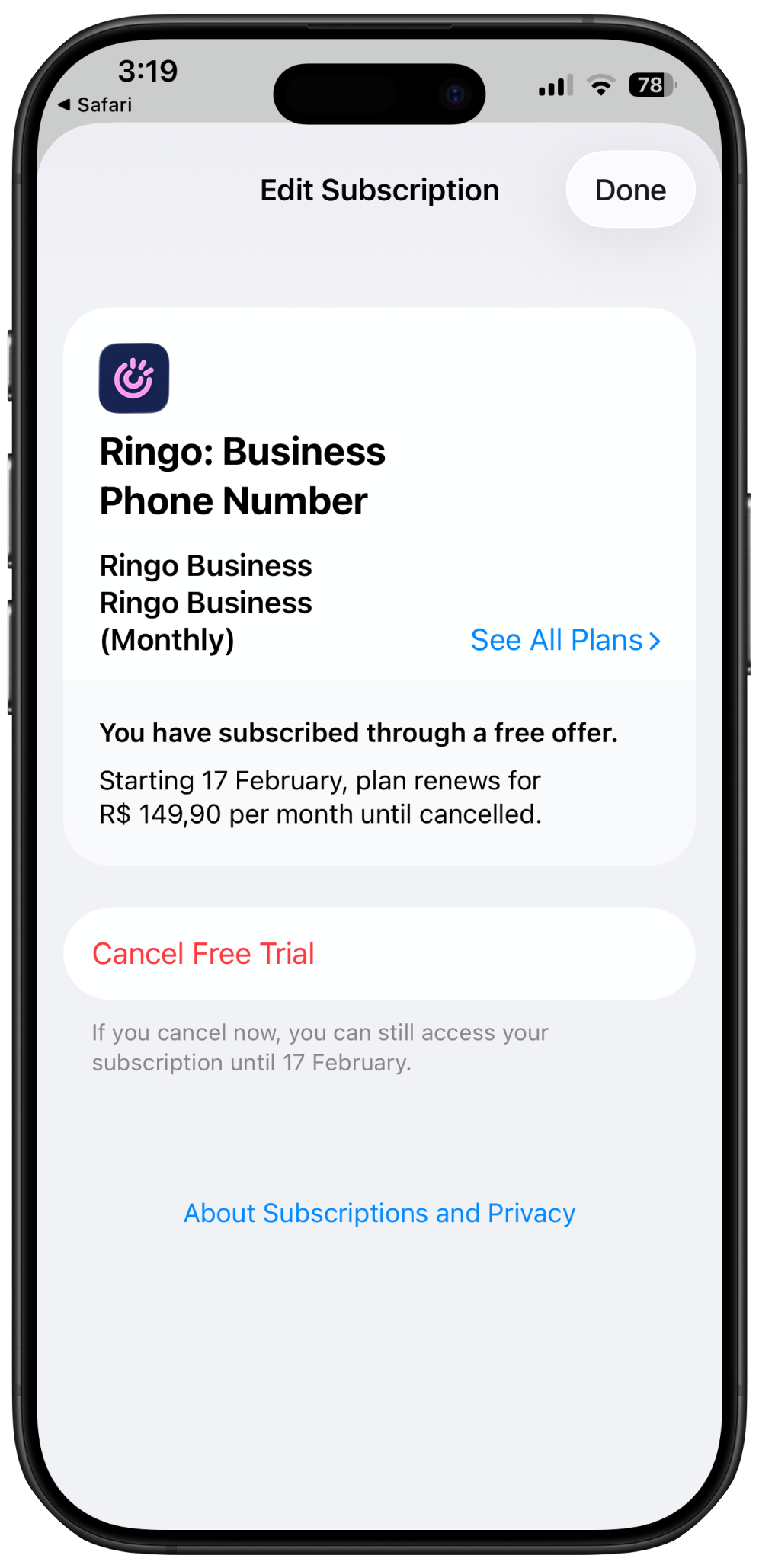
Settings → Manage Subscription → See All Plans
Then select the option that fits your needs.
Cancel Your Subscription
To cancel your Ringo subscription:
Settings → Manage Subscription → Cancel Subscription
Your plan will remain active until the end of your current billing period.